October 27, 2026Features
Walk the rack with your phone
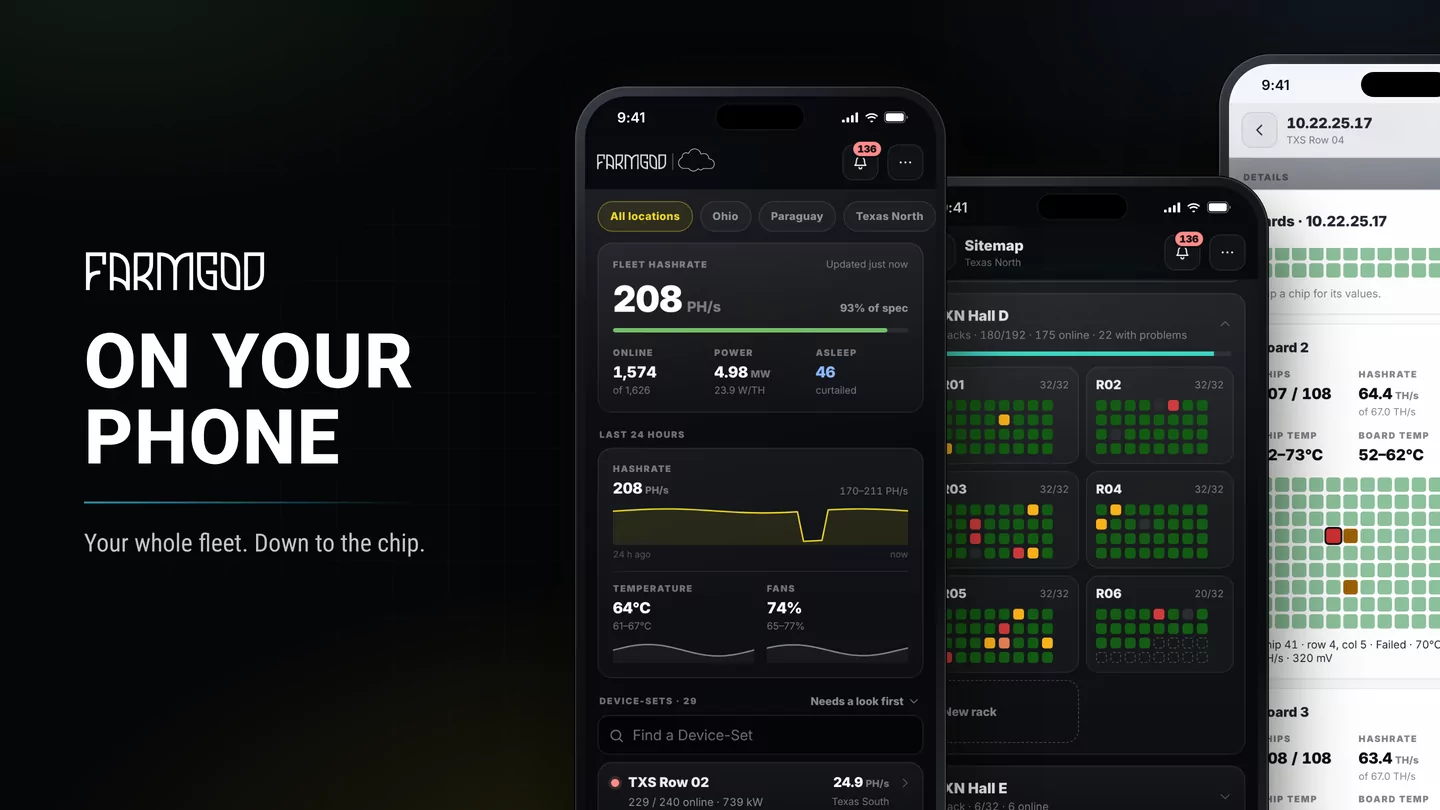
Your phone shows every rack and every slot, so you know where to go before you're in the aisle. Swipe from rack to rack, tap a slot for its miner, blink its LED, leave a note, and fill a gap on a shelf without typing an IP. A round on site with the Sitemap on your phone.
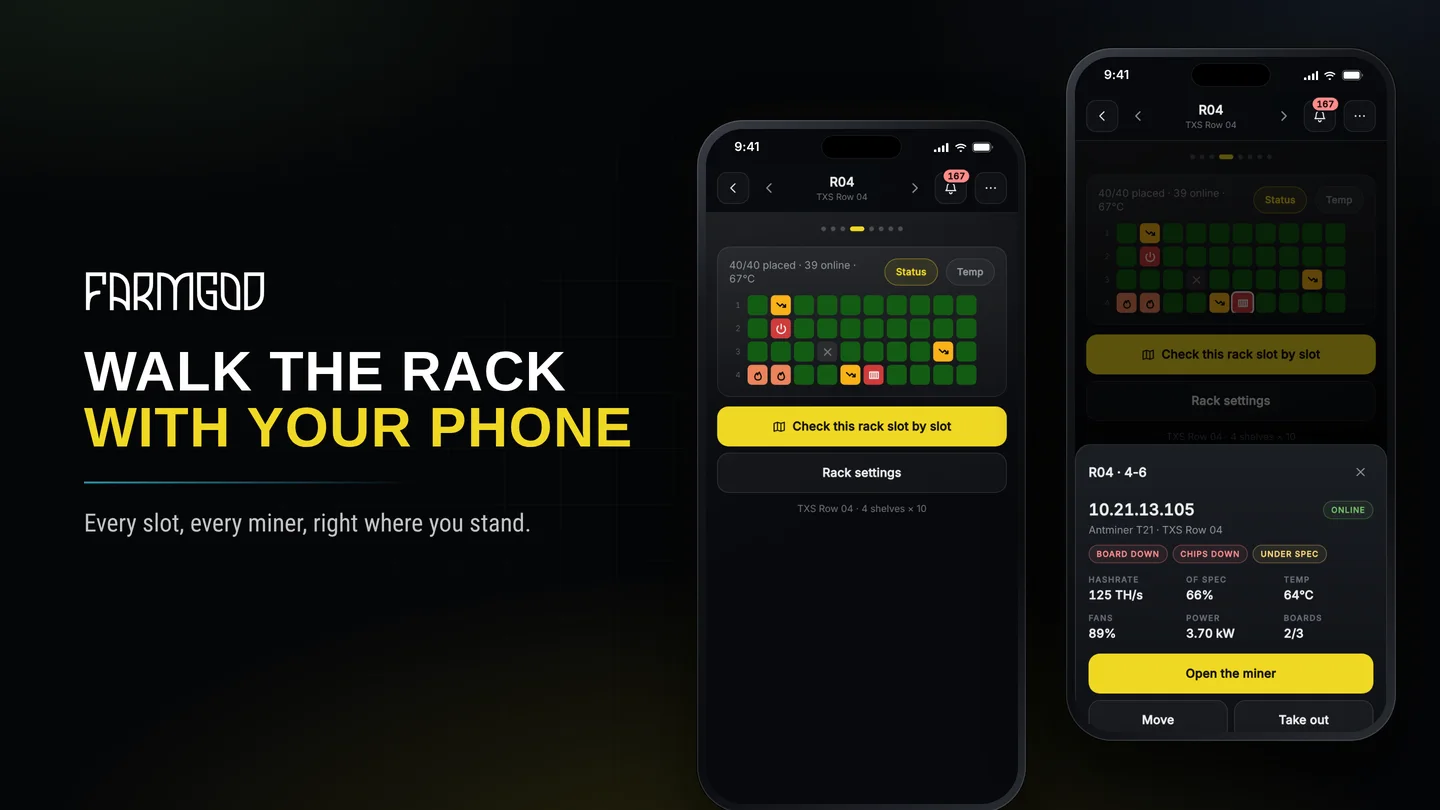
You're standing in the aisle, rack in front of you, phone in your hand. Which of these forty machines needs you? With the Sitemap on your phone you don't have to guess, count shelves or carry a list of IPs. Every slot shows its miner's state, live. A tap tells you the rest.
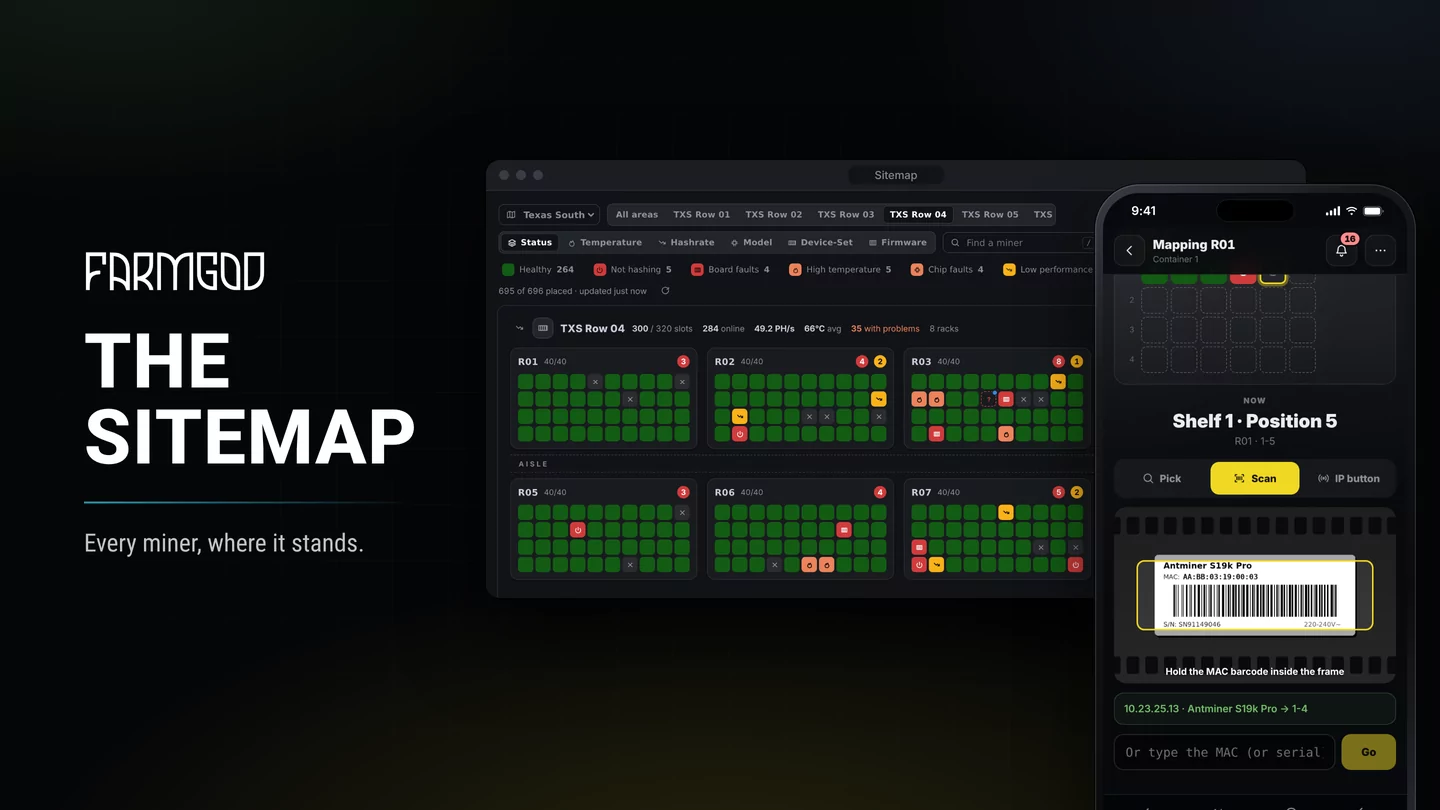
The Sitemap article covers what the Sitemap is and how you build it. This one is about what you do with it on site: a typical round, start to finish.
Before you open the door: where to go
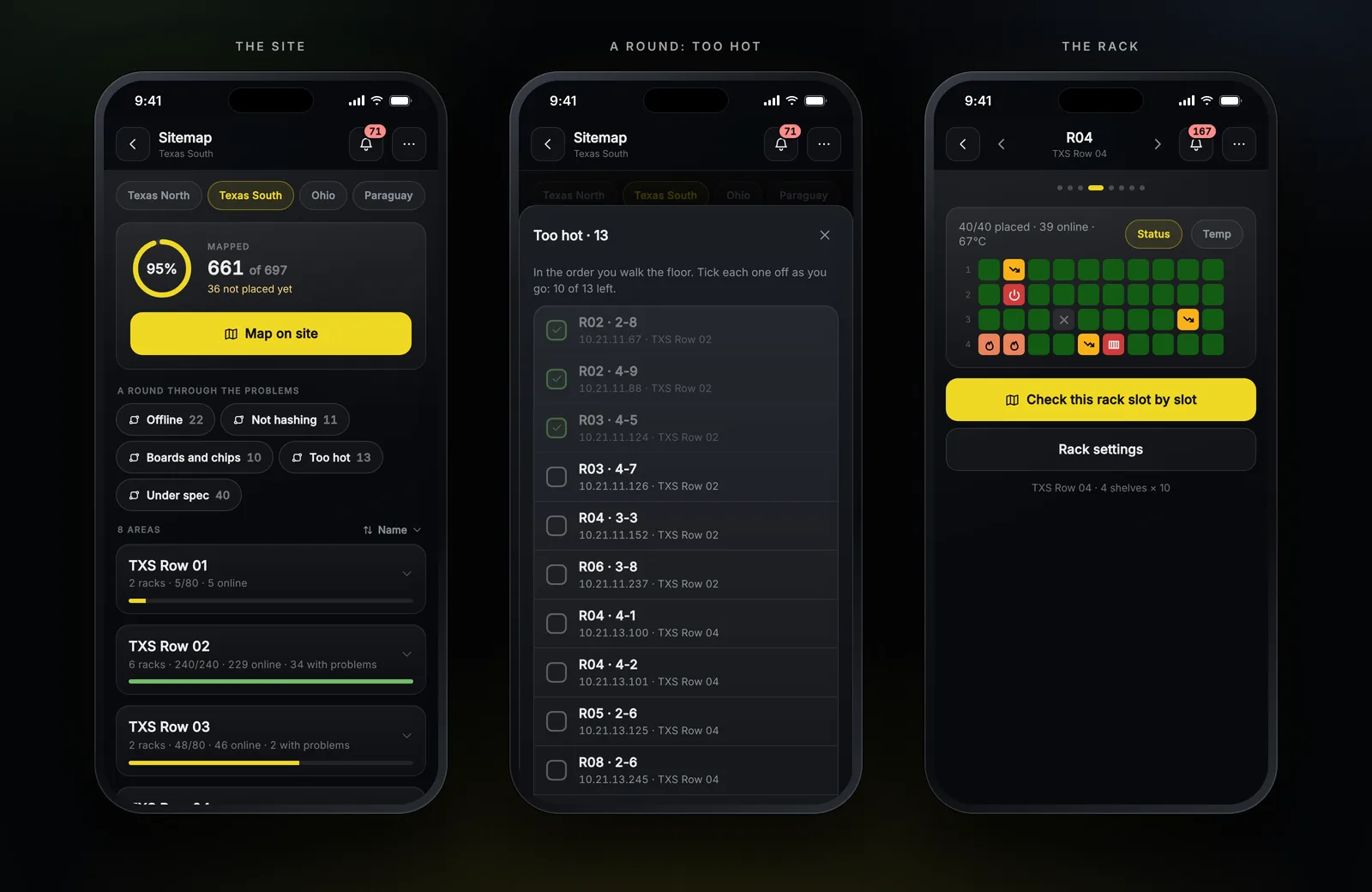
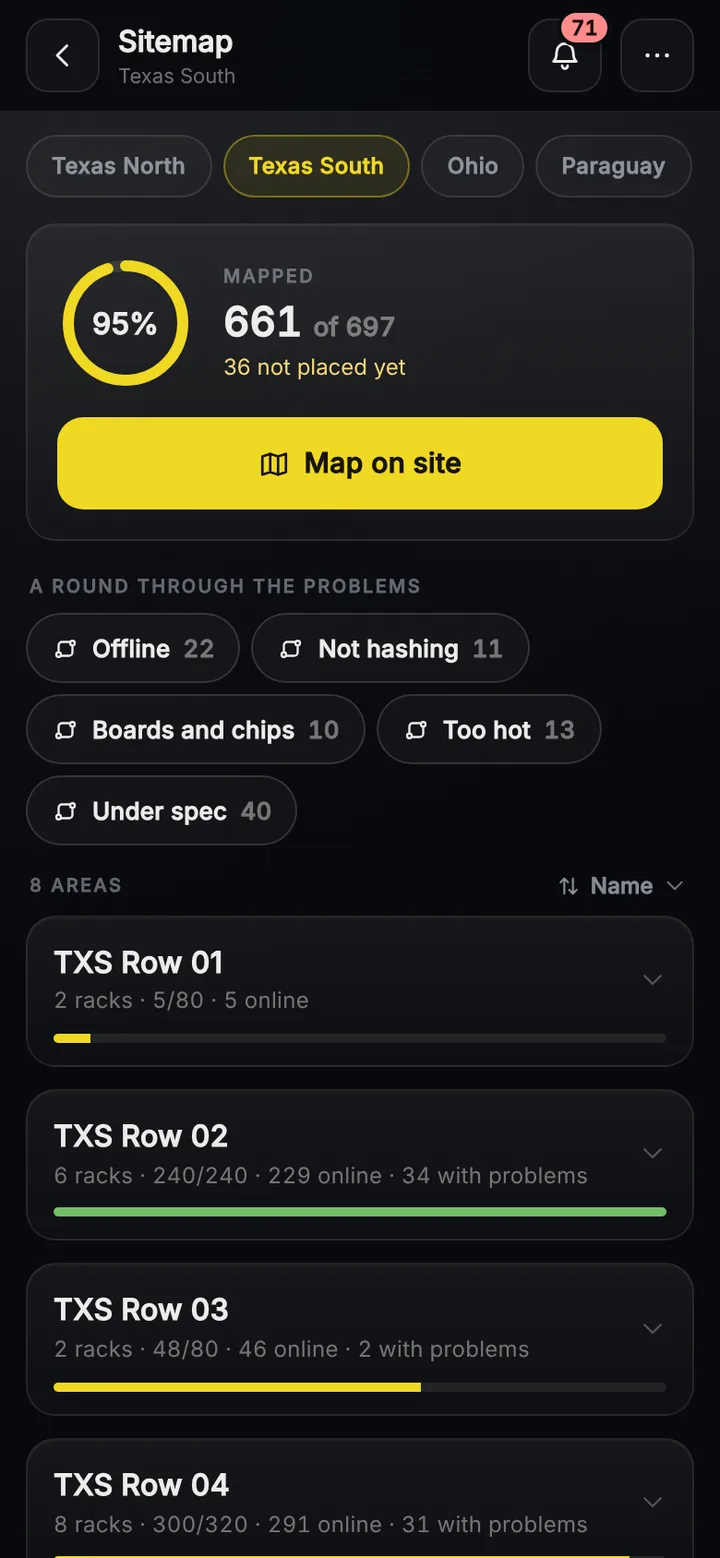
Open Sitemap in the menu on your phone and pick the location. At the top you see how much of the site is mapped. Right below are A round through the problems: Offline, Not hashing, Boards and chips, Too hot, Fans and Under spec, each with how many miners it holds.
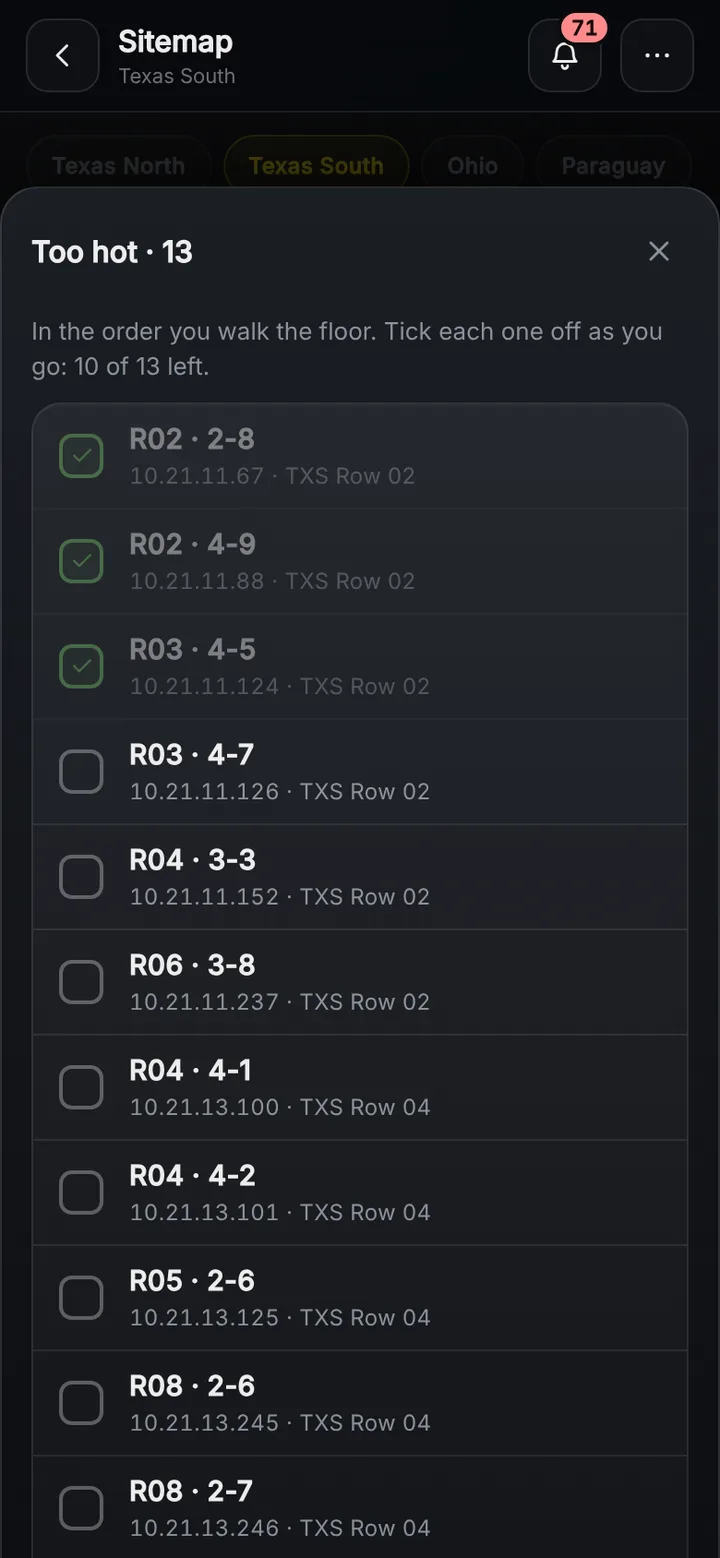
Tap one, say Too hot, and the phone lists those miners in the order you walk the floor, rack by rack, shelf by shelf, each with its slot. Tick each one off once you've seen to it. A tap on a stop opens its rack with that slot marked, and the list keeps your ticks while you go back and forth.
In the aisle: swipe from rack to rack
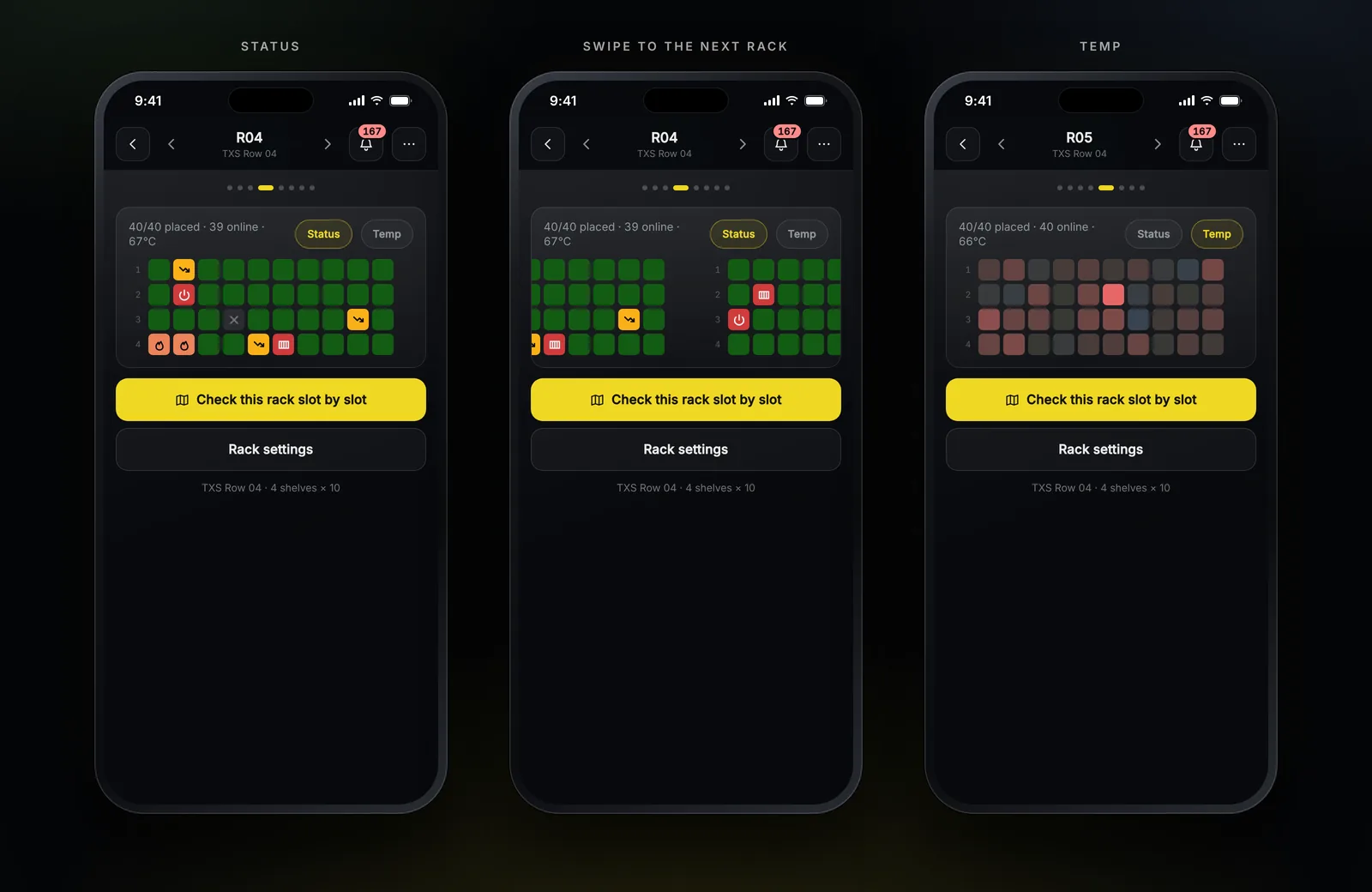
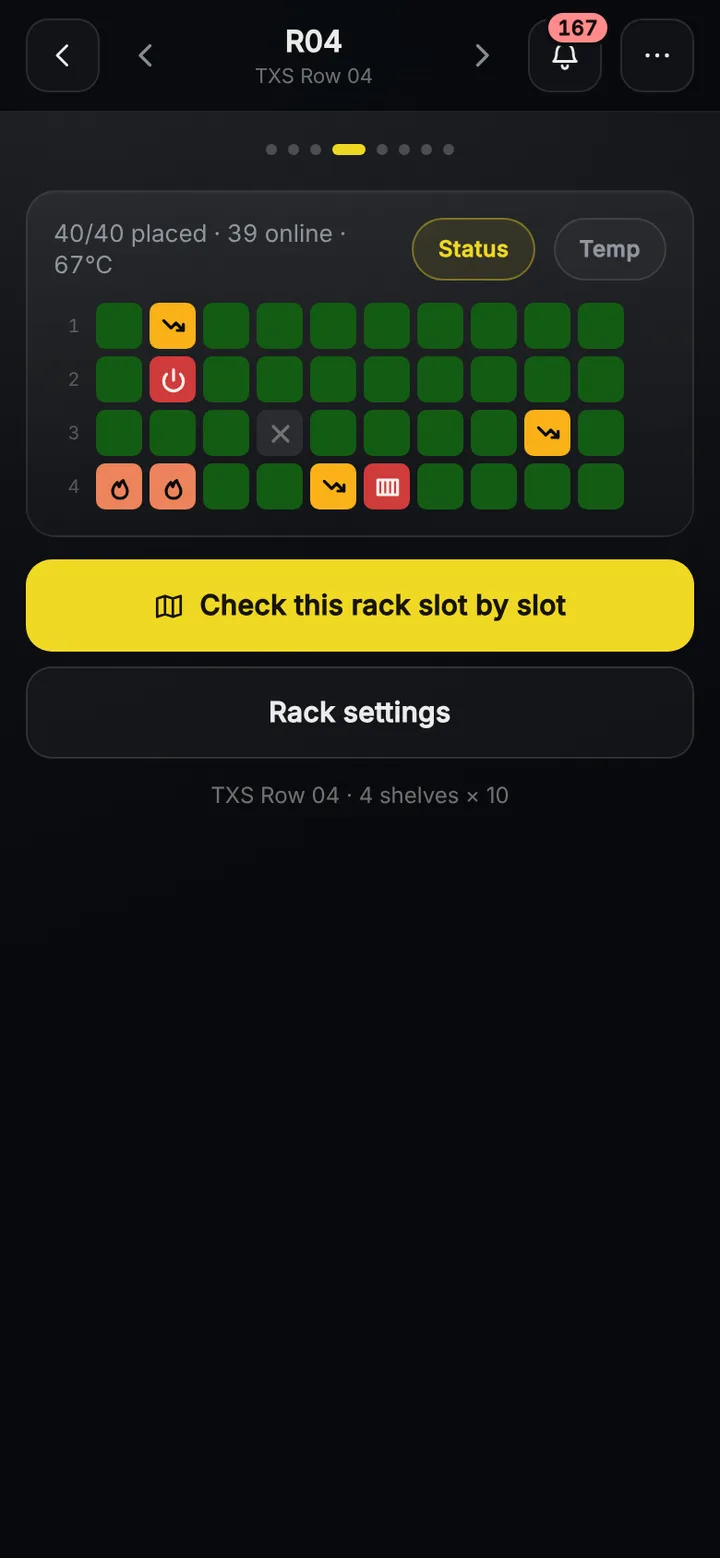
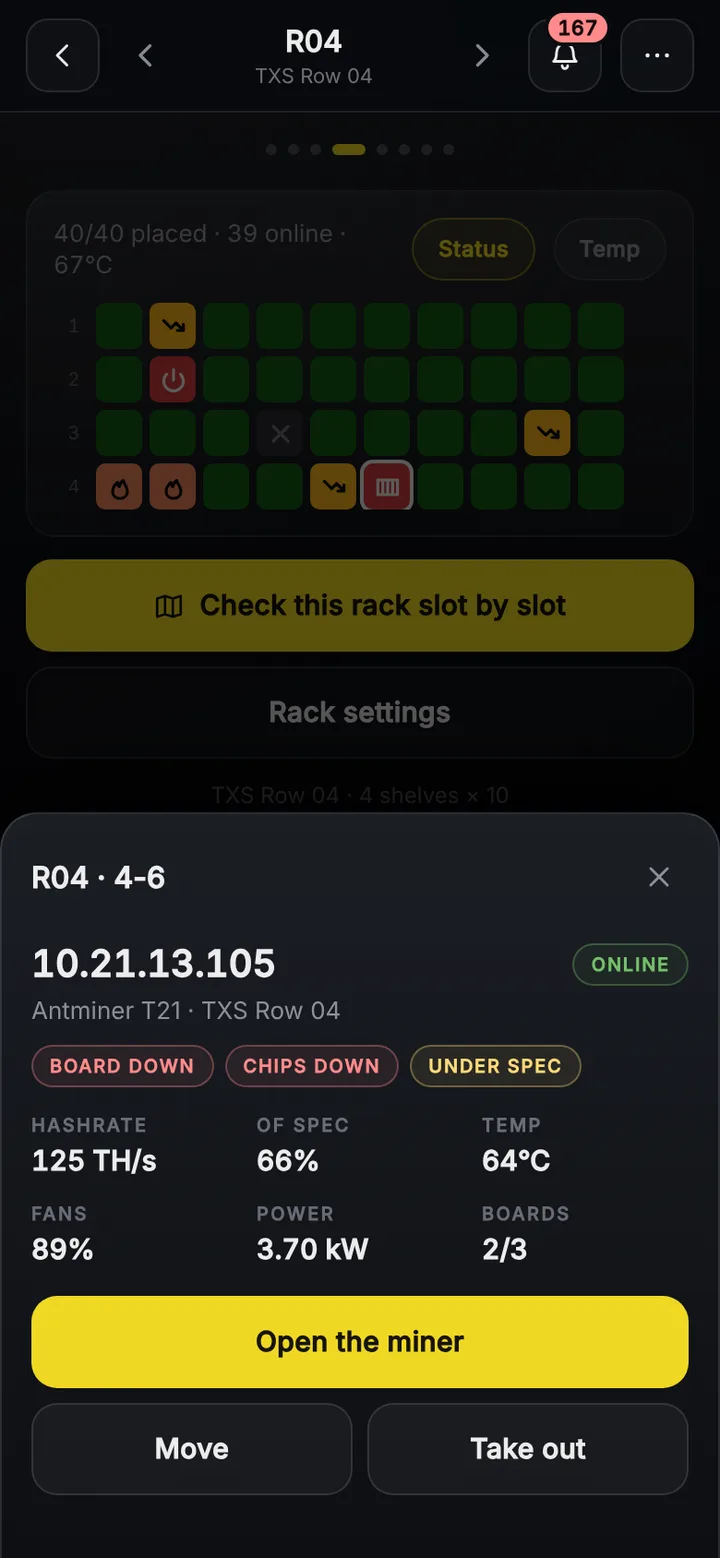
Every rack is a grid of its slots. A healthy miner is a quiet green, and anything that needs a look has its own colour and icon: a board down, a hot miner, one that stopped hashing, one that's offline. Not sure what a colour means? Tap the slot.
Walk on to the next rack and swipe. Left for the next rack in the row, right for the one before, and the dots at the top show where you are. If you switched the rack to Temp to find a warm corner, the next rack shows temperatures too, until you switch back to Status.
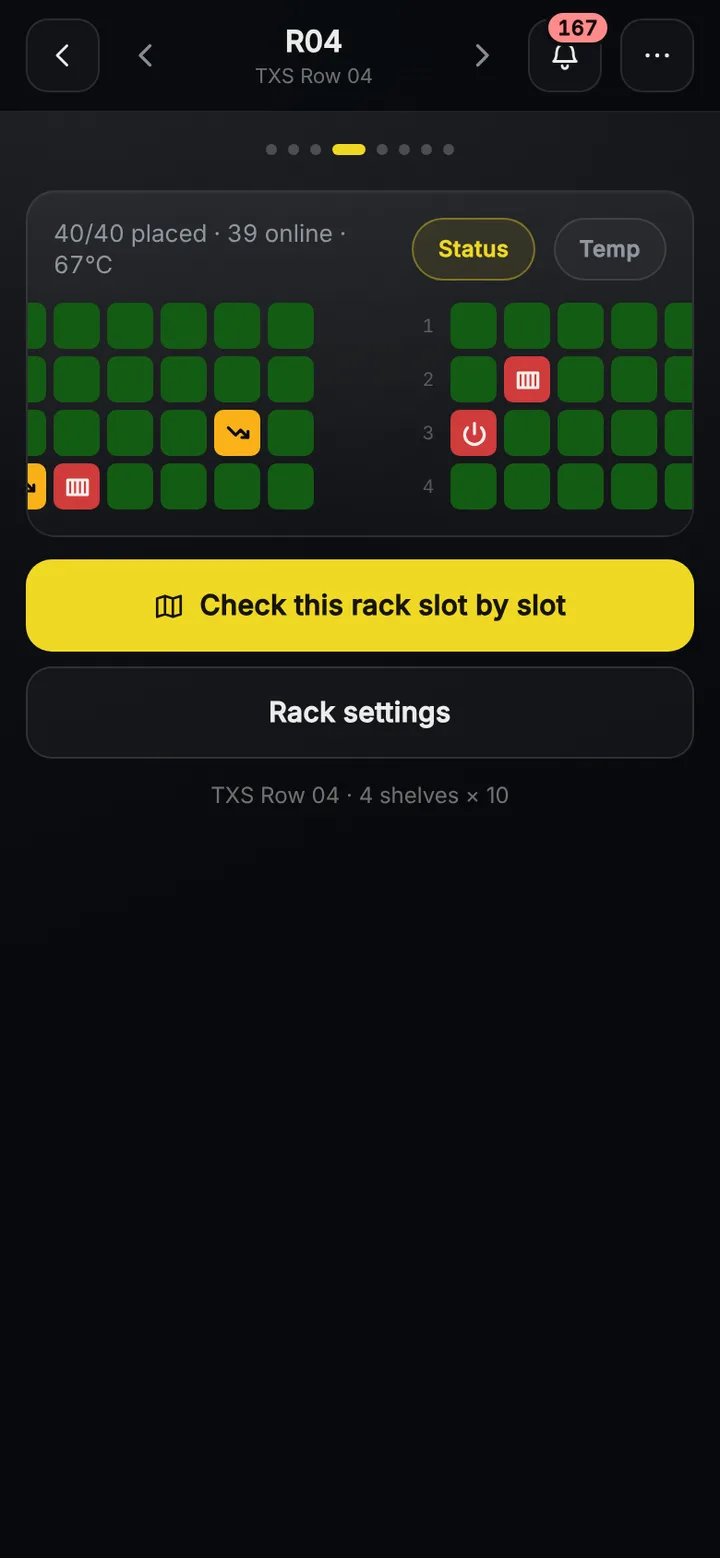
On the site's list, a wide rack takes a whole row and scrolls sideways inside its tile, so even long racks stay easy to read.
At the slot: the miner, its LED, a note
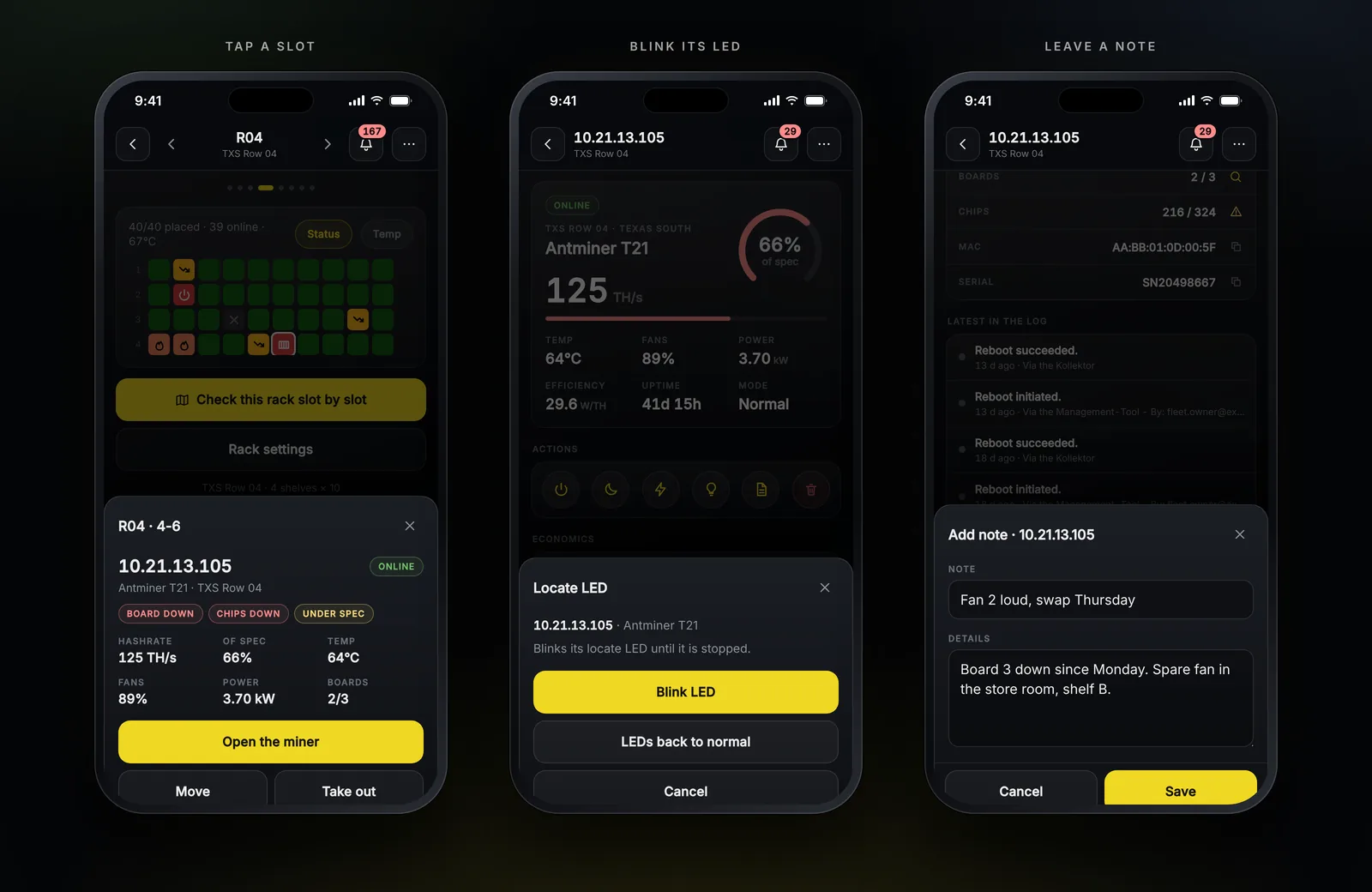
Tap a slot and the miner comes up from the bottom of the screen: its IP, whether it's online, what's wrong with it, and how it's doing right now. Open the miner takes you to its full page with all its actions.
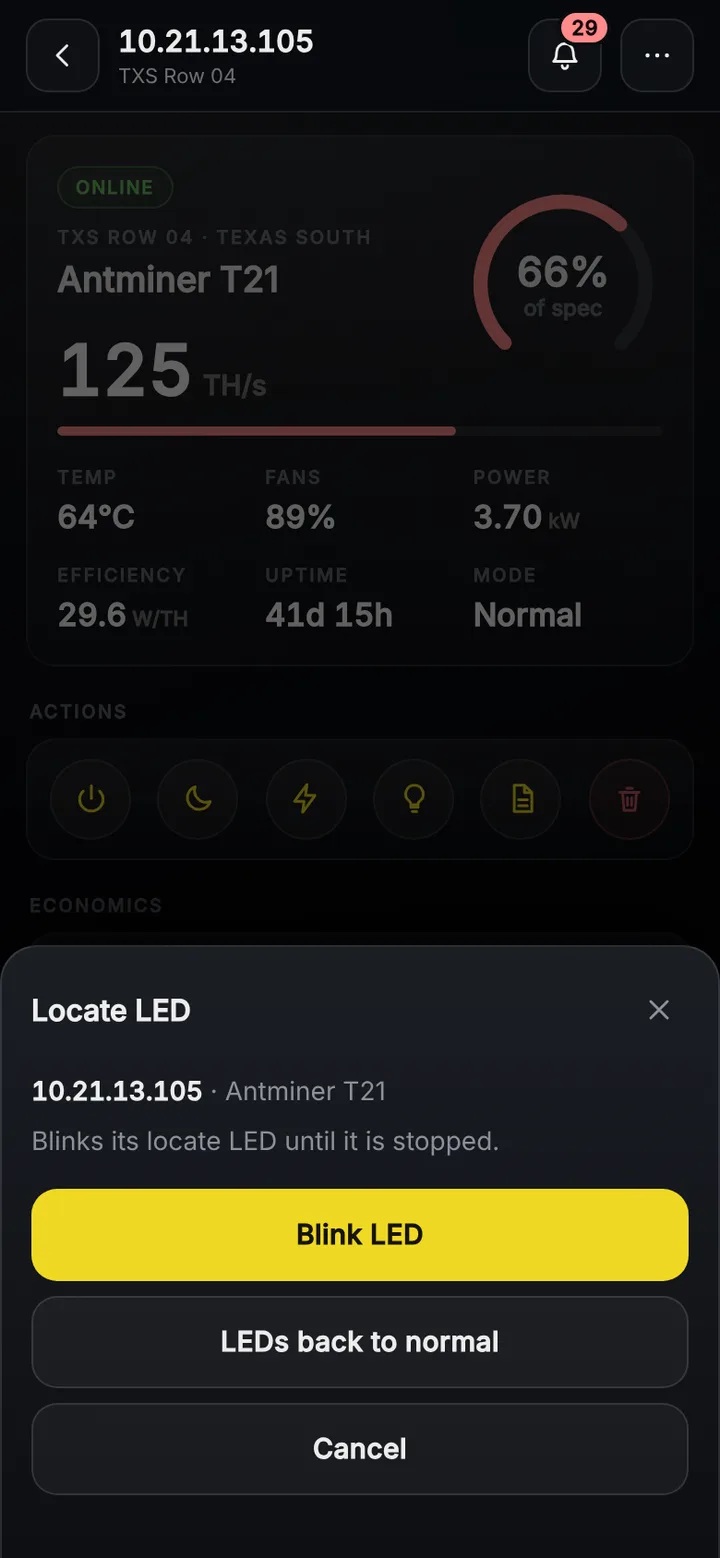
Is that machine really the one in front of you? Blink its locate LED from the miner's page. On Whatsminers and on Antminers running VNish, the light shows you which machine it is.
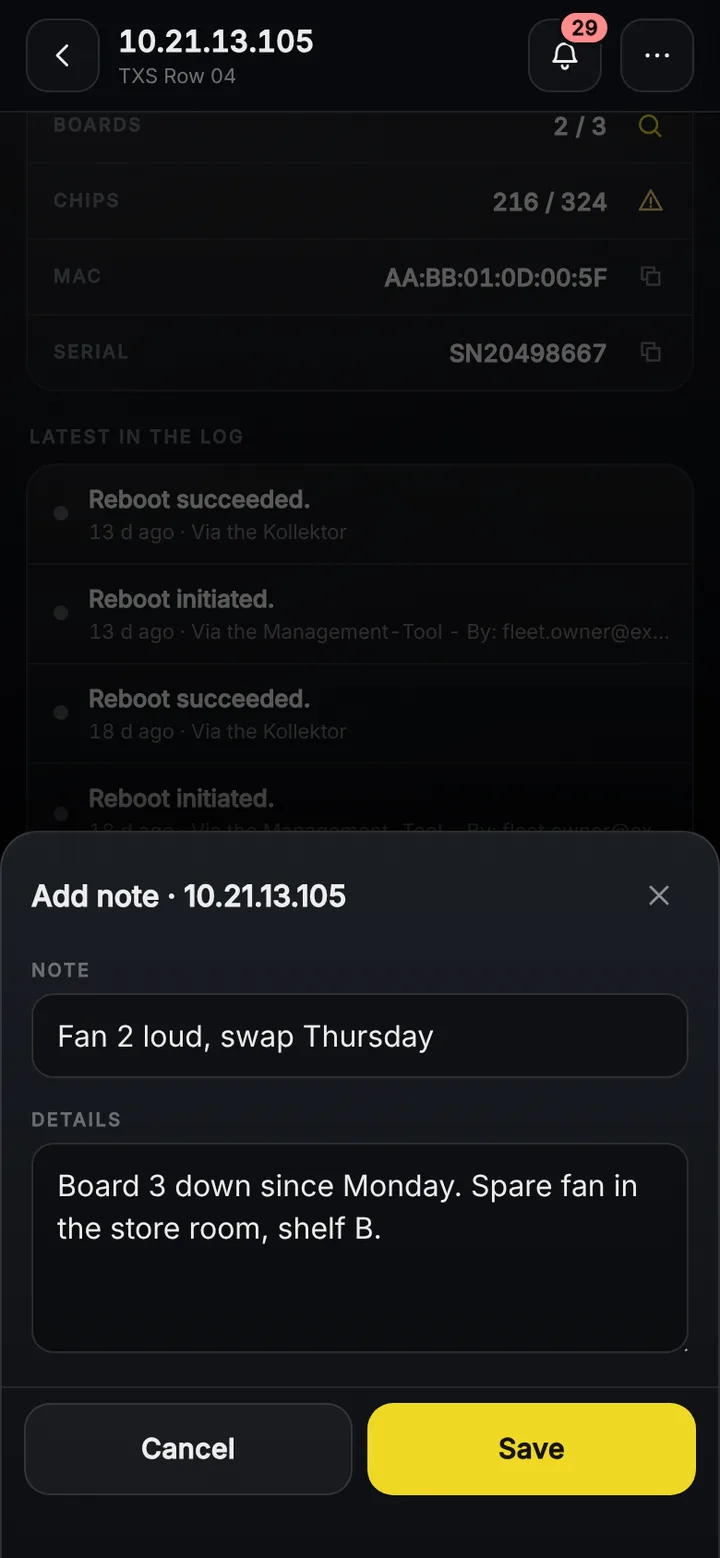
Found something the next shift should know? Add note at the bottom of the miner's page: a short line, the details below it, saved with the miner just like on the desktop. Nobody has to remember it until Monday.
A gap on the shelf: fill it without typing
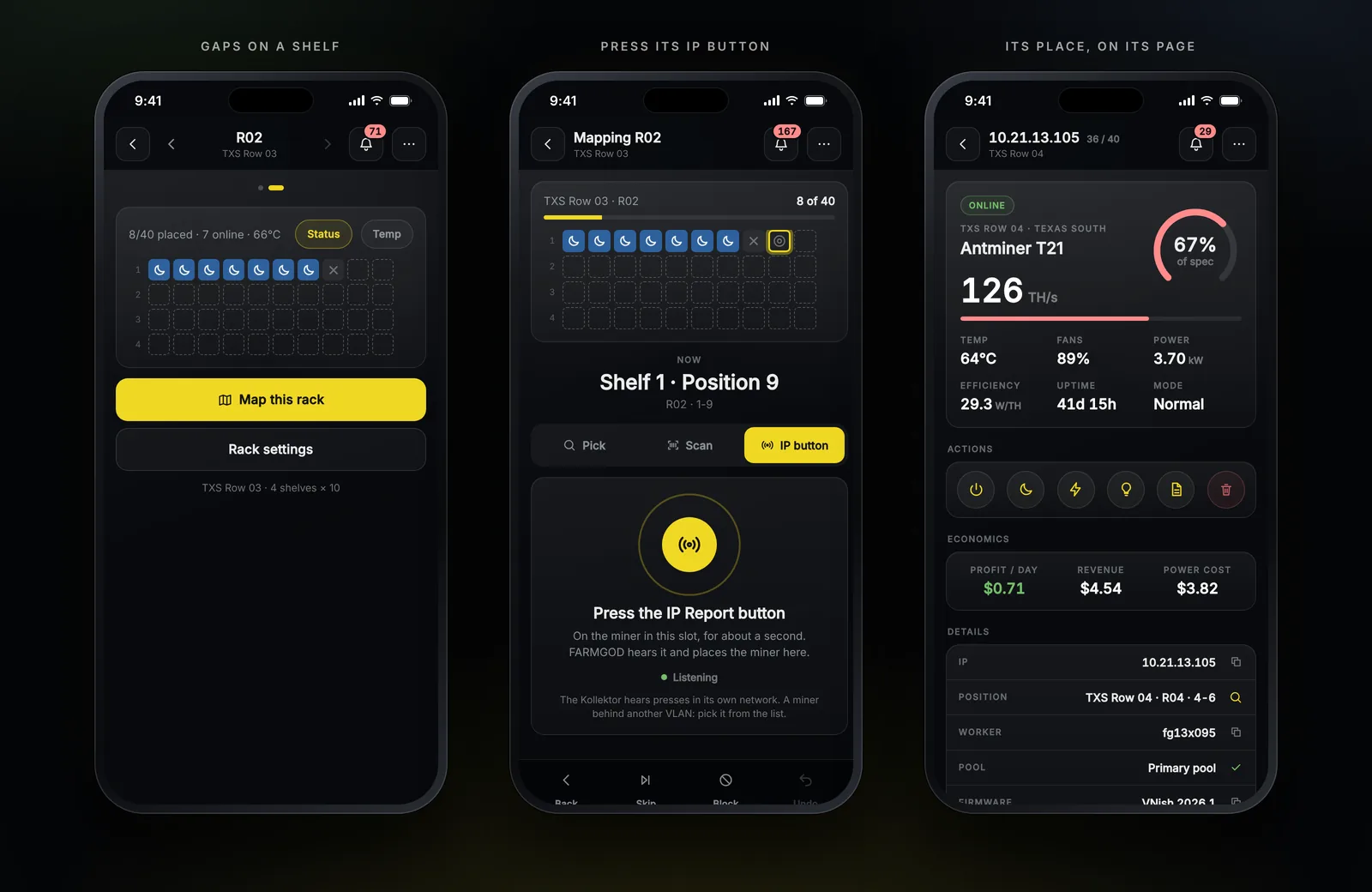
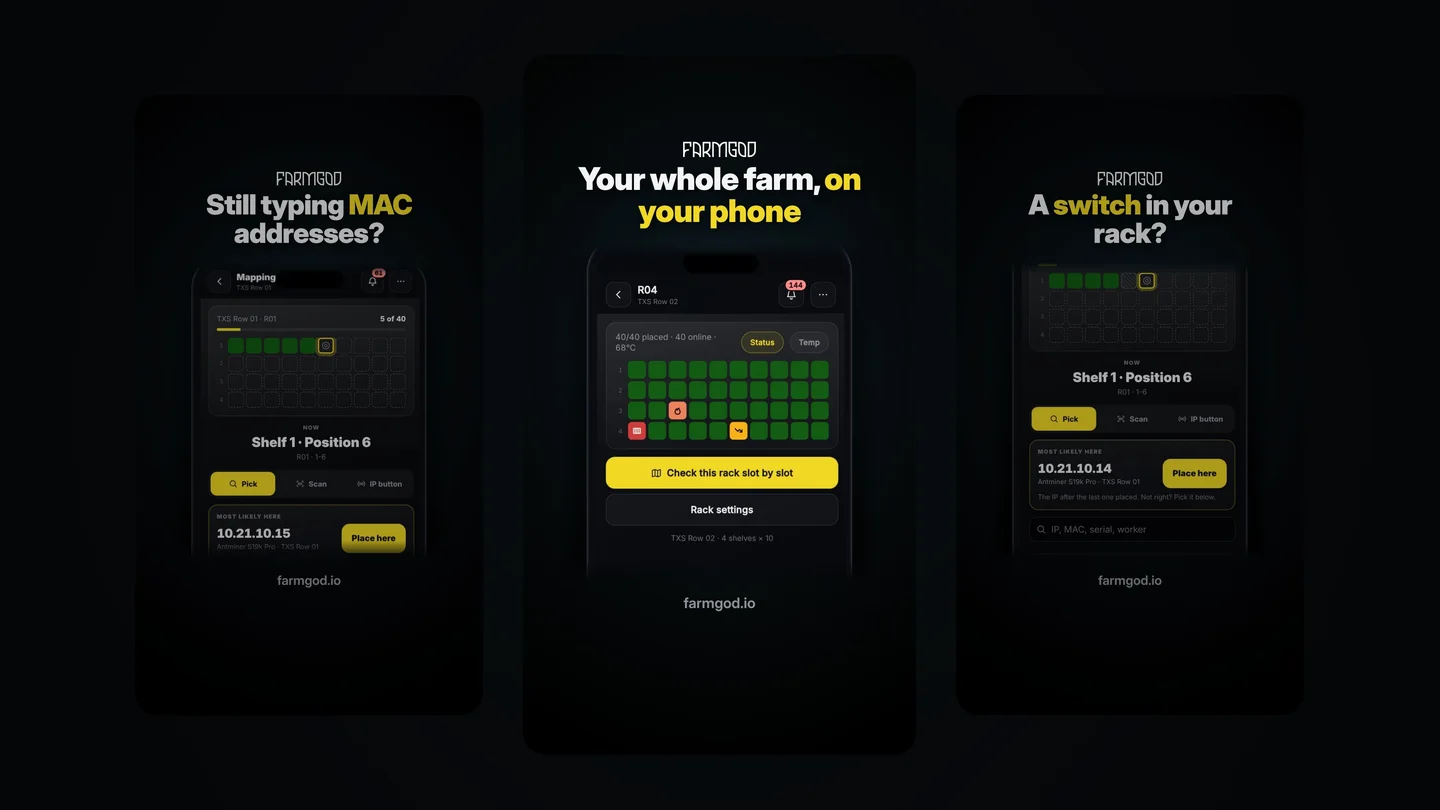
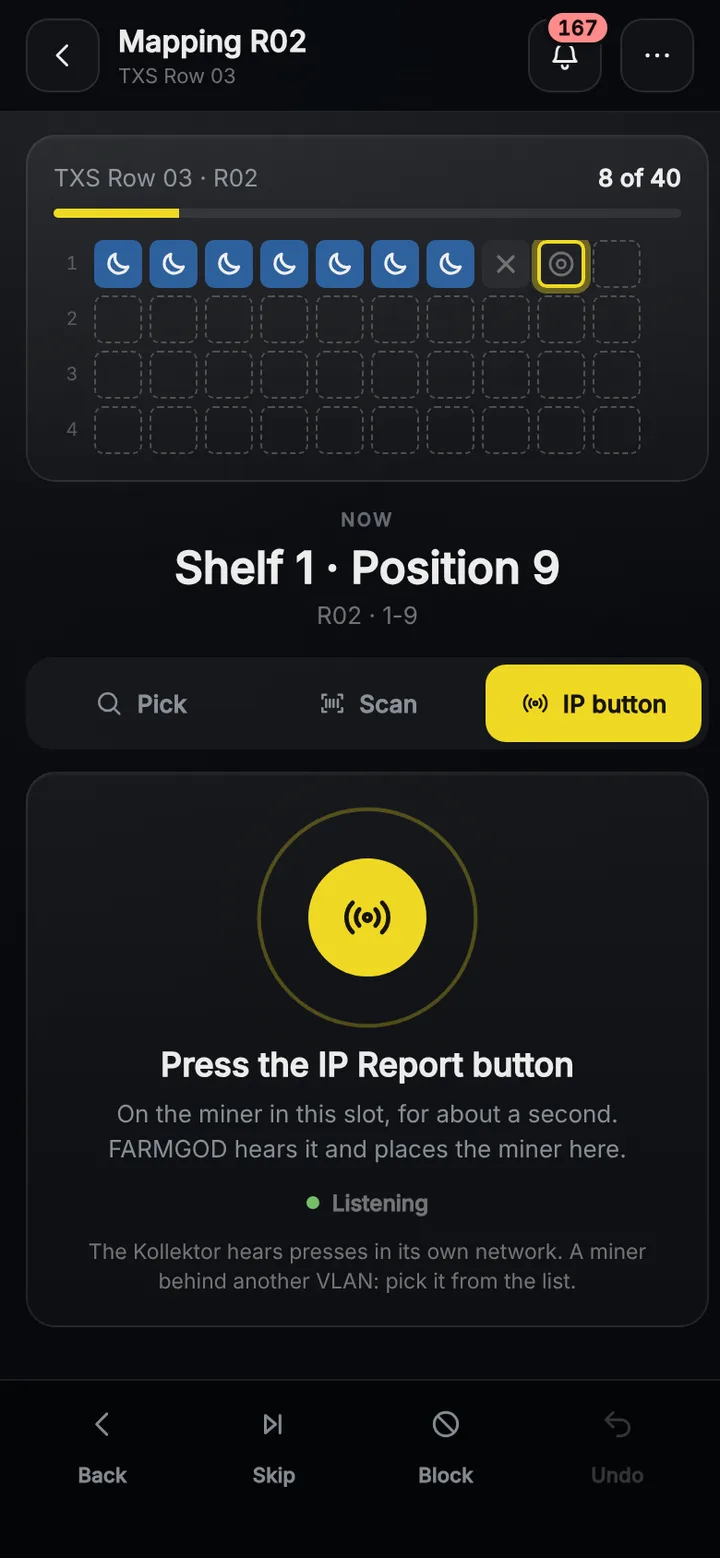
A new miner went in, or one was swapped? Tap Map this rack and the phone takes you slot by slot. At each slot, pick the miner FARMGOD expects there, scan its MAC sticker with the camera, or press its IP Report button for about a second. FARMGOD hears the press, puts the miner in its slot and moves on to the next one. Antminers, Whatsminers and Goldshells all report.
If a swapped miner took over the old one's IP, FARMGOD offers it as the replacement when you tap the old slot. One tap puts it in place. From then on the miner's page shows where it stands.
Why your round gets shorter
- You know where to go before you go. Rounds list problem miners in floor order, rack by rack.
- One swipe per rack. Status or Temp stays the same as you walk the row.
- A tap for the whole story. The miner's state, its problems and its page, right at the slot.
- The right machine, every time. Blink its LED, and its position shows on its page.
- Notes where the work happens. Written at the rack, read by the next shift.
- No IPs to type. Pick, scan or press to fill a gap.
Where to find it
The Sitemap is part of Cloud PRO on FARMGOD Cloud, trial included, and of every Private VPS, where it's there for the server's managers. On your phone, open FARMGOD in the browser and choose Sitemap in the menu. The Sitemap guide has every step, and it's also under HELP in FARMGOD.