October 15, 2026Features
The Sitemap: every miner's location, mapped with your phone
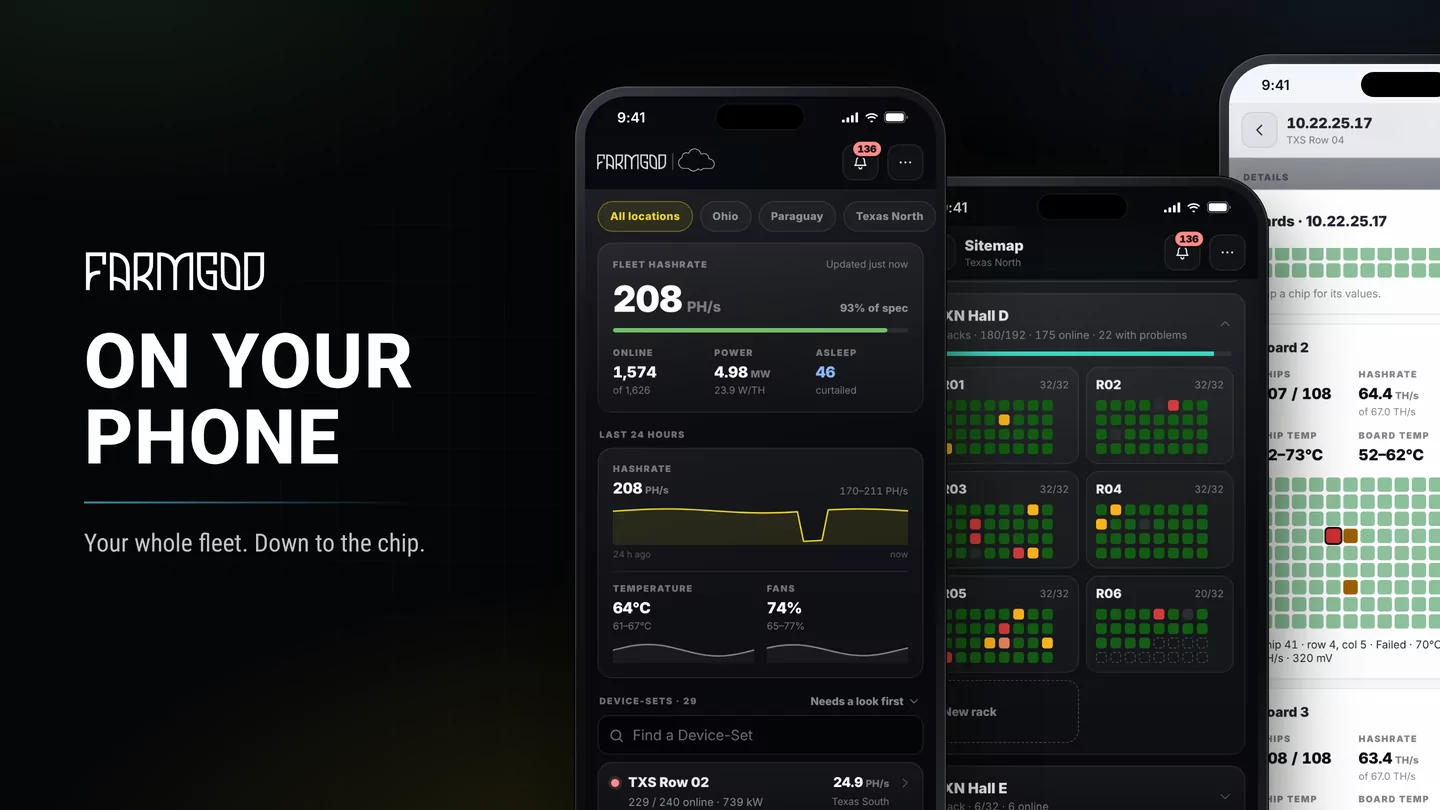
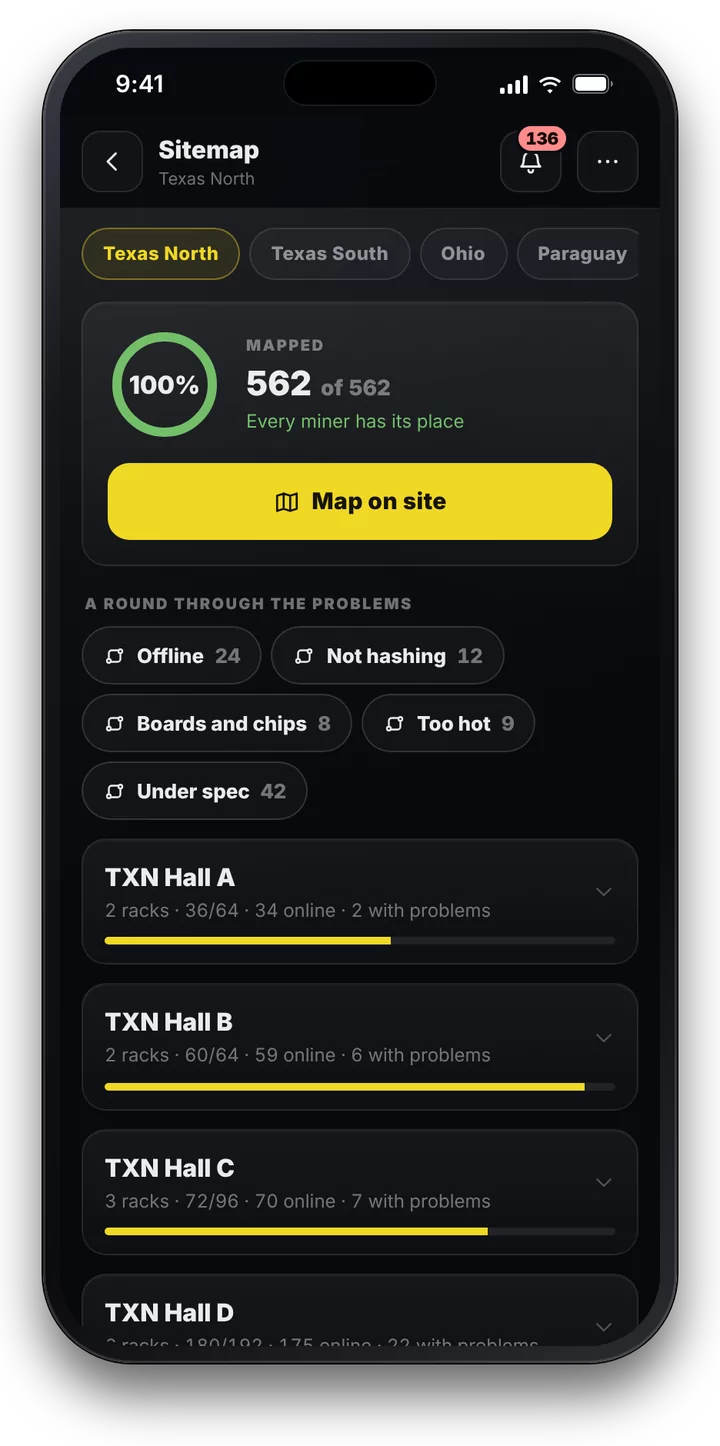
FARMGOD's new Sitemap shows every miner in its rack, on its shelf, at its position, live and in the colours of how it is doing. You build it by walking your site with your phone: pick the miner, scan its MAC label or press its IP Report button. Part of Cloud PRO and of every Private VPS.
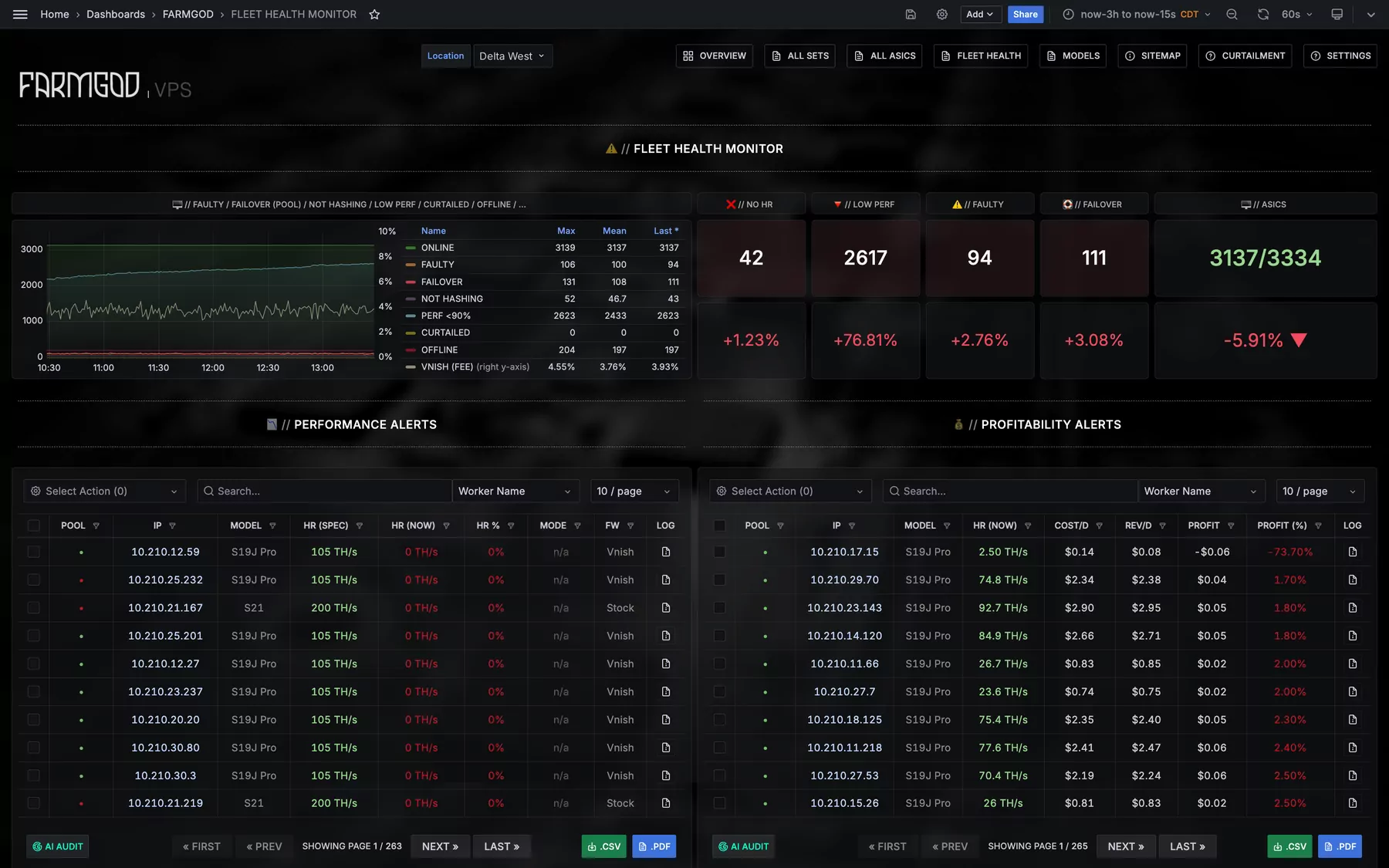
Every operator knows the moment. Fleet Health says a miner has lost a hashboard, and that miner is one of thousands. Which container is it in? Which rack, which shelf? Someone walks the rows with an IP address on a scrap of paper and starts counting.
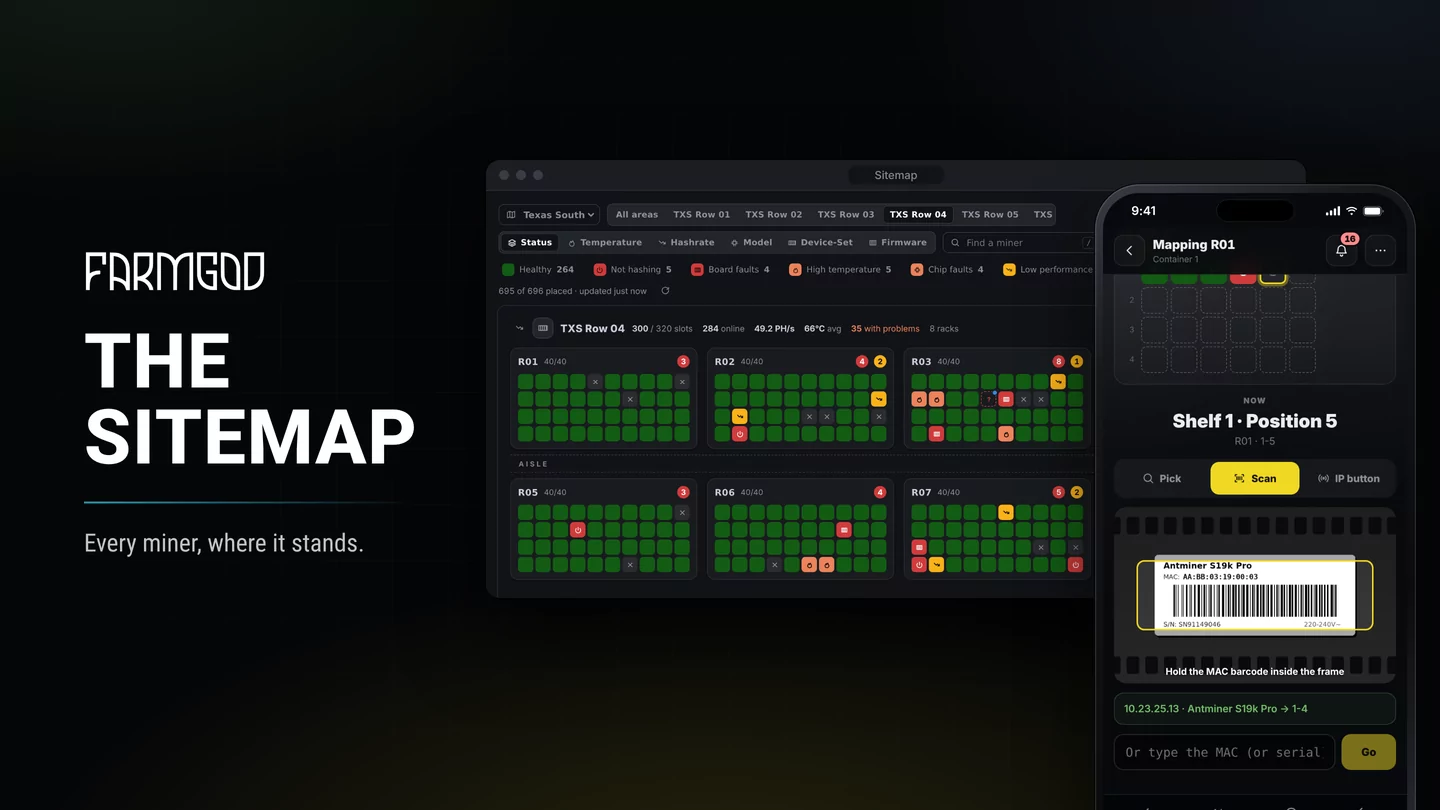
FARMGOD's new Sitemap ends that walk. It shows every miner where it physically stands, the area, the rack, the shelf and the position, live, in the colours of how it is doing. And you don't draw it at a desk: you build it on site with your phone, in about the time it takes to walk past your racks.
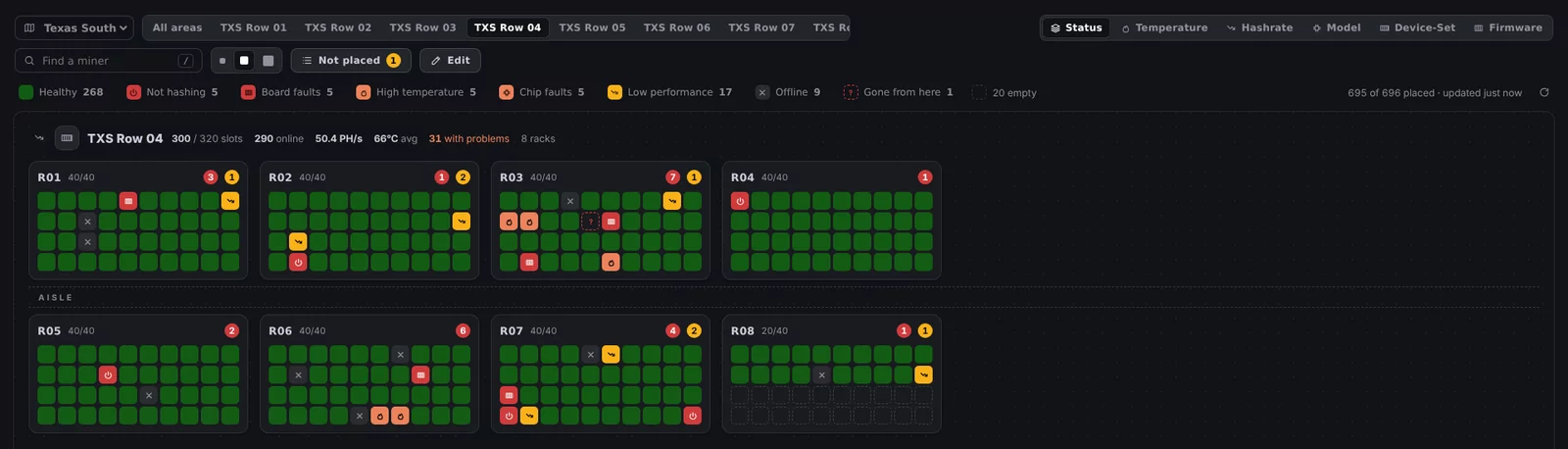
A map that shows what is wrong, and where
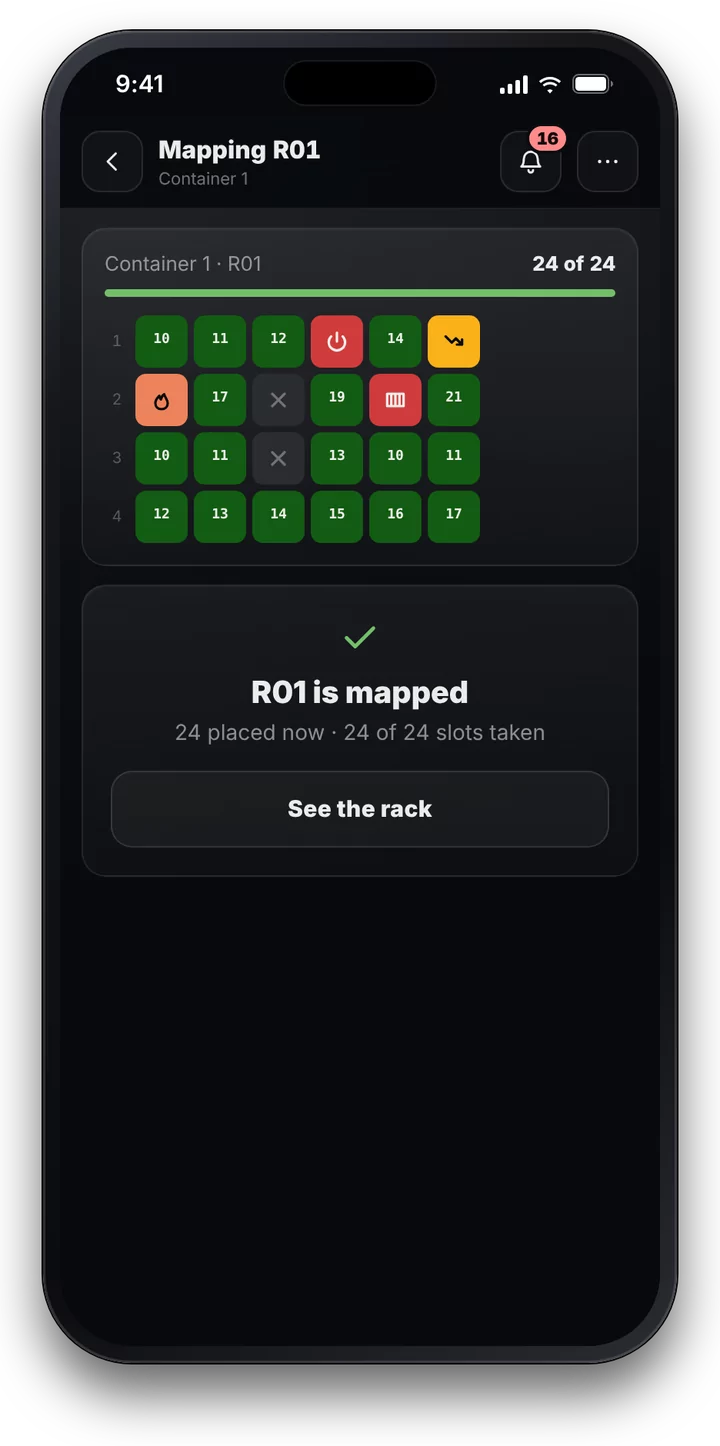
Every miner is a tile in its slot. Healthy miners stay a calm green. A dead board, a hot spot, a miner that stopped hashing or fell back to its failover pool stands out with its own colour and icon, by the same rules as Fleet Health. Sleeping miners are blue, offline ones grey.
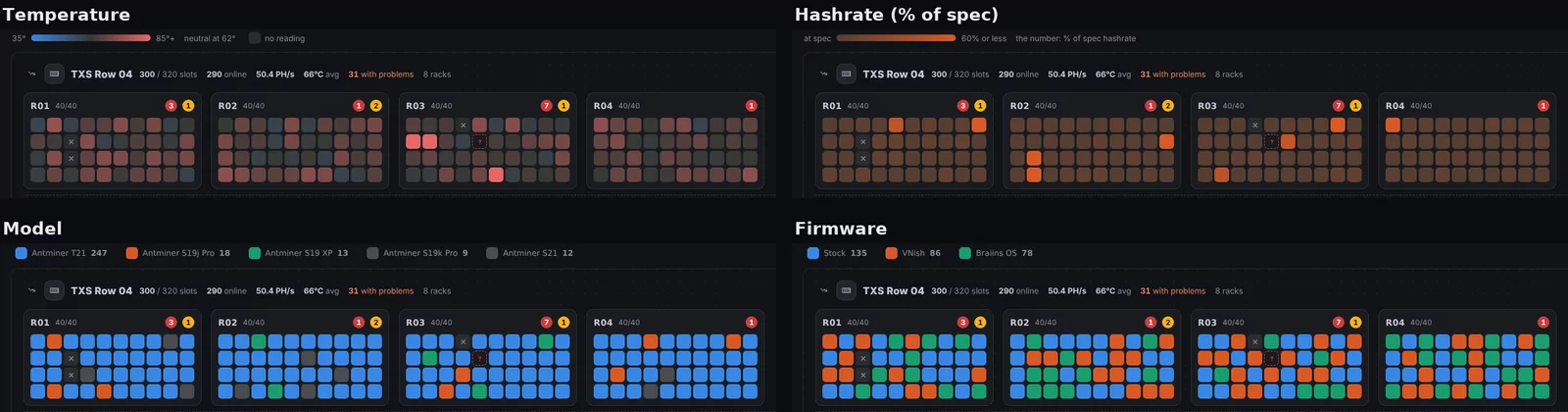
One click recolours the same map. By temperature, the warm corner of a container shows itself at a glance. By hashrate, the tired machines do. By model, Device-Set or firmware, you see what stands where.
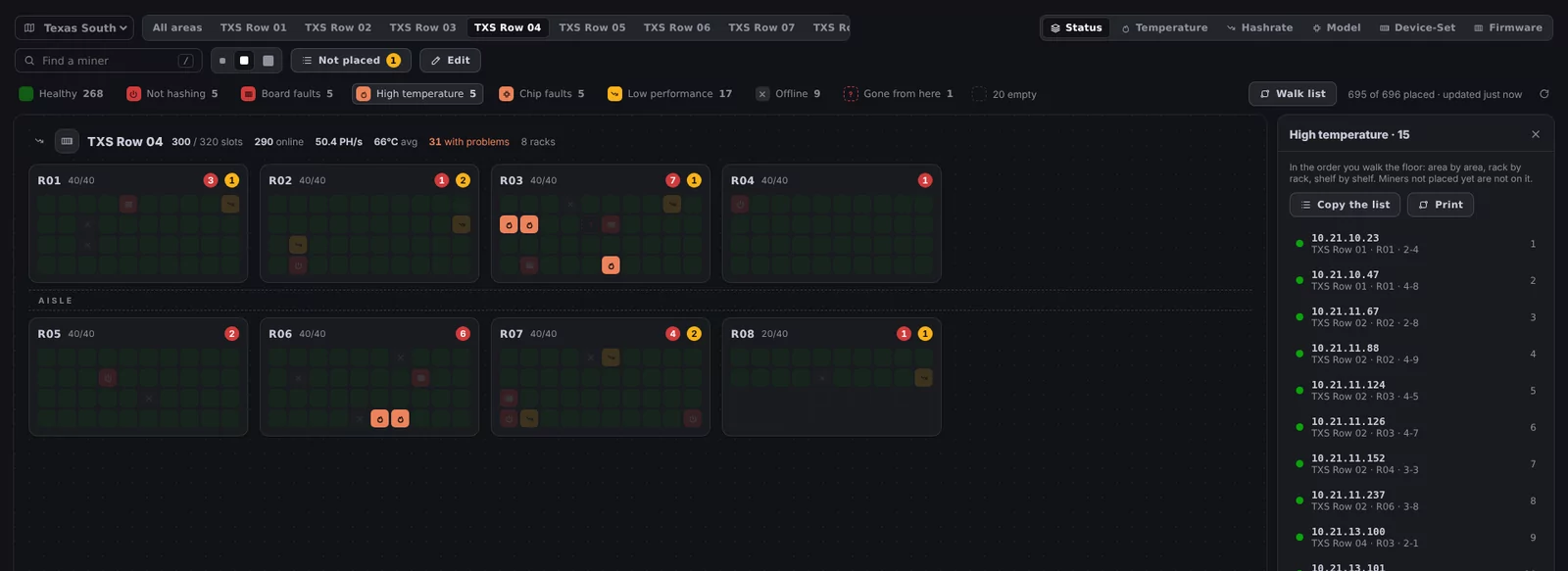
Click a problem in the legend and the map picks out exactly those miners. The walk list puts them in the order you walk the floor, area by area, rack by rack, shelf by shelf, each with its slot. Copy it into a message for the technician on shift, or print it.
Mapped with your phone, slot by slot
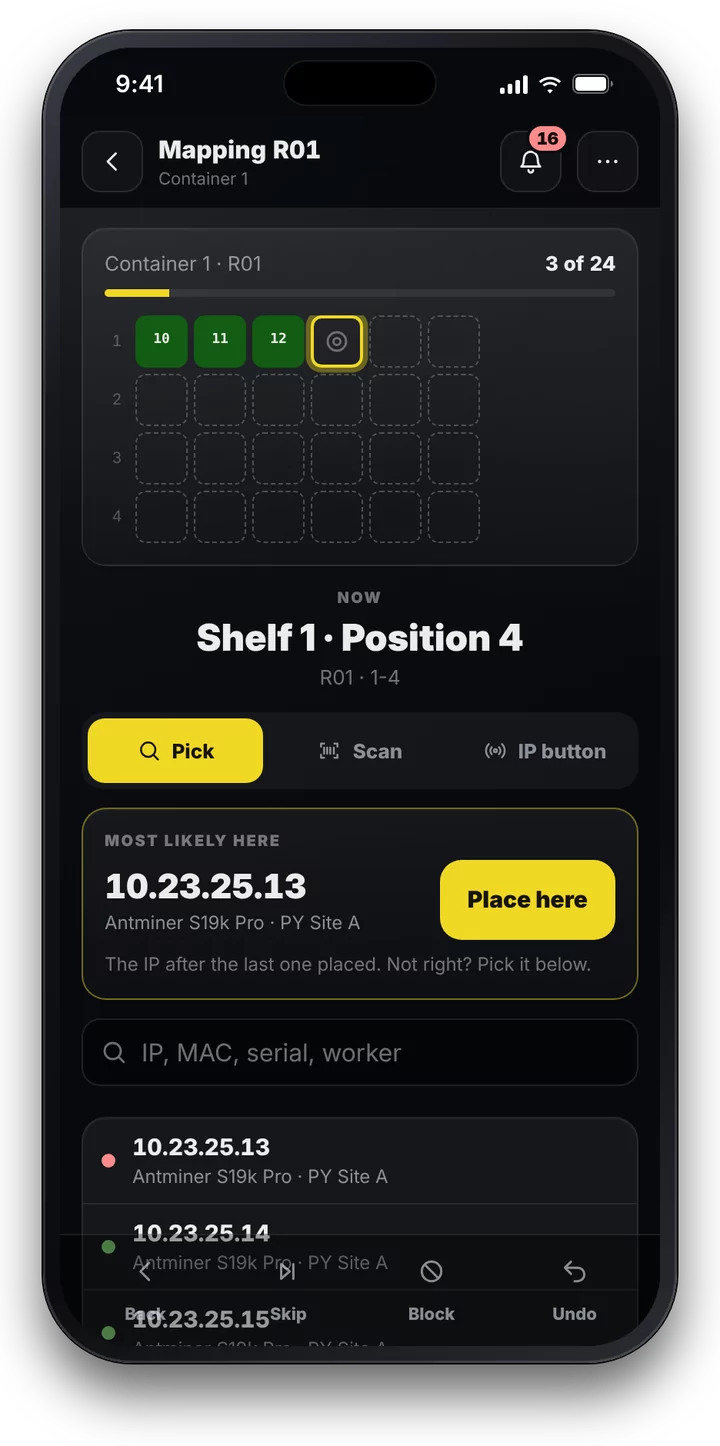
Open the Sitemap on your phone, stand in front of a rack and tap Map on site. The phone leads you through the rack slot by slot: Shelf 1 · Position 4. It shows the miner most likely to stand there, because miners usually stand in the order of their IPs, and one tap places it. The phone buzzes, the tile lights up, and the walk is already at the next slot.
A gap or a switch? Skip it or block it. A mistake? Undo. At the end of the rack, the walk leads you on to the next one, and the screen stays on the whole time.
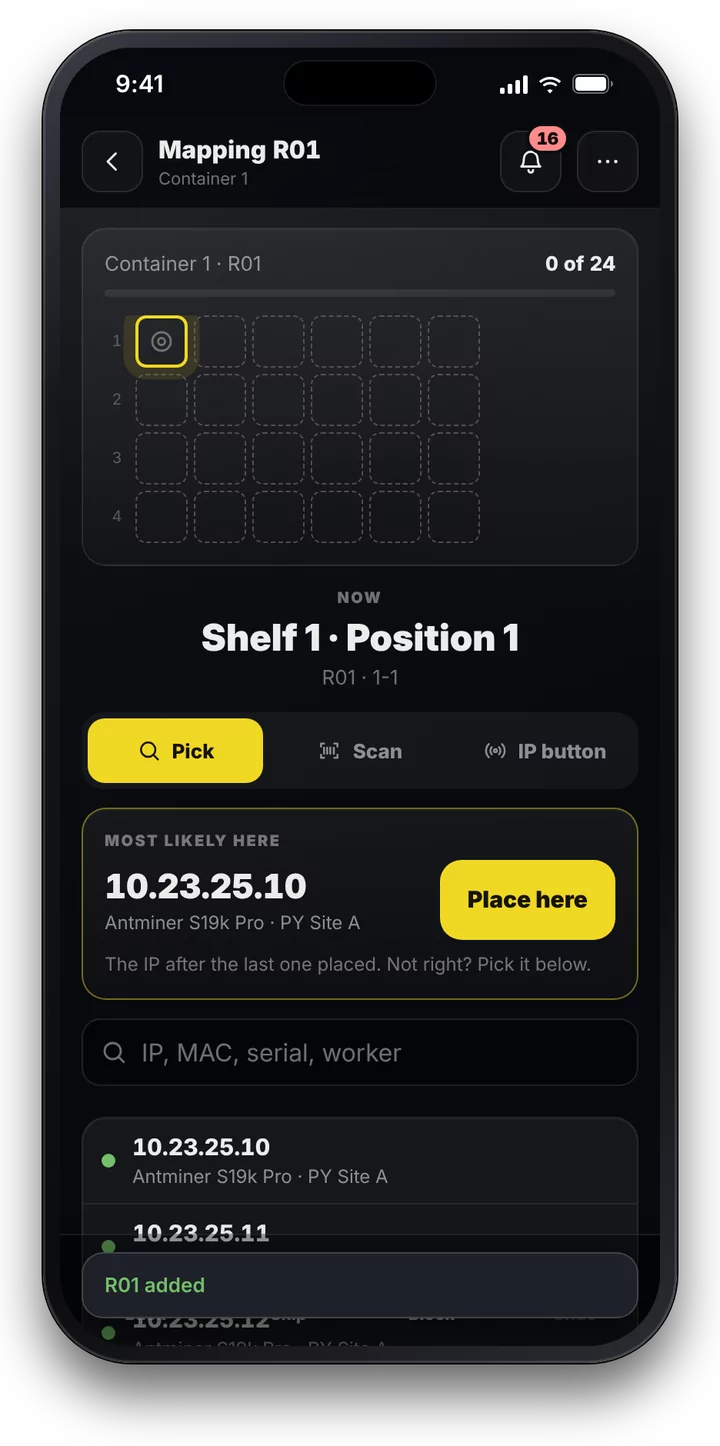
Pick, scan or press
There are three ways to name the miner in front of you, and you can mix them as you go.
Pick it from the list: the miner FARMGOD expects in that slot, or any other, found by IP, MAC, serial or worker.
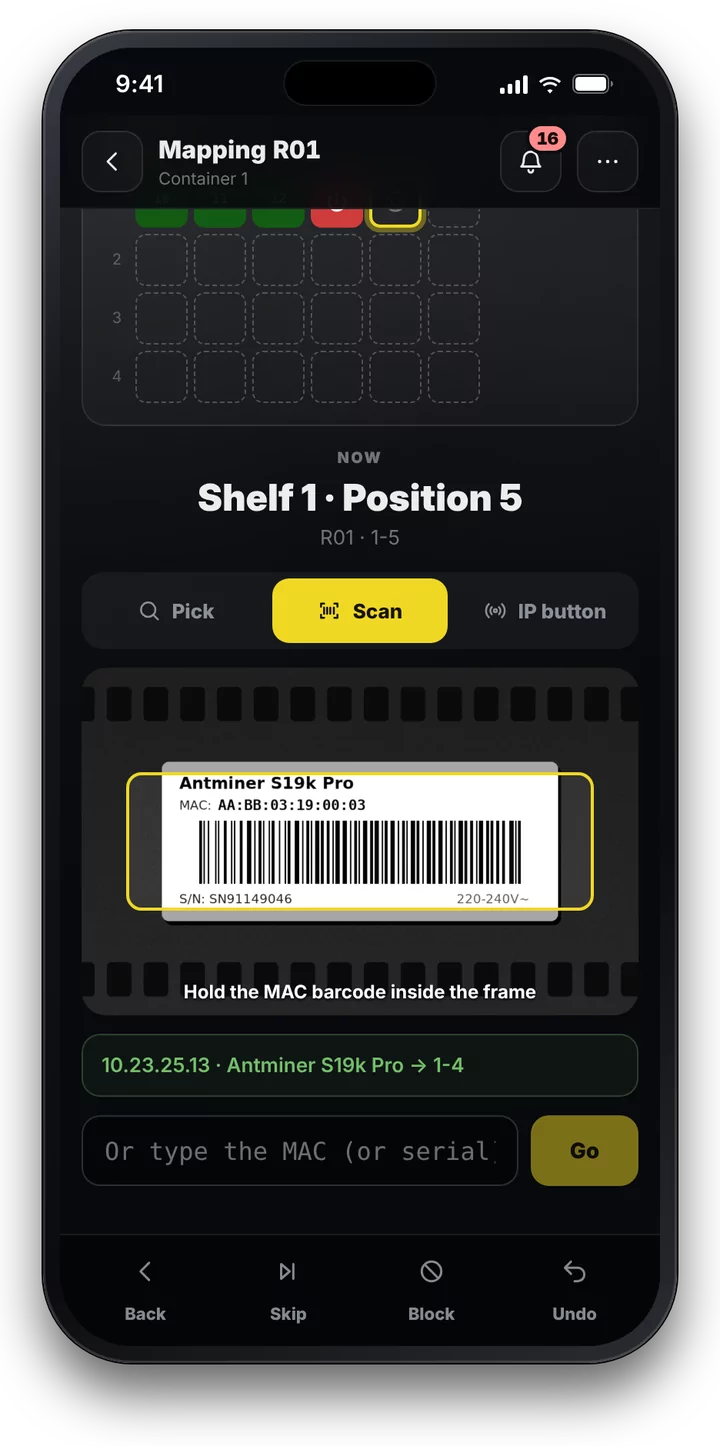
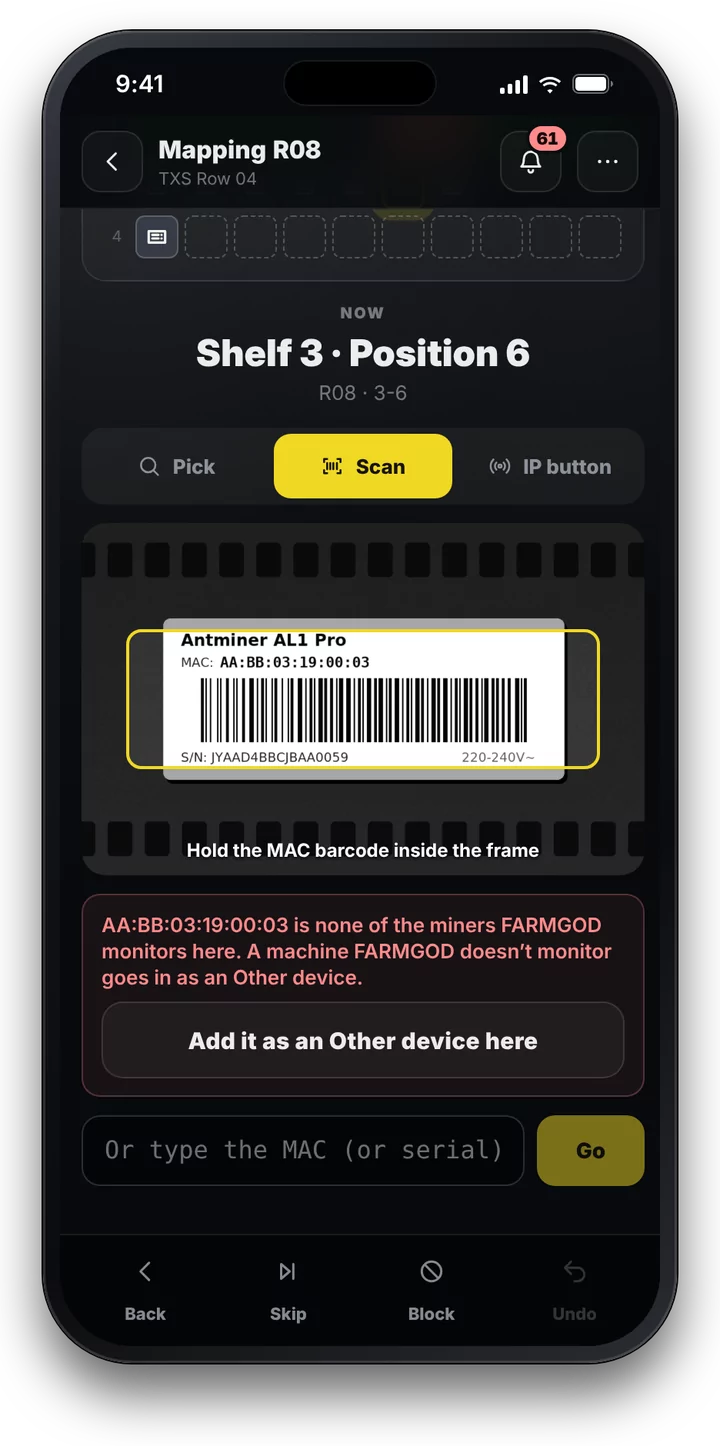
Scan its MAC label. Point the camera at the barcode, and FARMGOD reads it, places the miner and moves on. It works on iPhone and Android, and there is a torch button for dark racks.
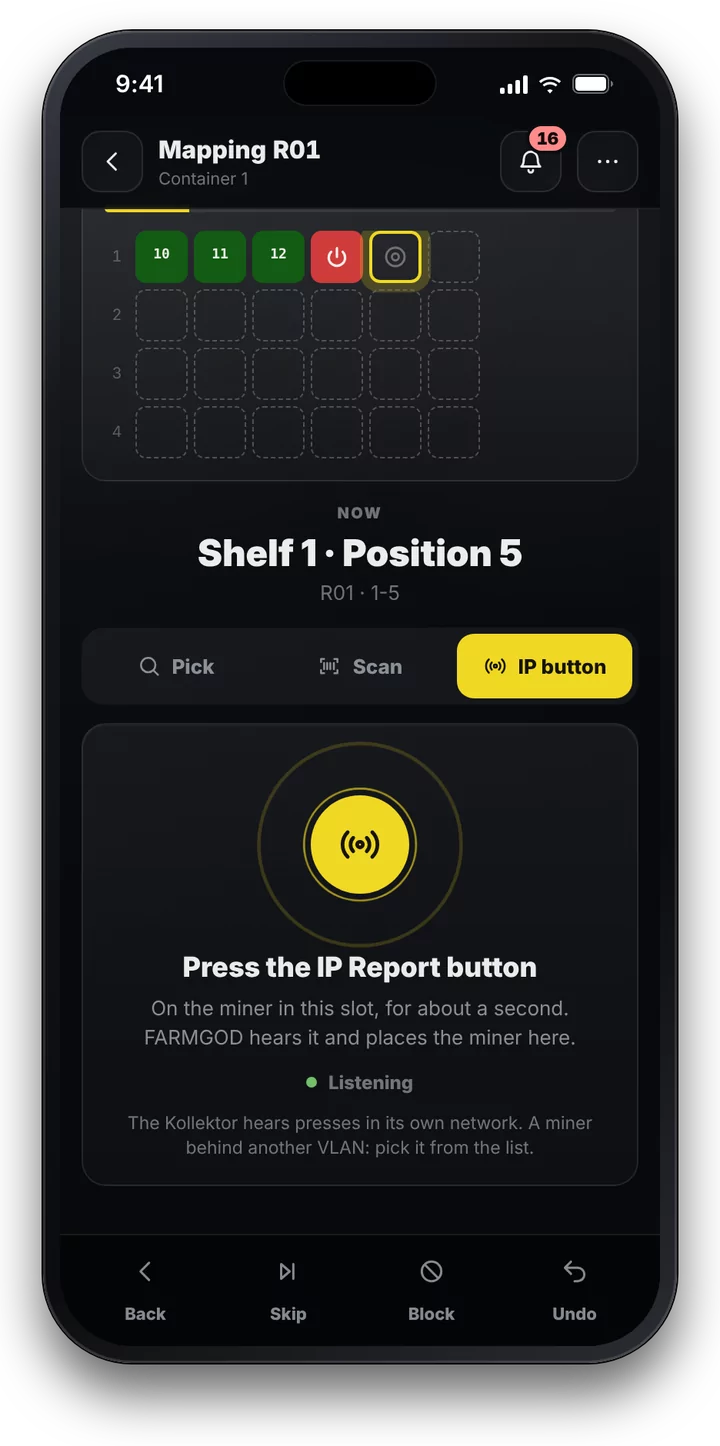
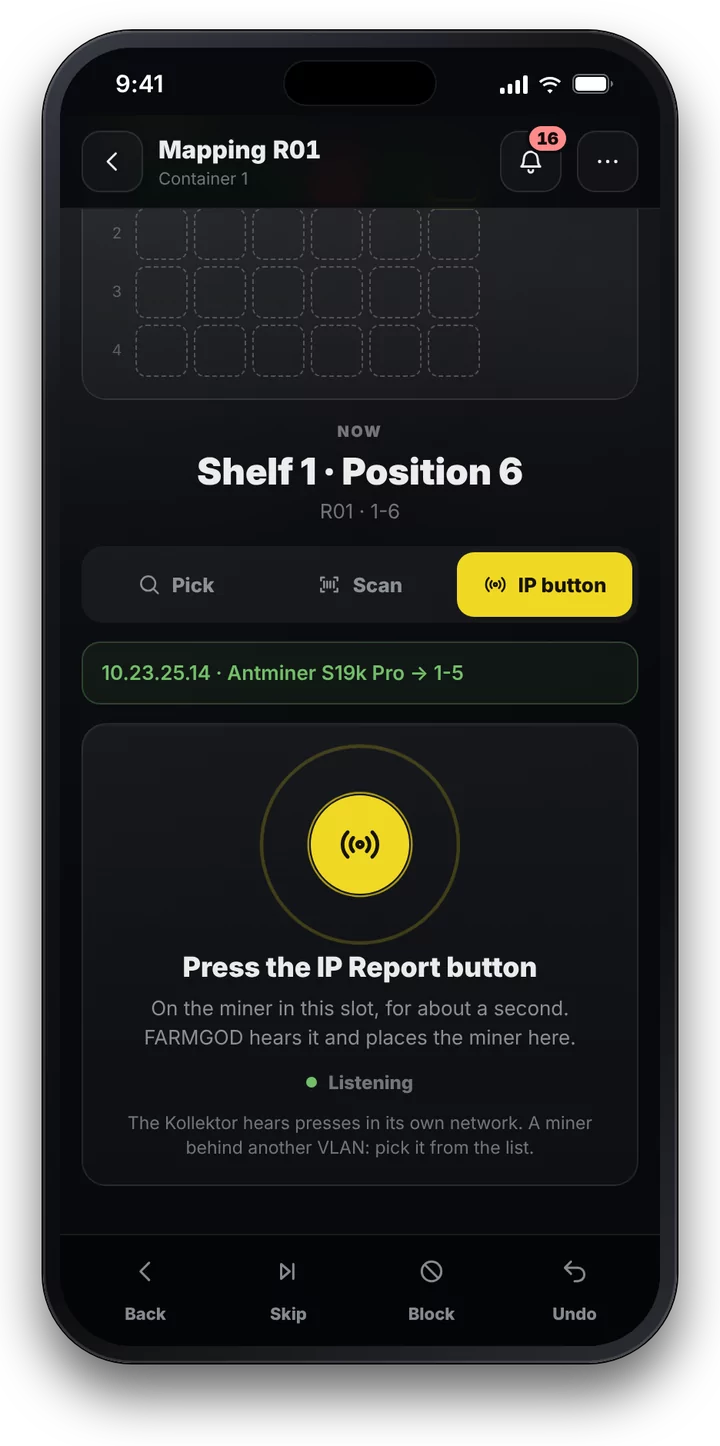
Press the miner's IP Report button, and FARMGOD finds the miner by itself. Antminers have this button on their control panel. Press it, and the miner announces its IP and MAC on the network; the Kollektor hears it, and FARMGOD knows exactly which miner stands in front of you. It places that miner in the slot and moves on. No reading, no typing: walk the rack and press, press, press.
A map that stays right
Most site maps are drawings of IP ranges, and they are out of date the day a miner gets a new address. The Sitemap ties every slot to the miner's MAC address, the identity FARMGOD gives each miner it finds. A new IP from DHCP changes nothing.
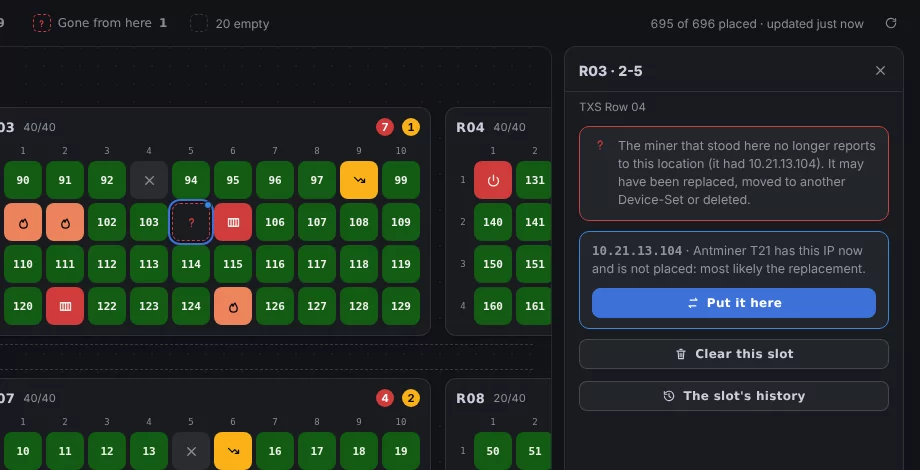
Swap a miner, and the Sitemap notices. The old one no longer reports from its slot, and the new one has usually taken over its IP. FARMGOD puts the two together and offers the new miner as the replacement: one click. Every placement, move and replacement is kept in the slot's history, with who made it and when.
There is nothing to save, either. The layout lives in FARMGOD, not in a dashboard, and it is part of the backups. Two technicians can map the same site at the same time, one with the phone in a container, one at the desk.
Your whole site, built in minutes
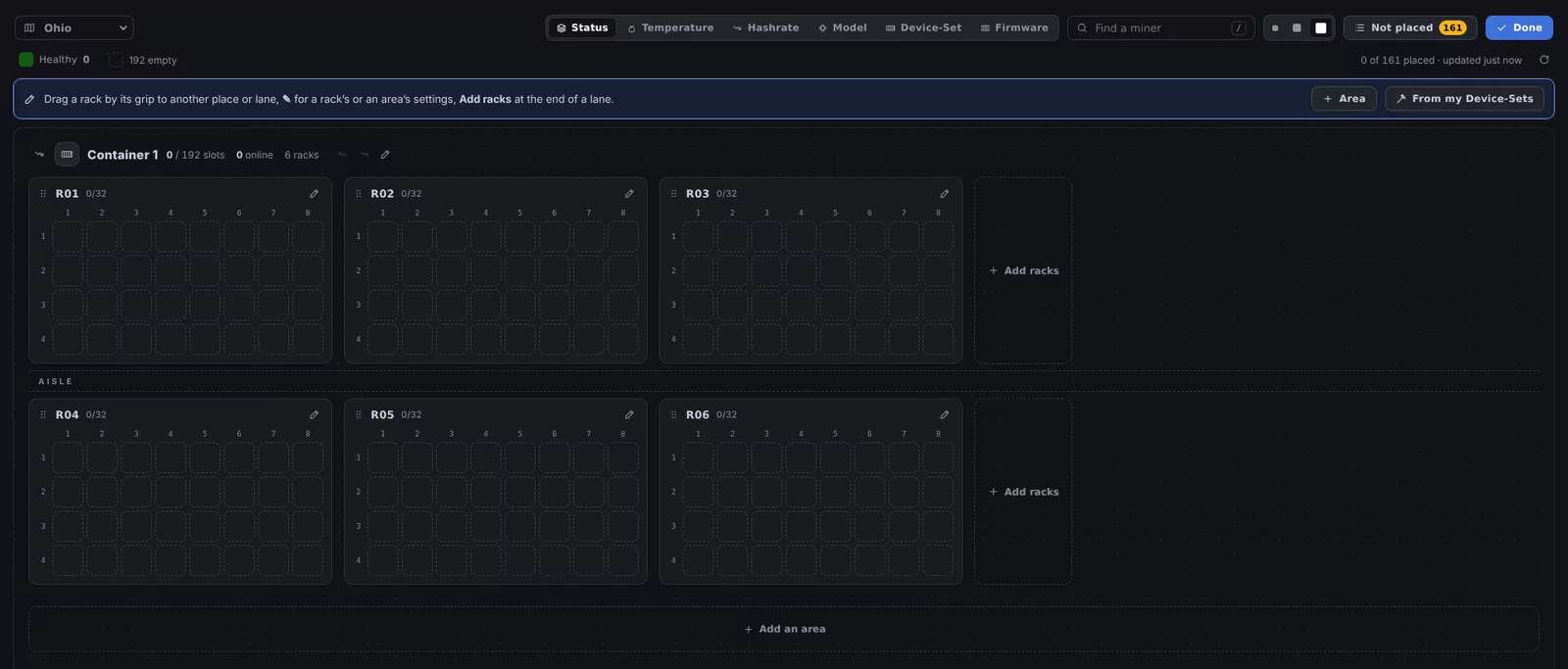
A location that has no map yet starts with a draft: one area per Device-Set, racks of the size you choose, filled with their miners in IP order. Where the IPs follow the racks, most miners are in their place right away, and the walk with the phone corrects the rest.
Or build it yourself: containers, halls and buildings, with their lanes of racks, each rack with its shelves and positions, its slots named the way the labels on your racks already say, 2-5 or 14, and the slots that will never hold a miner blocked.
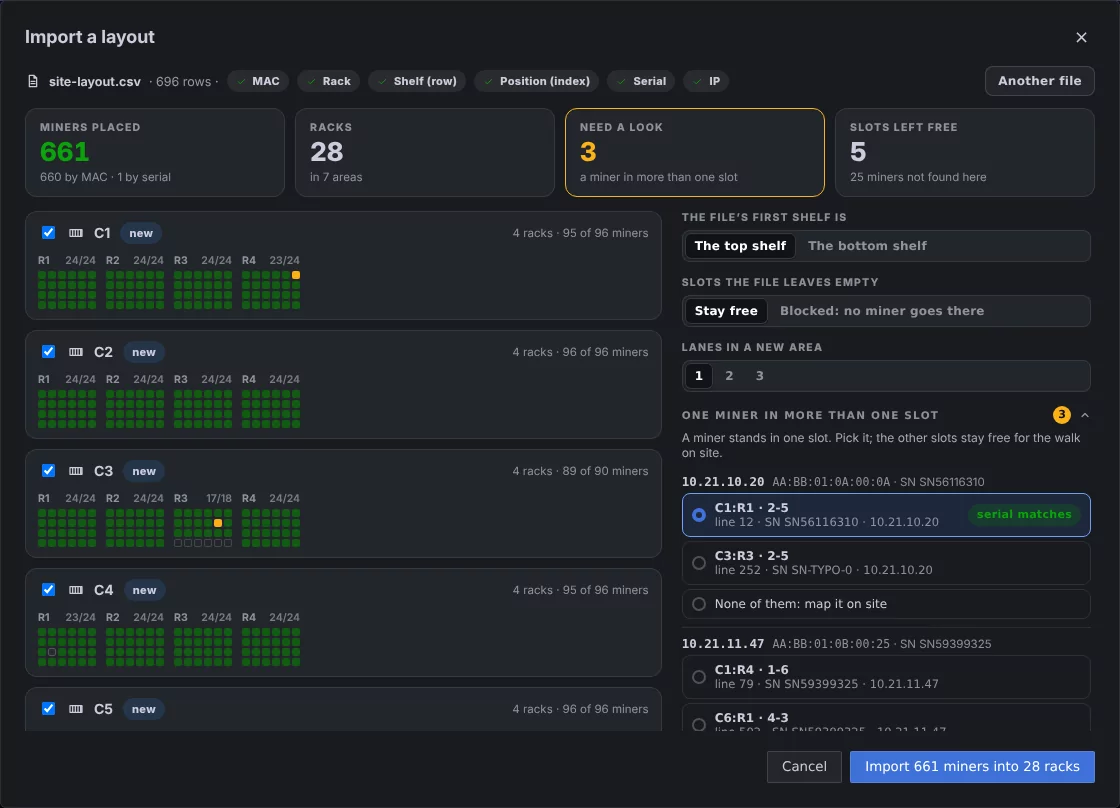
Or bring the layout you already have. If your racks live in a spreadsheet, kept by hand or exported from another tool, import it as a CSV file: one row per slot, with the rack, the shelf, the position and the MAC of the miner in it. FARMGOD finds every miner by its MAC, builds the areas and racks the file names and shows you the whole site before anything changes: every rack as it will be, how many miners it found, and what needs a look, such as a miner the file puts in two slots or a MAC with a typo. Settle those, and one click imports the site. The walk with the phone then checks it on the floor.
Every machine has its place, monitored or not
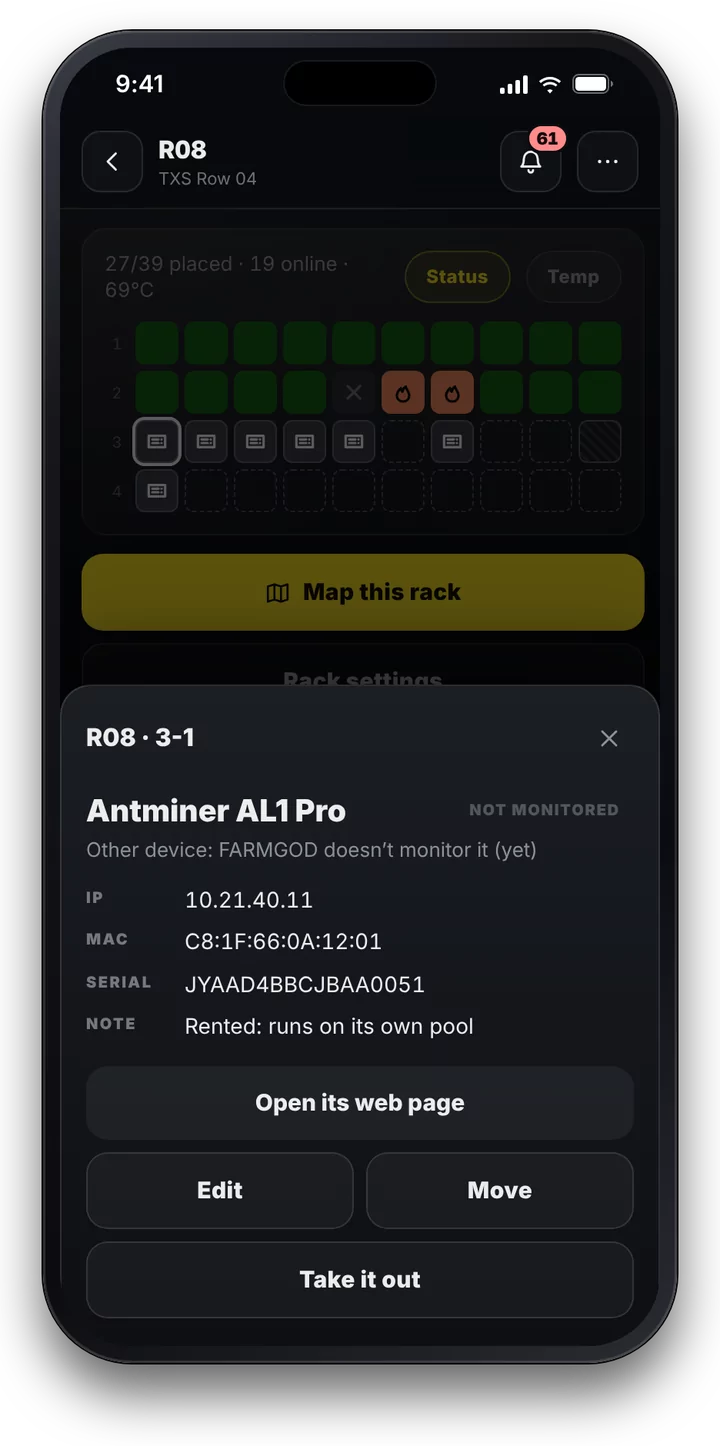
Not every machine in a rack is one FARMGOD monitors: a miner of a make it doesn't support yet, one it can't reach, a switch. On the Sitemap they keep their place all the same. An Other device holds its slot with what you know about it: make and model, a name, its IP and MAC, its serial, a note. It counts in its rack, has a tile of its own, and opens its own web page right from the map. All of them sit in one list, to search, copy or print.
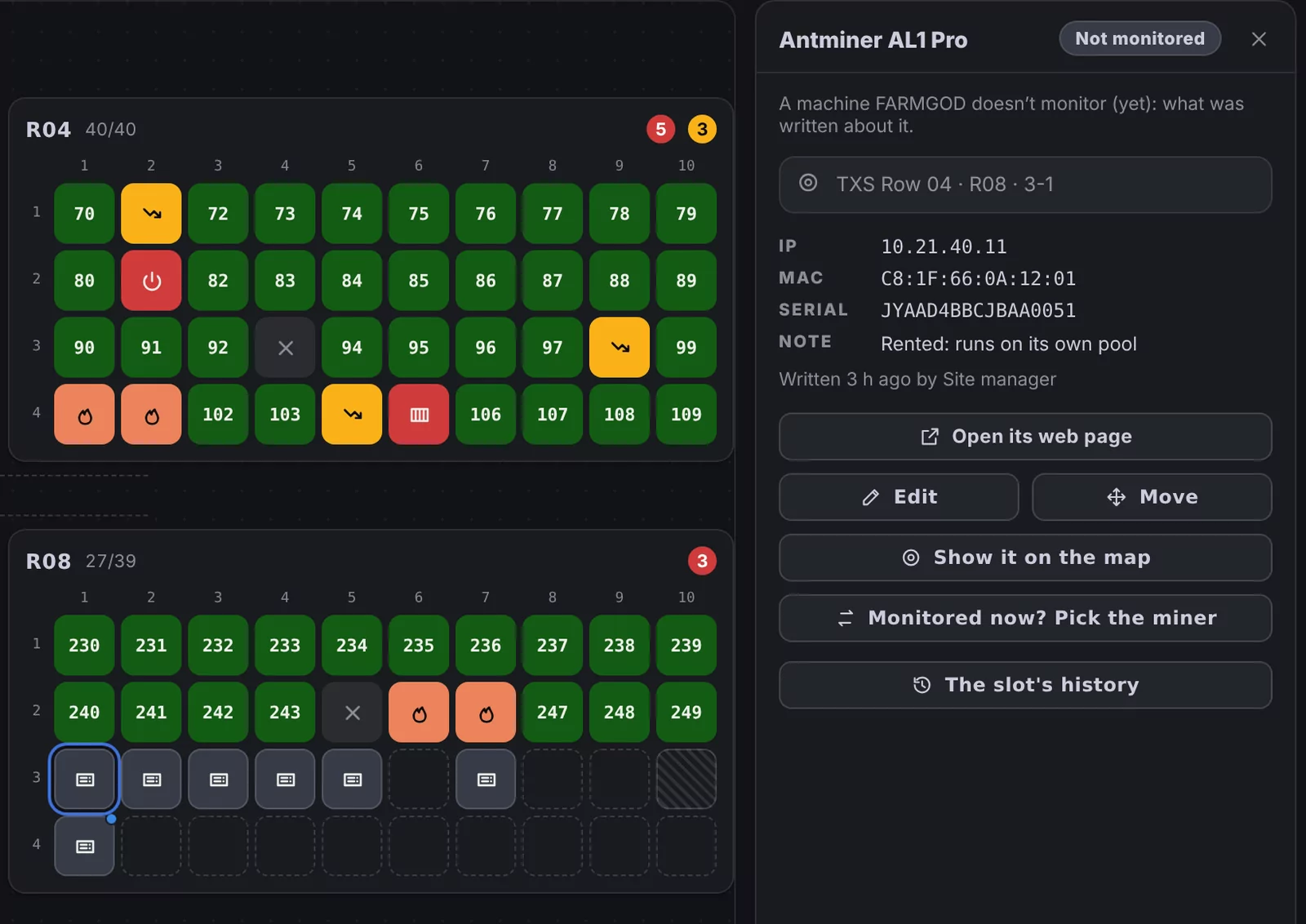
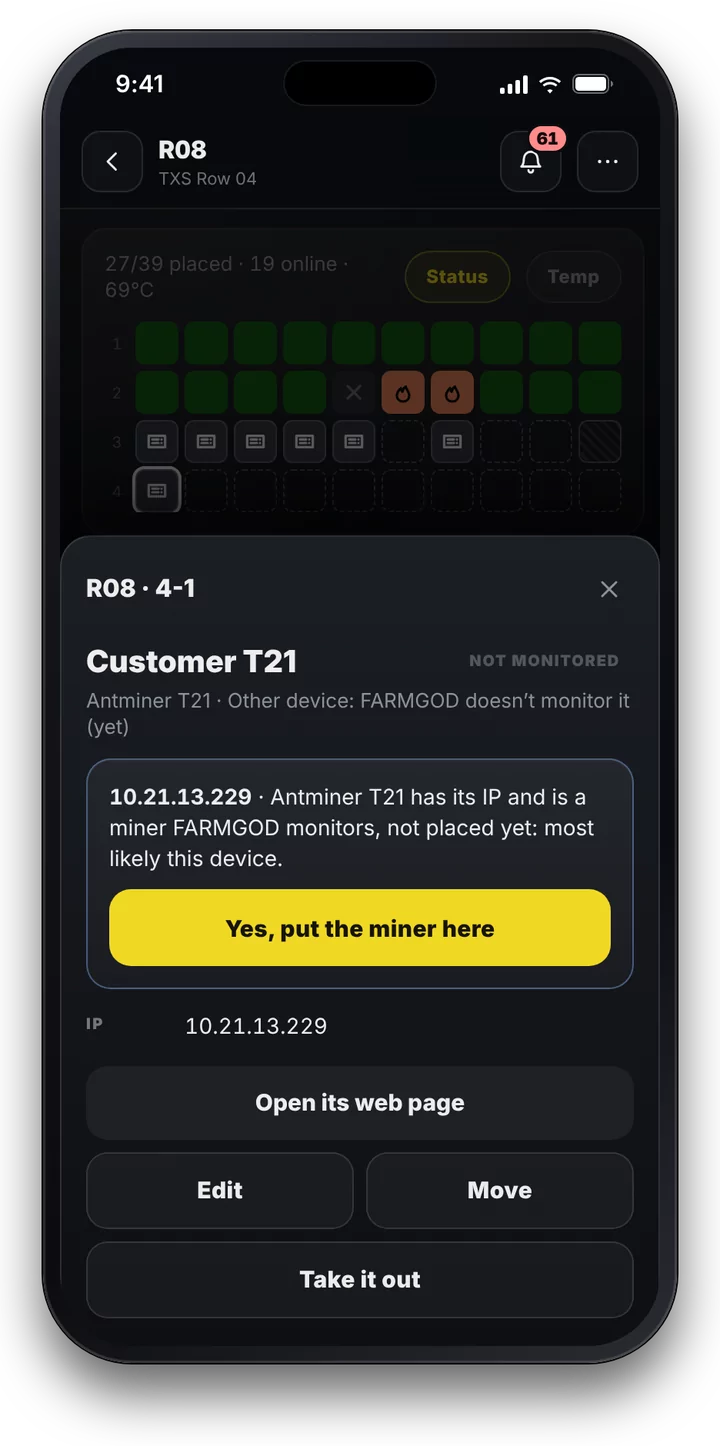
The day FARMGOD monitors it, the map catches up. With its MAC written down, the miner takes the slot over by itself as soon as FARMGOD finds it. With only an IP, FARMGOD asks first, because addresses change hands. On site, a scanned label or an IP Report press that belongs to no miner FARMGOD knows becomes an Other device with one tap, and an imported layout brings the rows whose miners aren't there yet the same way.
Positions everywhere
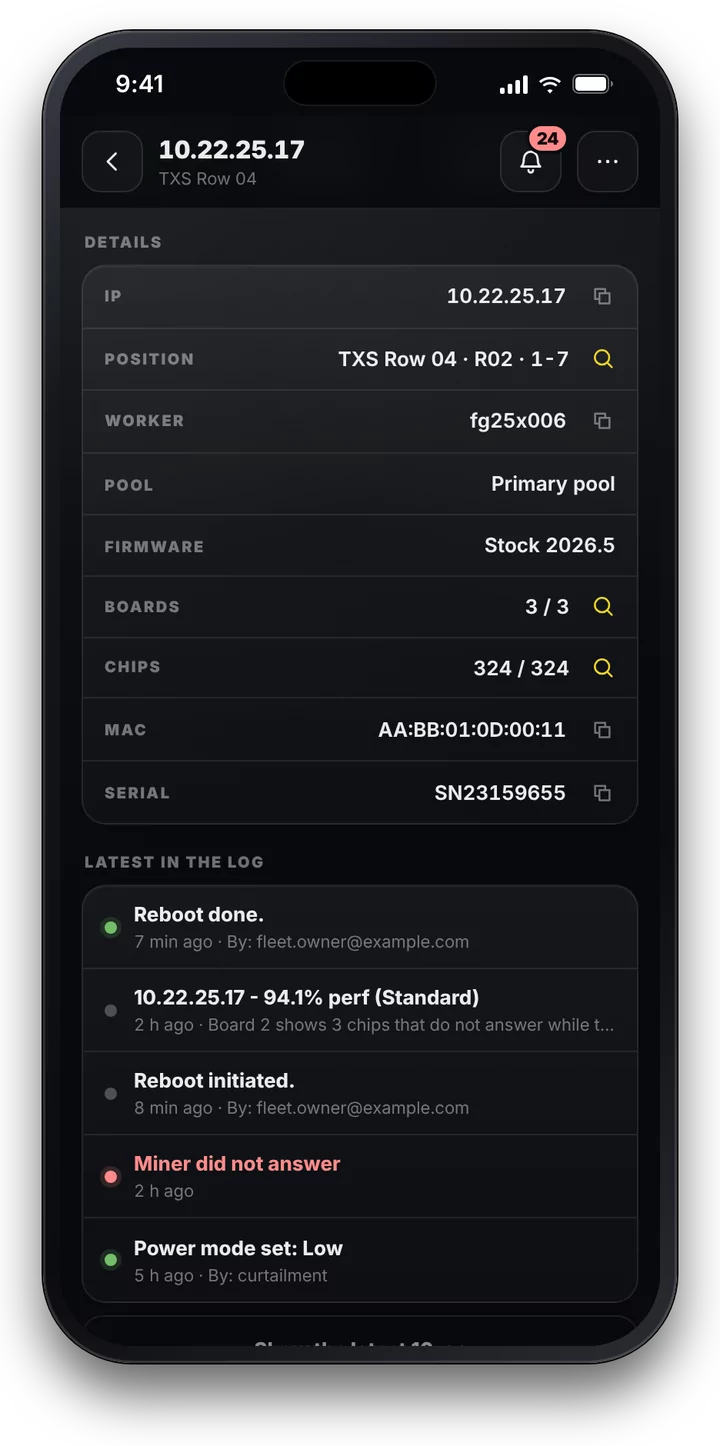
Once a miner has its slot, its position goes wherever the miner is shown. There is a column for it in the Miner-Lists, a line in the head of its ASIC detail page and a field on its page on the phone, and the AI Audit's reports on Telegram include it. TXS Row 04 · R03 · 2-5: whoever finds a problem also finds the miner.
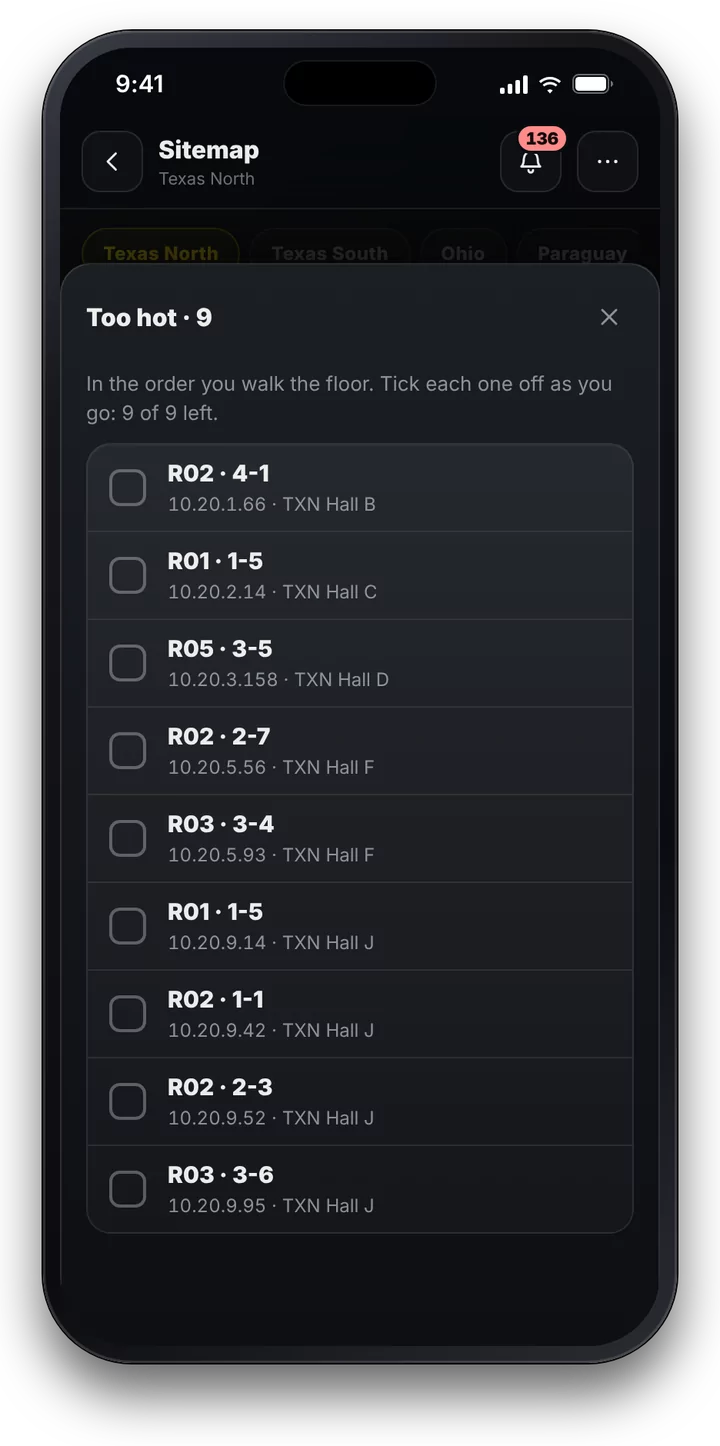
On the phone, the Sitemap goes further. A round through the problems takes you to every miner that is too hot, offline or below spec, in the order you walk the floor, and you tick each one off as you go.
Why it is the Sitemap to use
- Built where the miners are. You map on site with your phone, rack by rack, not by drawing IP ranges at a desk.
- Tied to the miner, not to its IP. The map stays right when IPs change, and replacements are noticed and placed in one click.
- Three ways to name a miner. Pick, scan its MAC label, or press its IP Report button.
- Bring what you have. A layout from a spreadsheet comes in as a CSV, shown in a preview before anything changes.
- Every machine on the map. Machines FARMGOD doesn't monitor yet keep their slot as Other devices, and turn into miners on the map once FARMGOD monitors them.
- Live, by the rules you already know. Six colourings, problems by the Fleet Health rules, walk lists in floor order.
- Everywhere you look. Positions show in the lists, on the detail pages, on the phone and in the AI Audit's reports.
- Nothing to set up per rack, nothing to save. The layout lives in FARMGOD, with your backups.
Where to find it
The Sitemap is part of Cloud PRO on FARMGOD Cloud, trial included, and of every Private VPS, where it is for the server's managers. Open SITEMAP in the navigation bar on the desktop, or Sitemap in the menu on your phone. Everything about it, step by step, is in the new Sitemap guide, which is also under HELP in FARMGOD.