October 13, 2026Features
FARMGOD on your phone: the whole fleet, down to the chip
FARMGOD has a new phone view: your fleet, every Device-Set and every miner on your phone, with their actions, their economics and their boards and chips. You arrange every page the way you work. It is part of every plan, on FARMGOD Cloud and on a Private VPS.
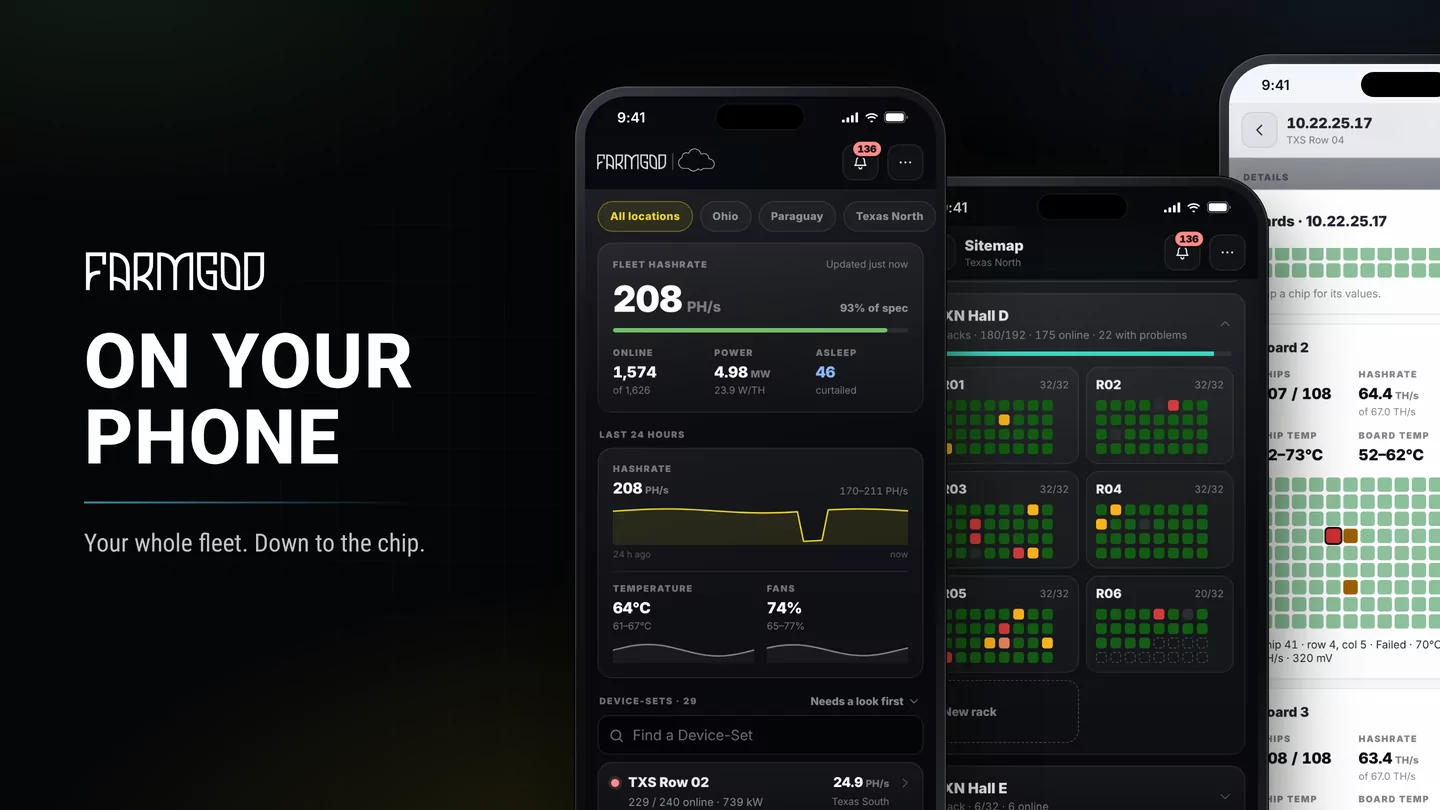
A miner drops out at eleven at night, and the laptop is in another room. The phone in your pocket is enough: FARMGOD has a new phone view, made for one hand and for the same work as the dashboards. See the fleet, find the miner, act on it.
There is nothing to install. Open FARMGOD in your phone's browser and sign in, and the phone view opens by itself. It takes the place of the earlier mobile interface. The rest of this article is mostly pictures, because they show it best. Tap any of them to see it big.
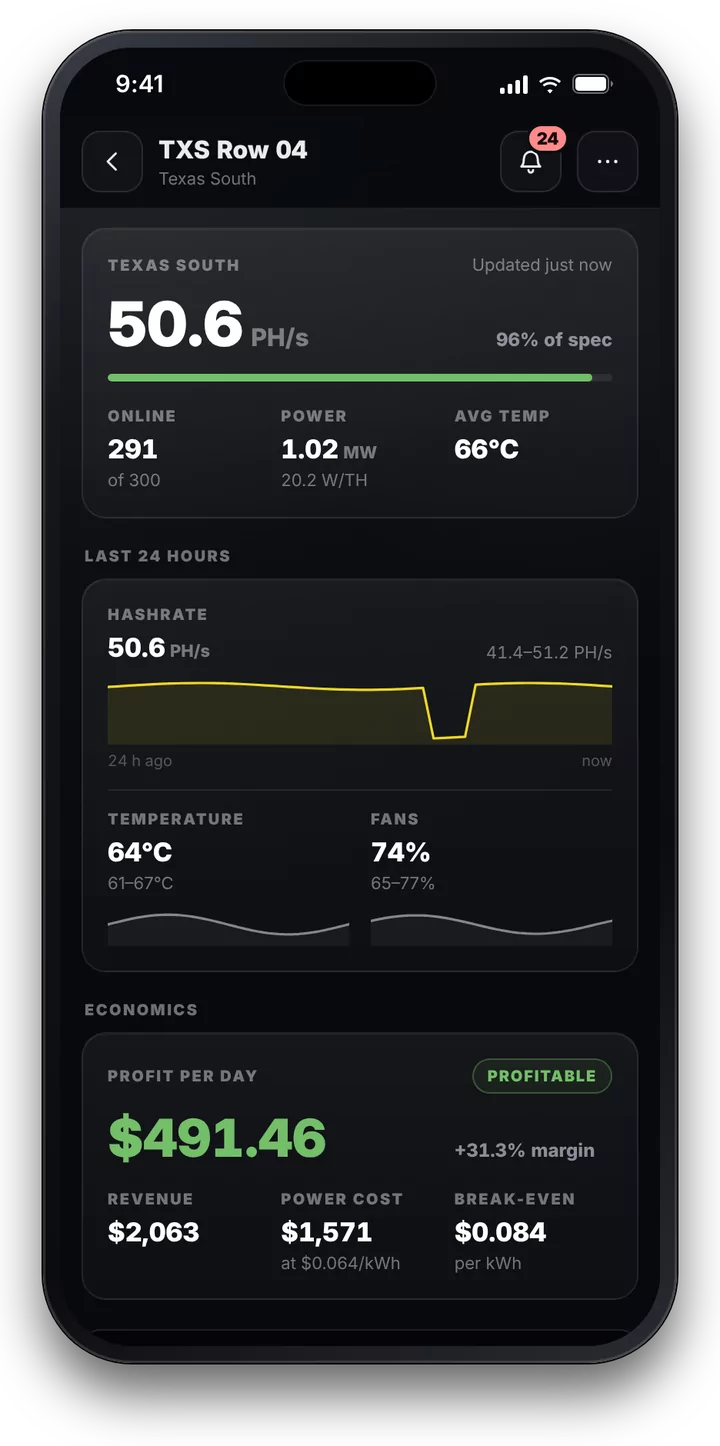
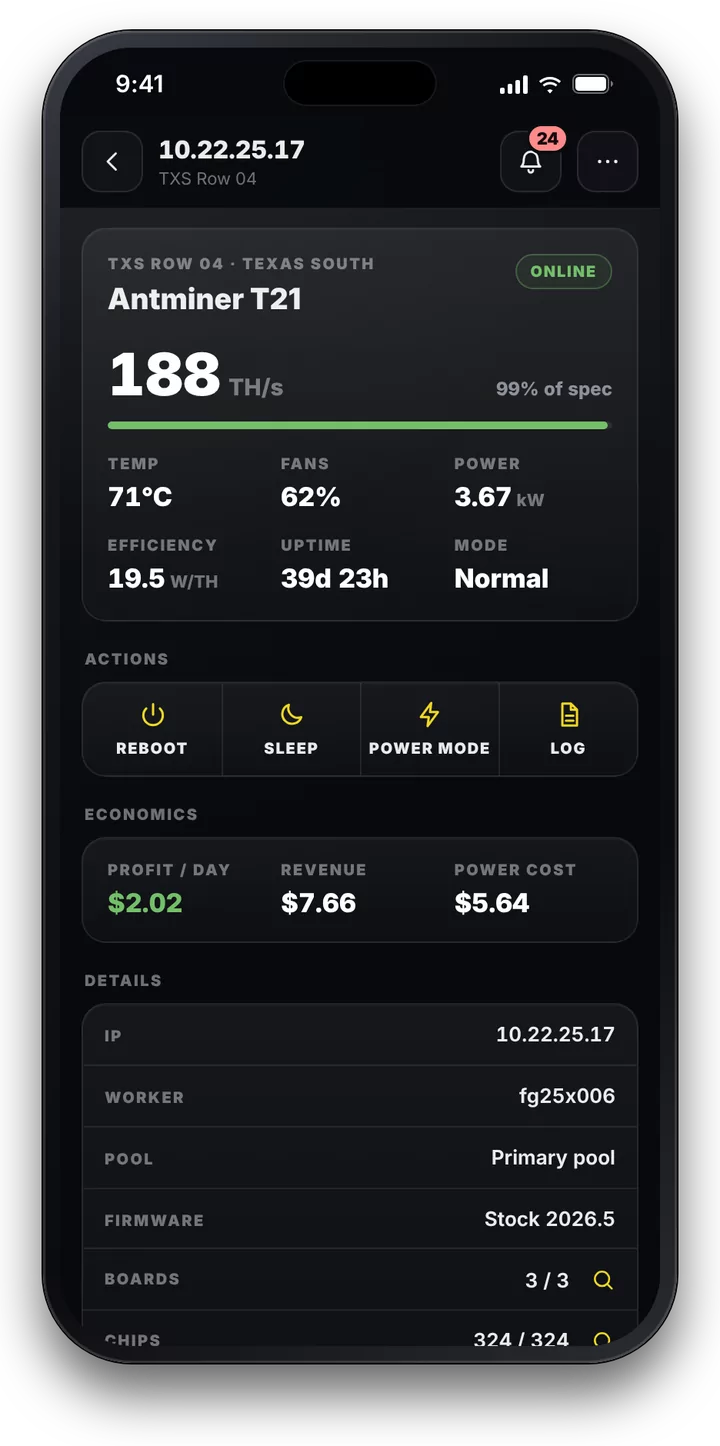
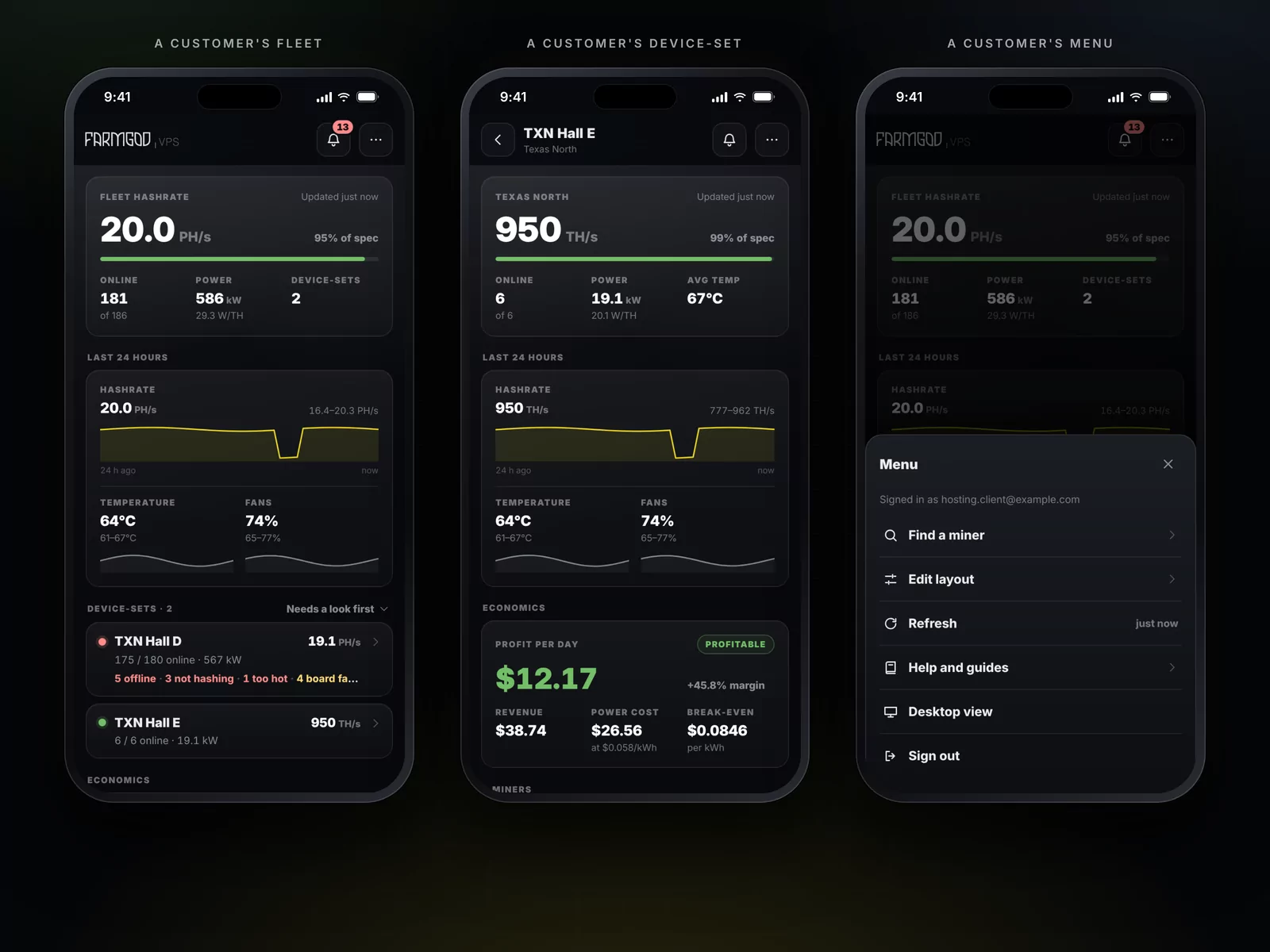
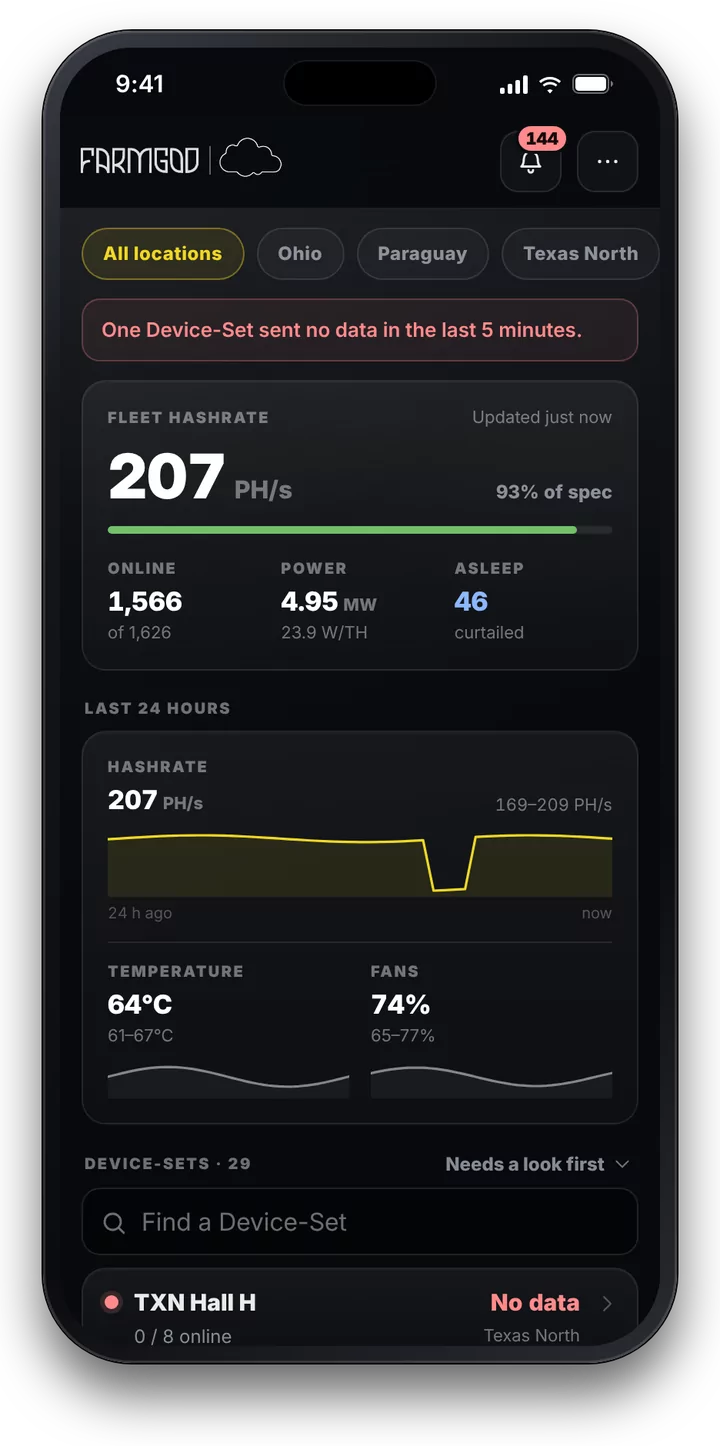
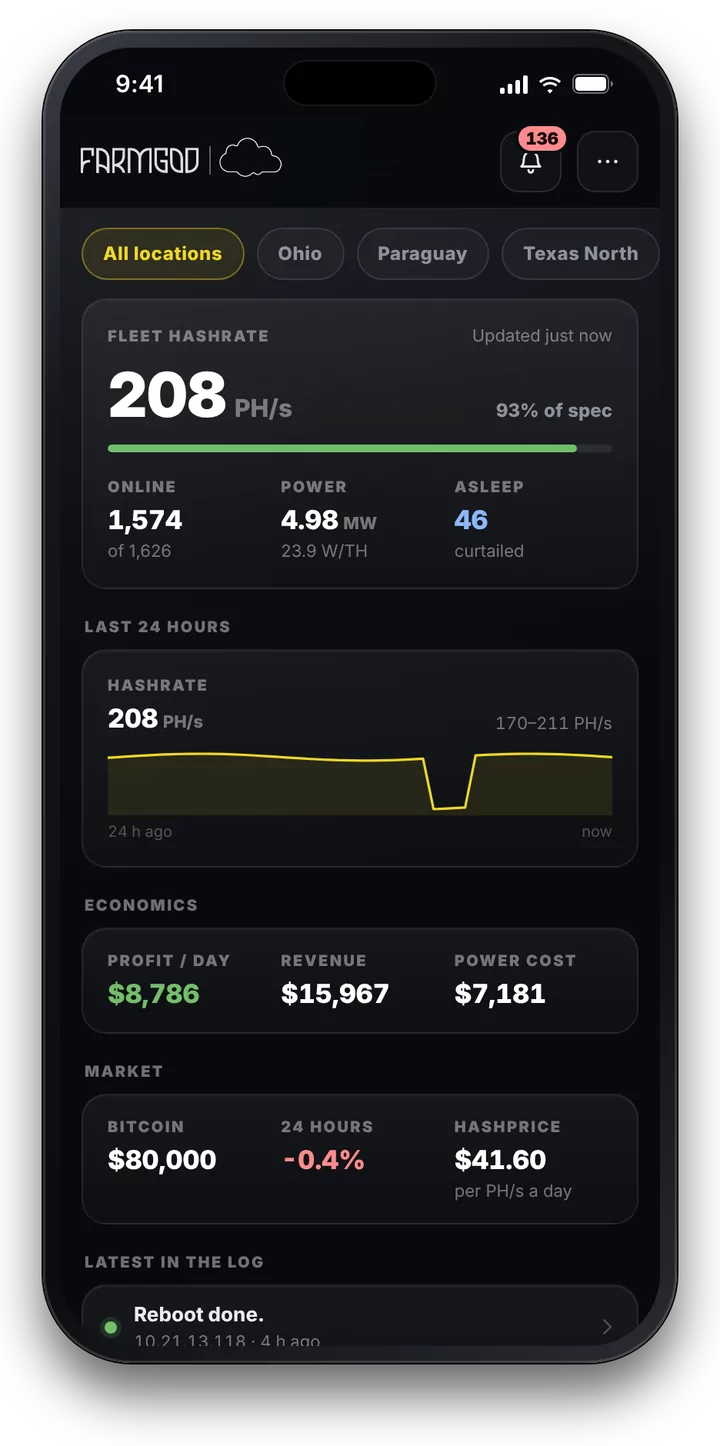
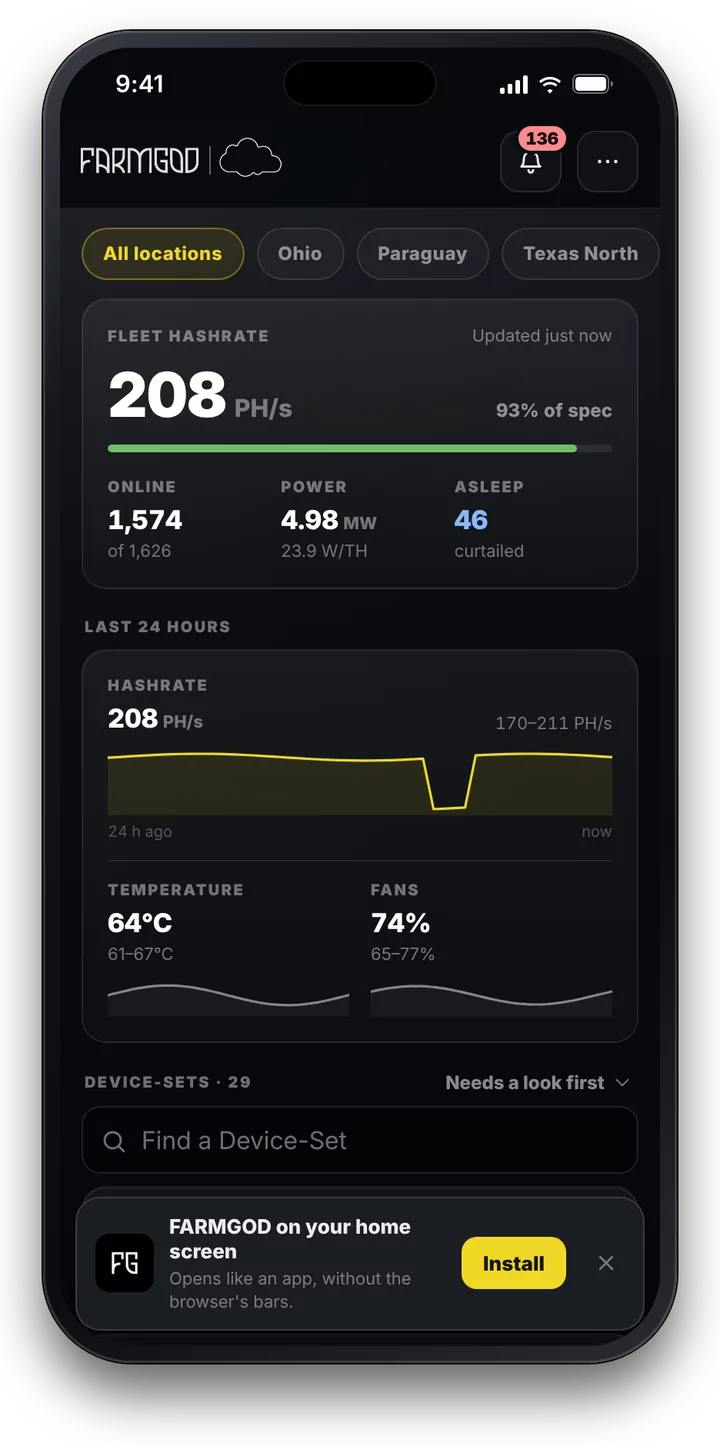
The whole fleet on one screen
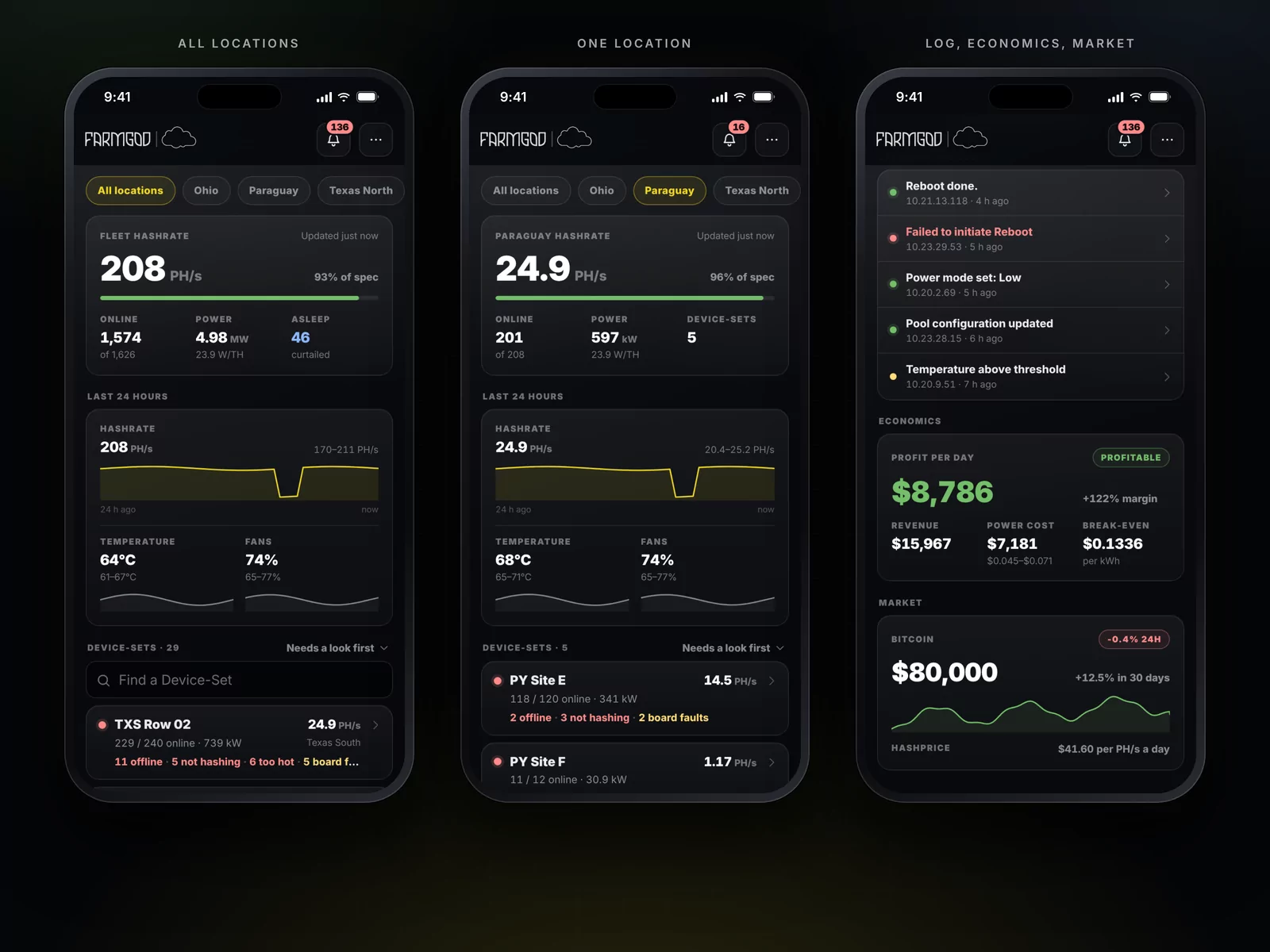
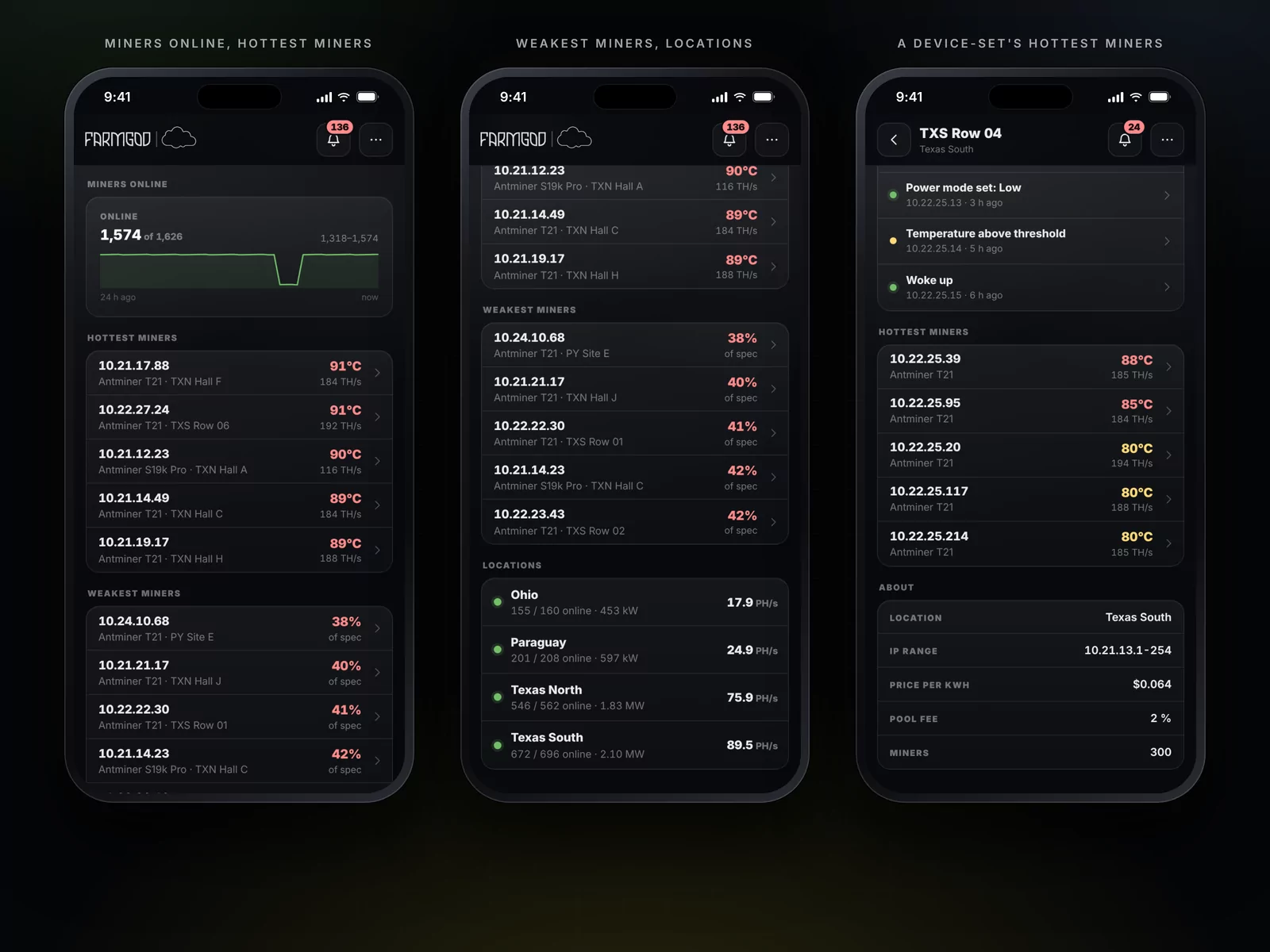
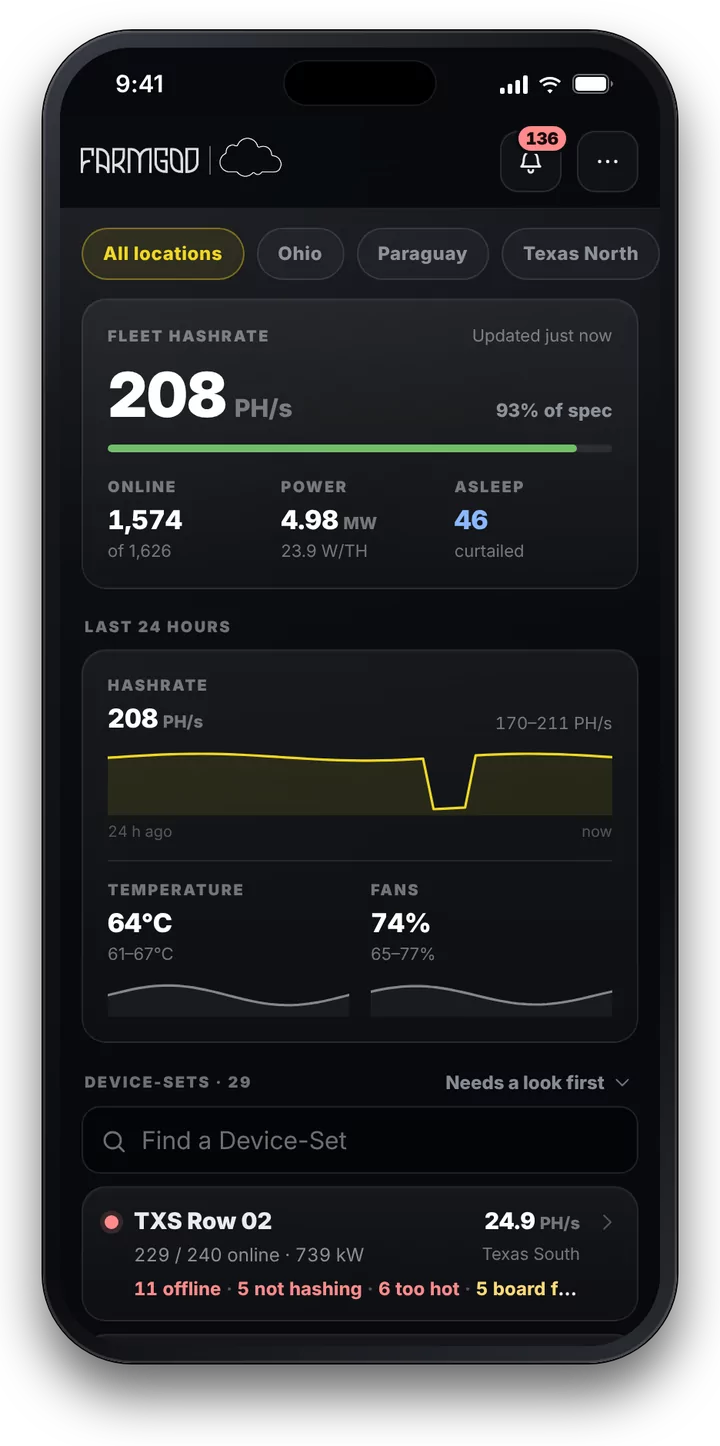

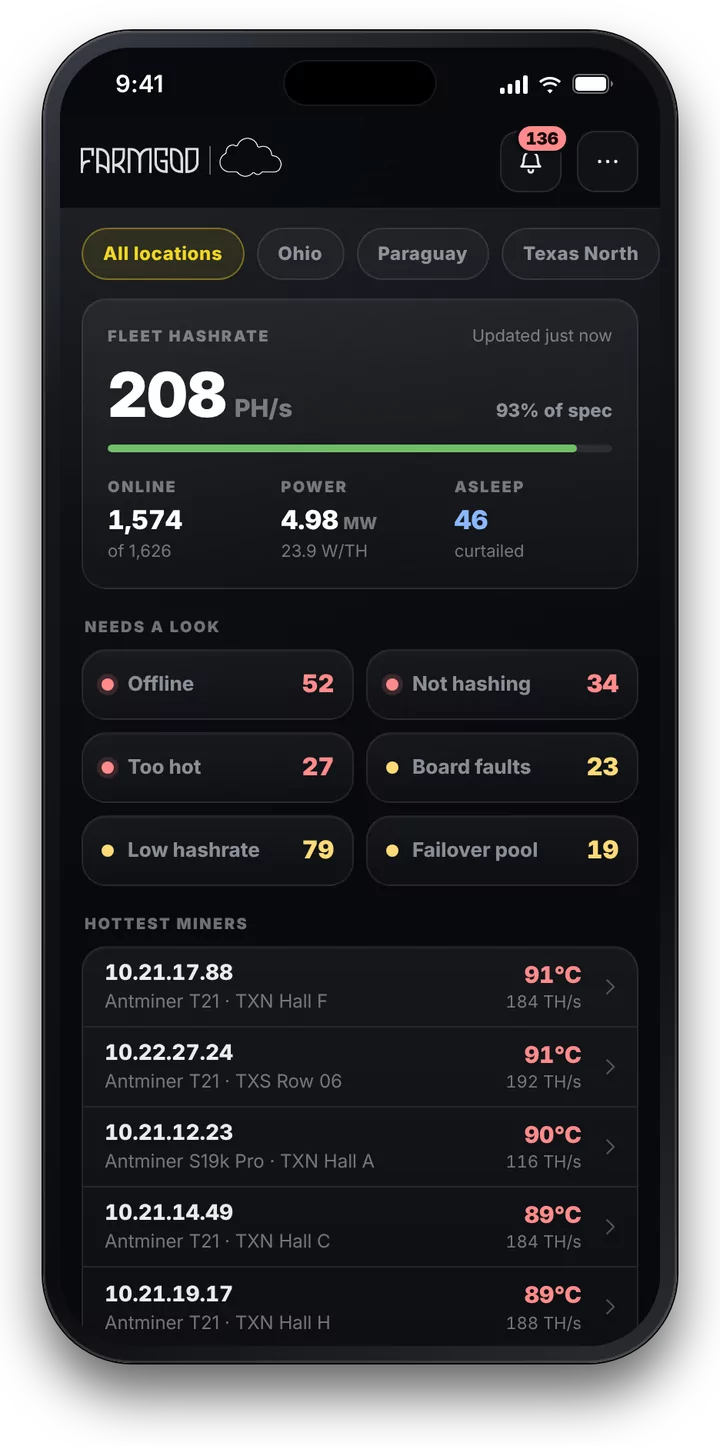
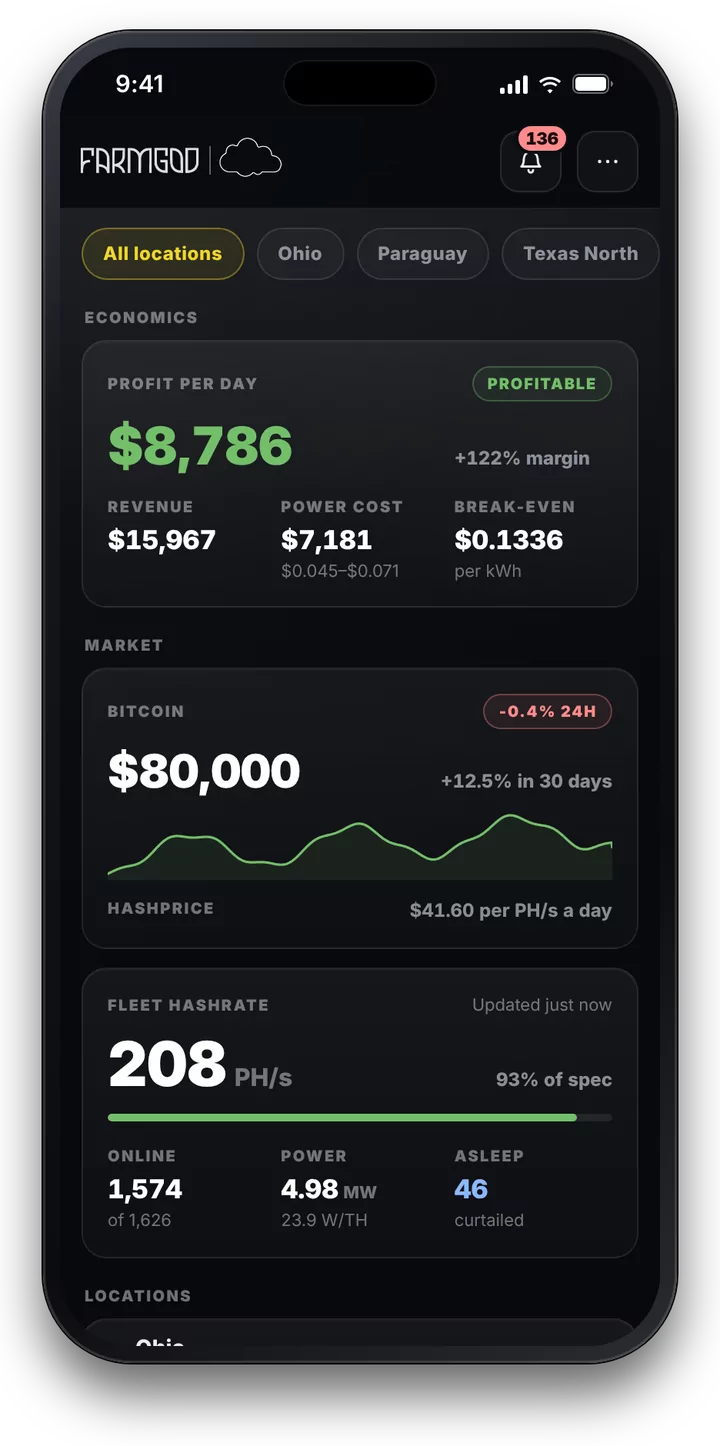
The overview answers what you open FARMGOD for. How much do we hash, and how close is that to what the machines should deliver? How many miners are online, how much power do they draw, how many are asleep? Right below: the last 24 hours as lines, for hashrate, temperature and fans.
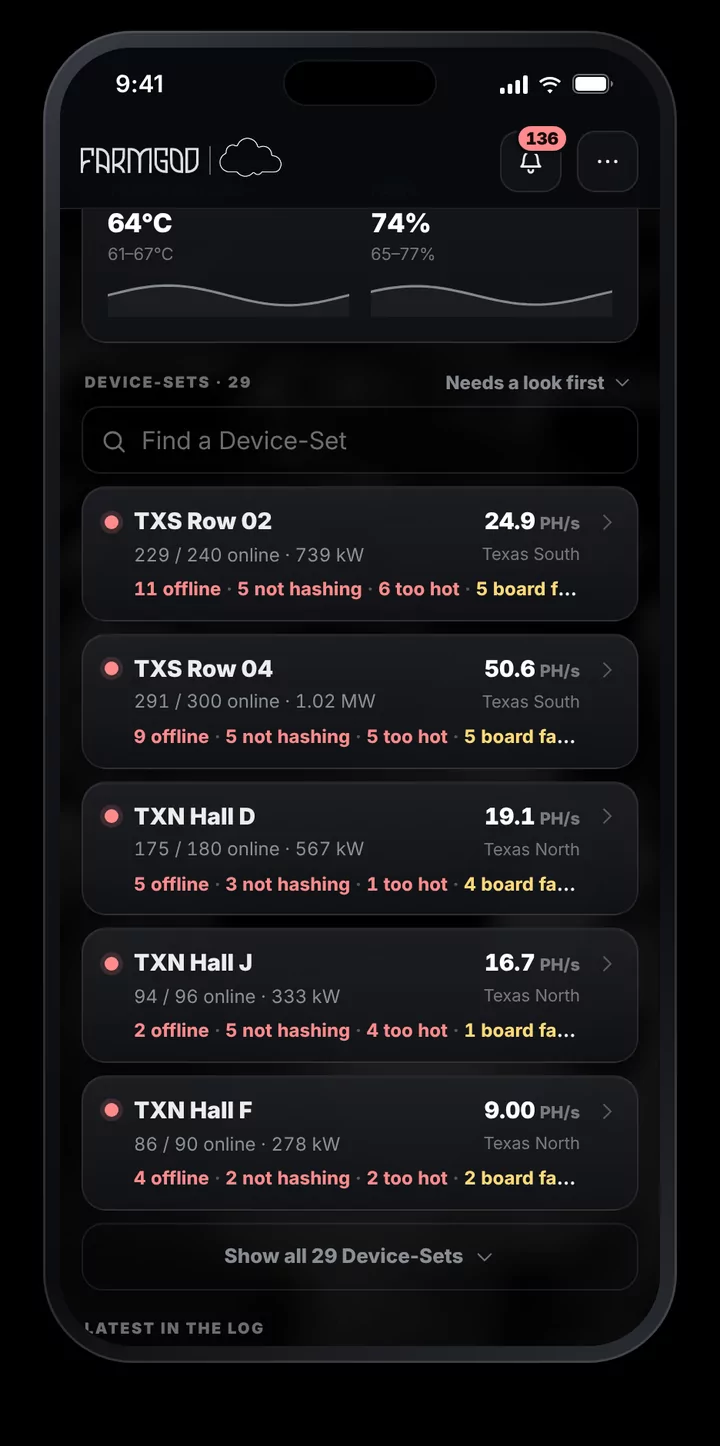
Then come your Device-Sets, those that need a look first, each with what is wrong in it. A tap on a location narrows the whole page to that site. Further down are the latest entries of the log, the day's profit with its margin and break-even price, and the market with the Bitcoin price and the hashprice.
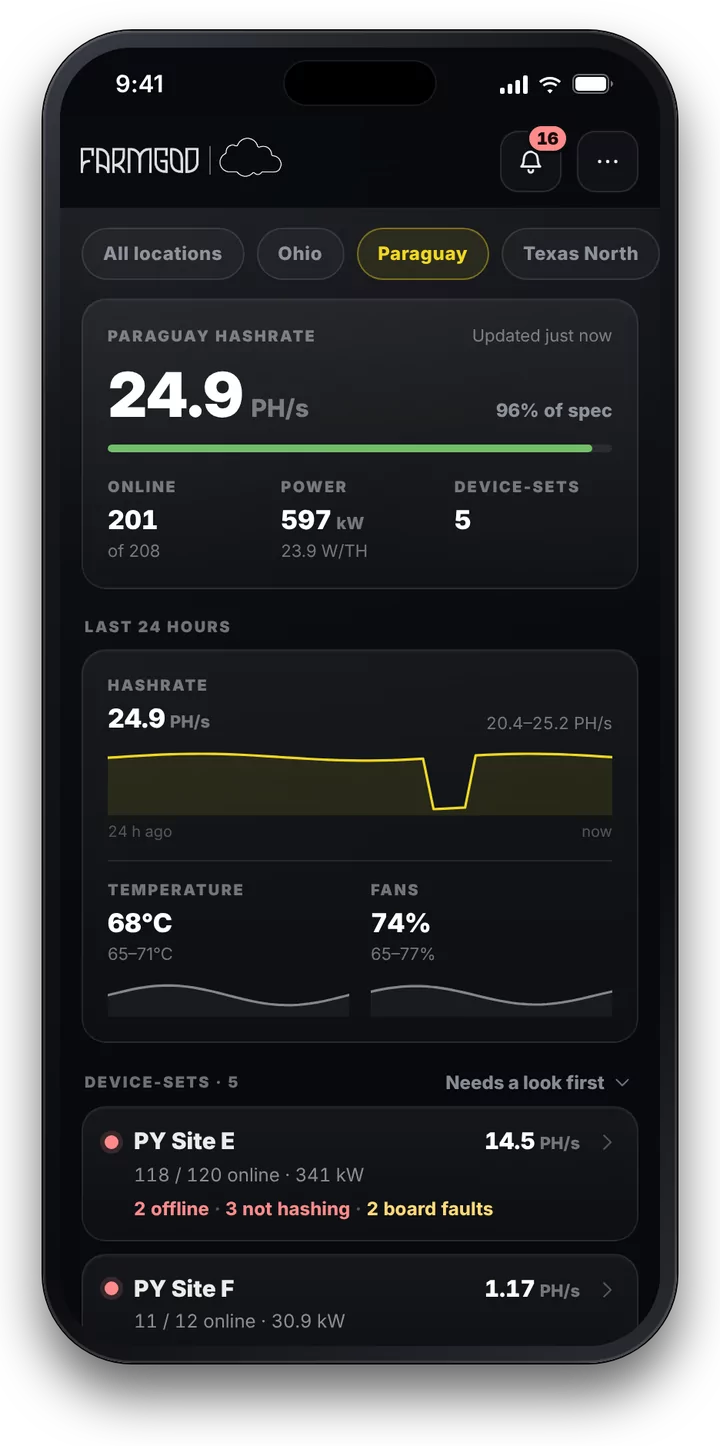
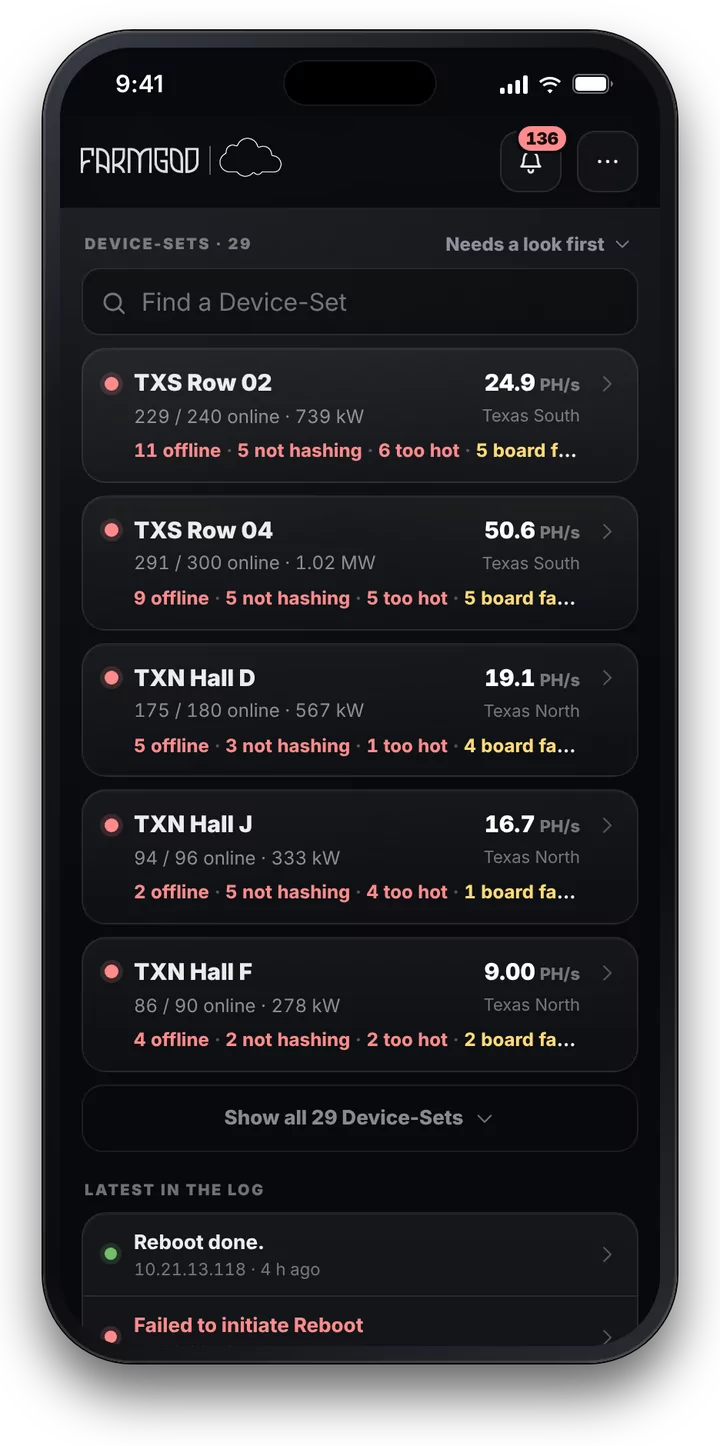
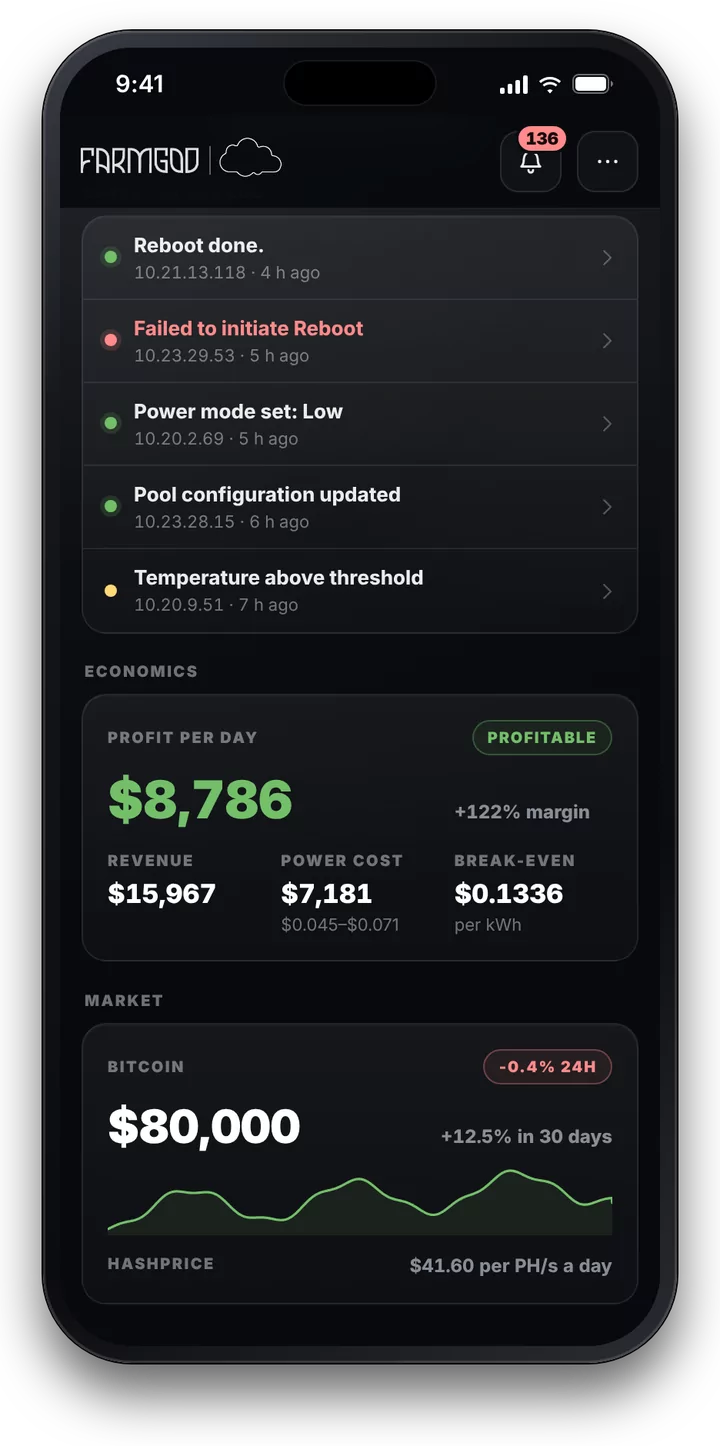
It tells you what needs a look
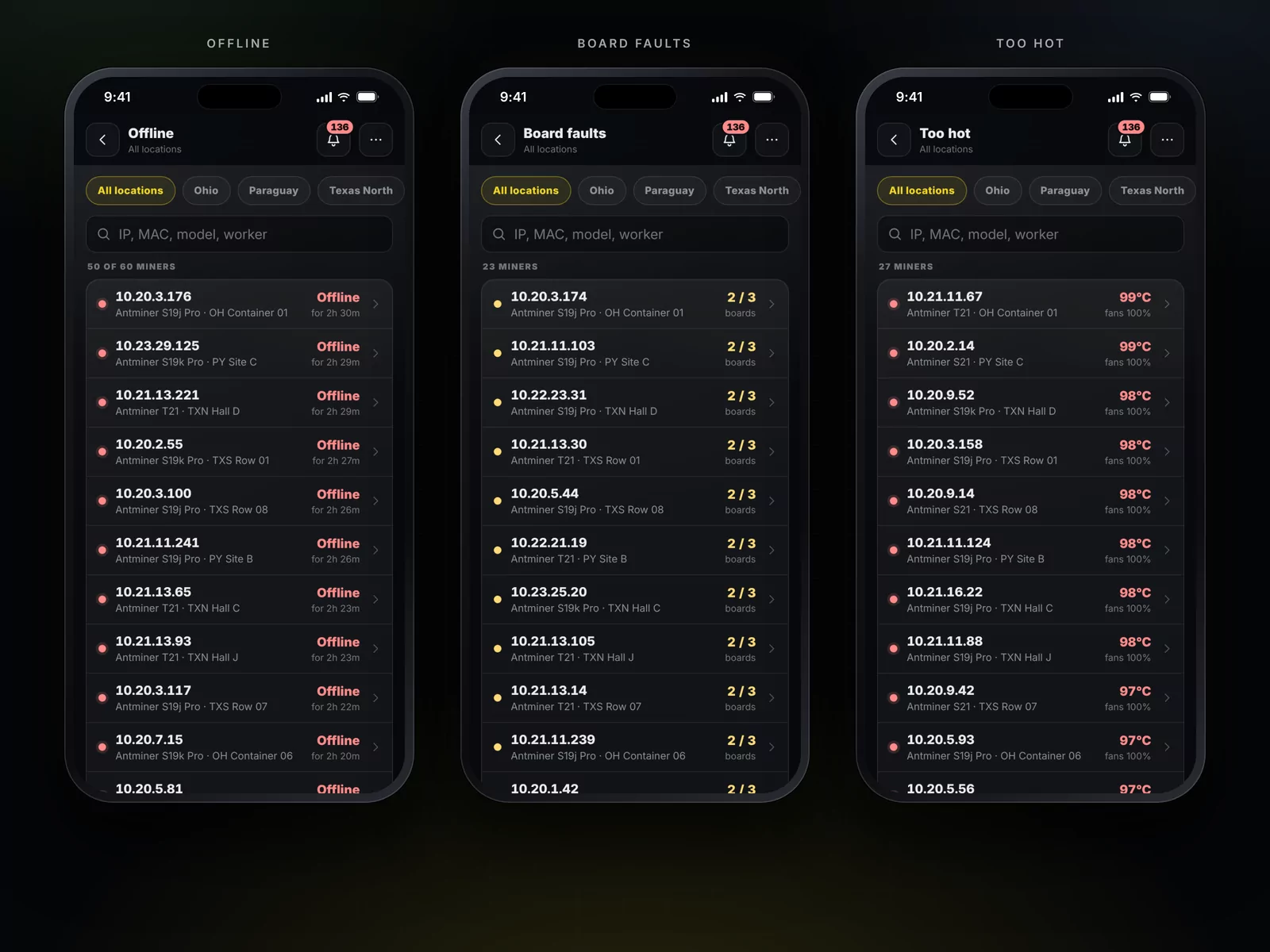
The bell in the corner counts the miners that need you. Tap it and they are sorted by what is wrong with them: offline, not hashing, too hot, board faults, low hashrate, on a failover pool. Each line opens the list of those miners, for the whole fleet or for one location.
What can't wait stands above everything else: a Device-Set that stopped sending data, or an on-site tool that went offline.
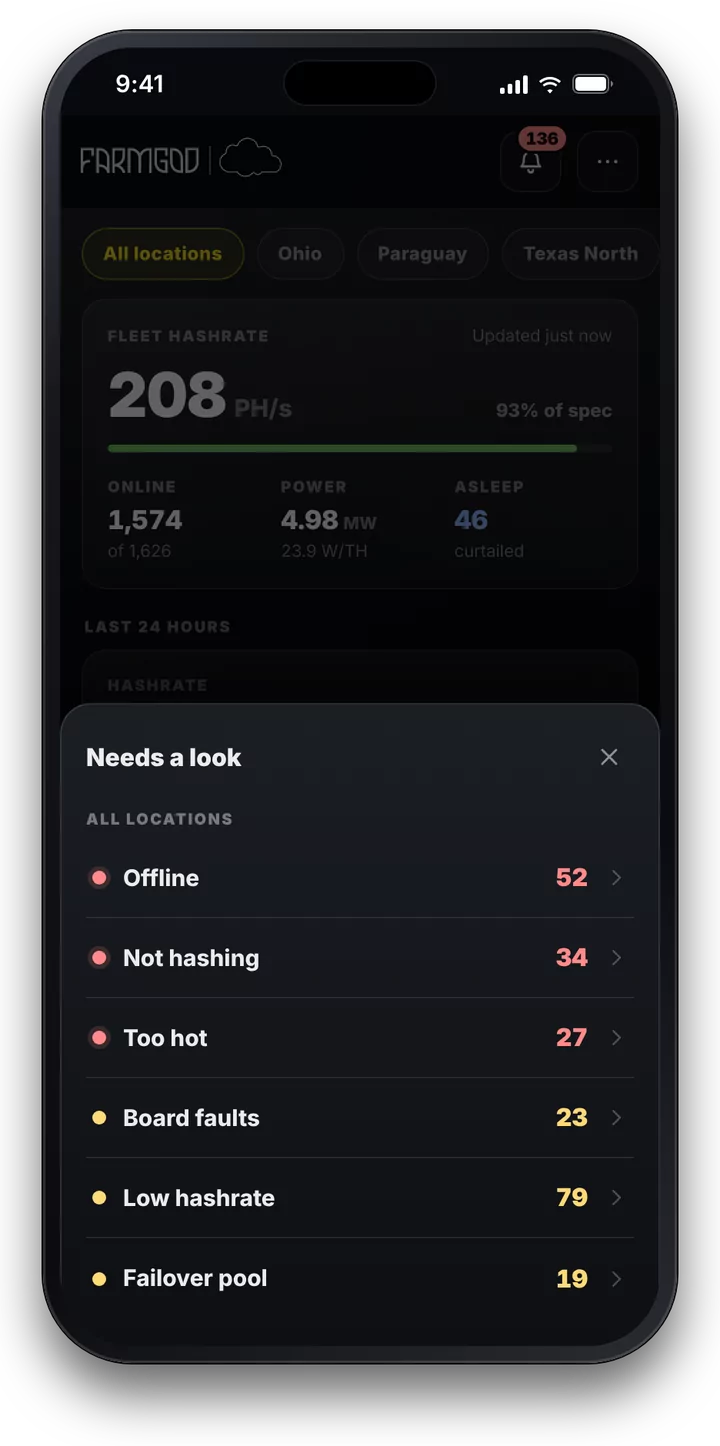
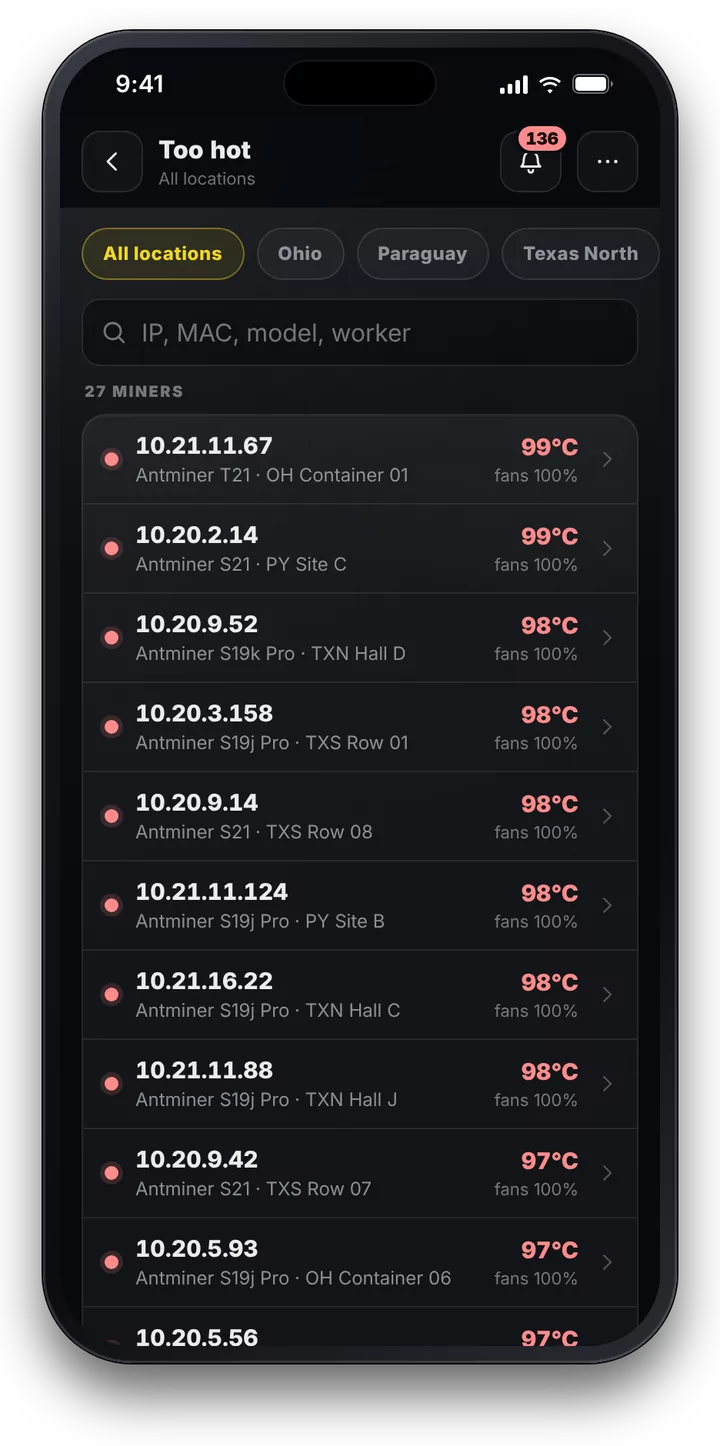
From the fleet down to a single chip
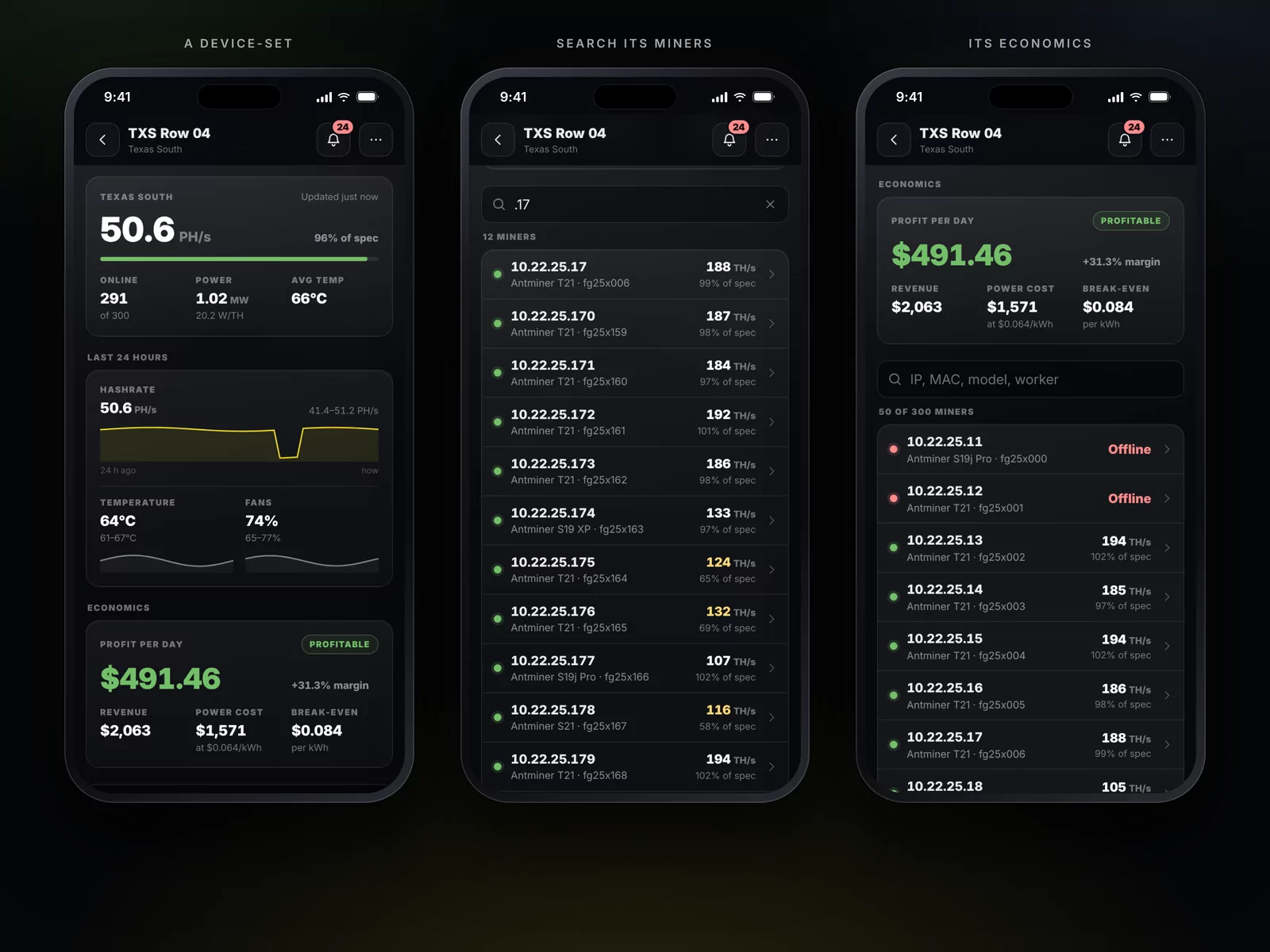
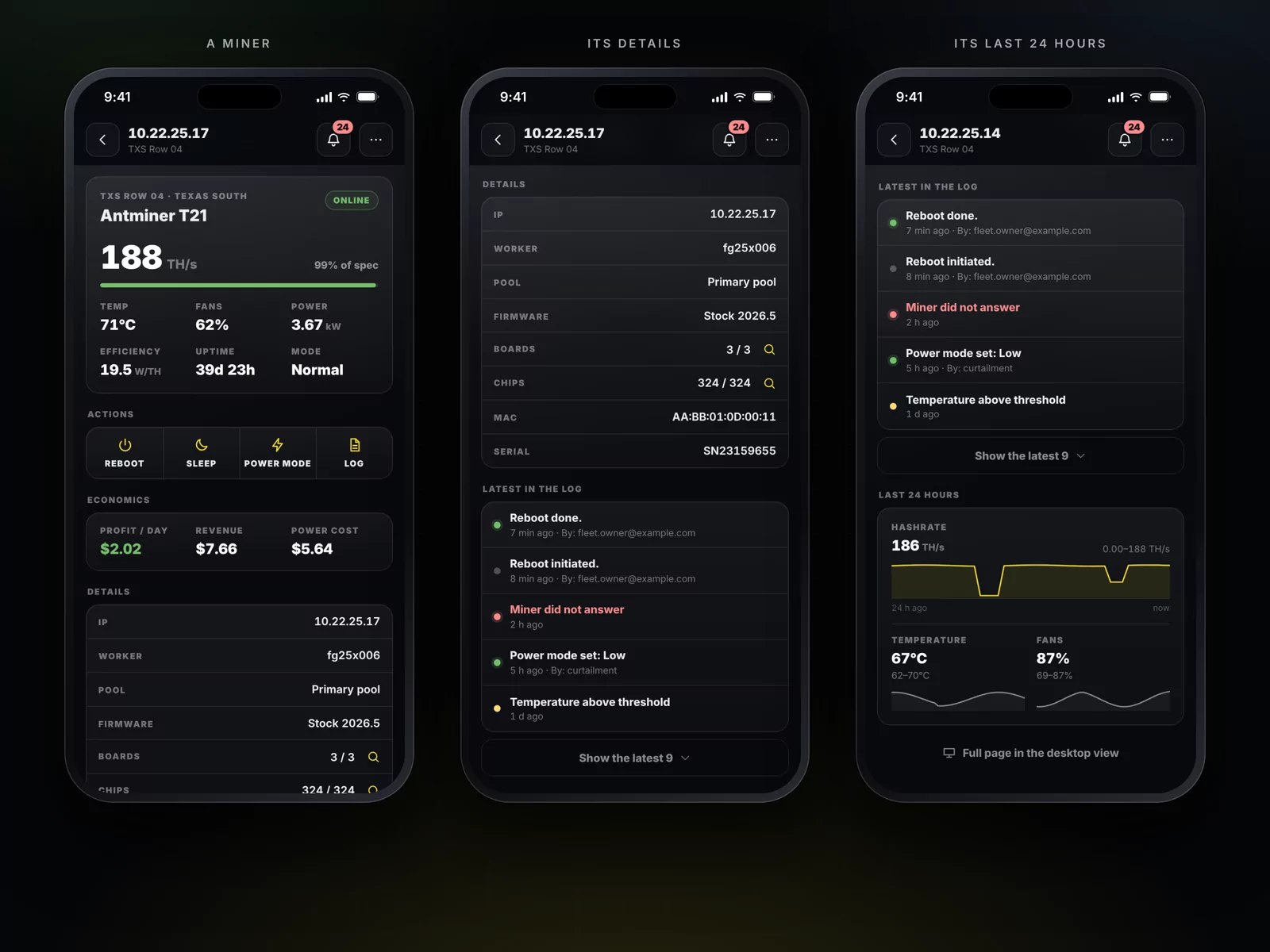
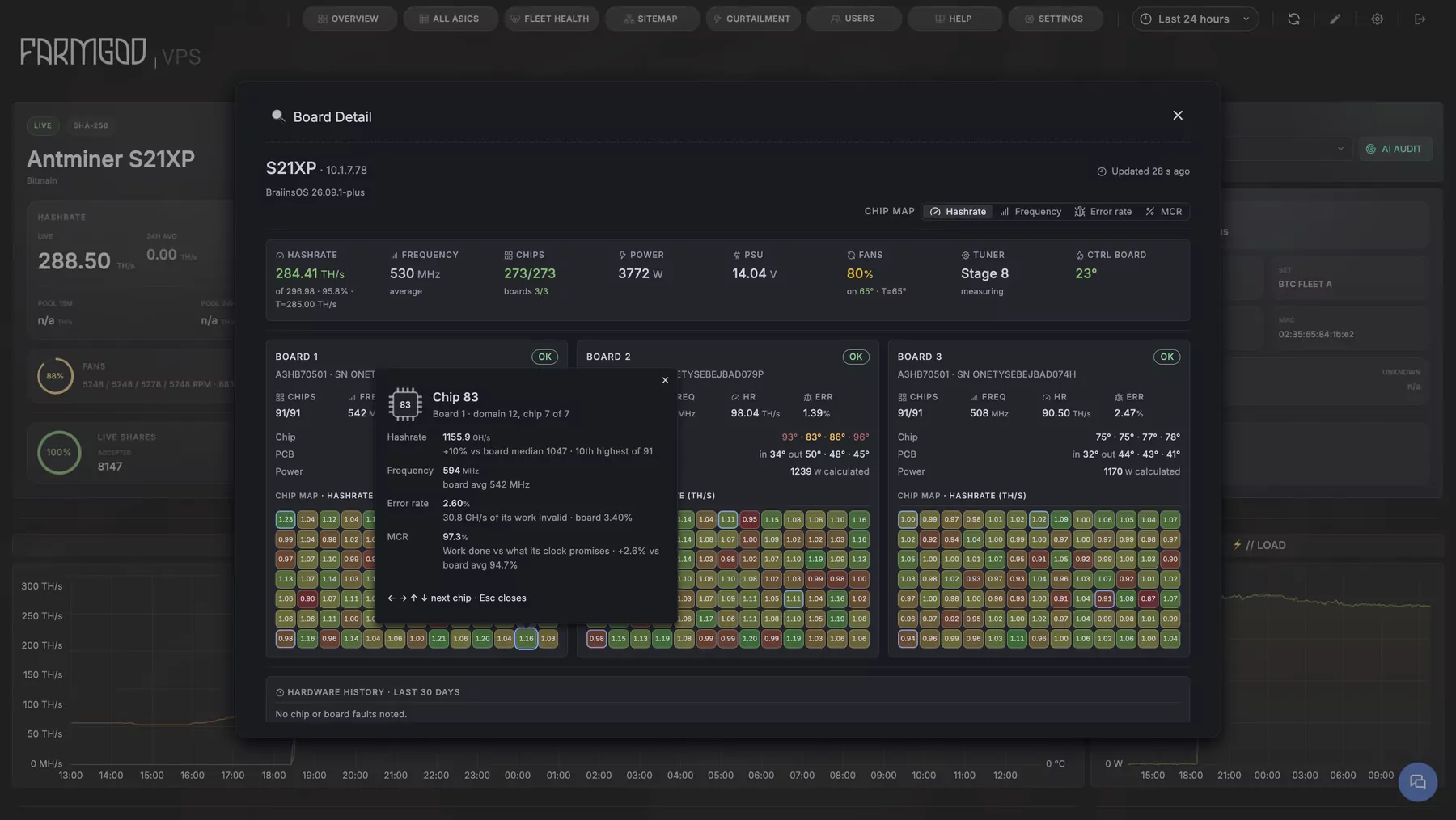
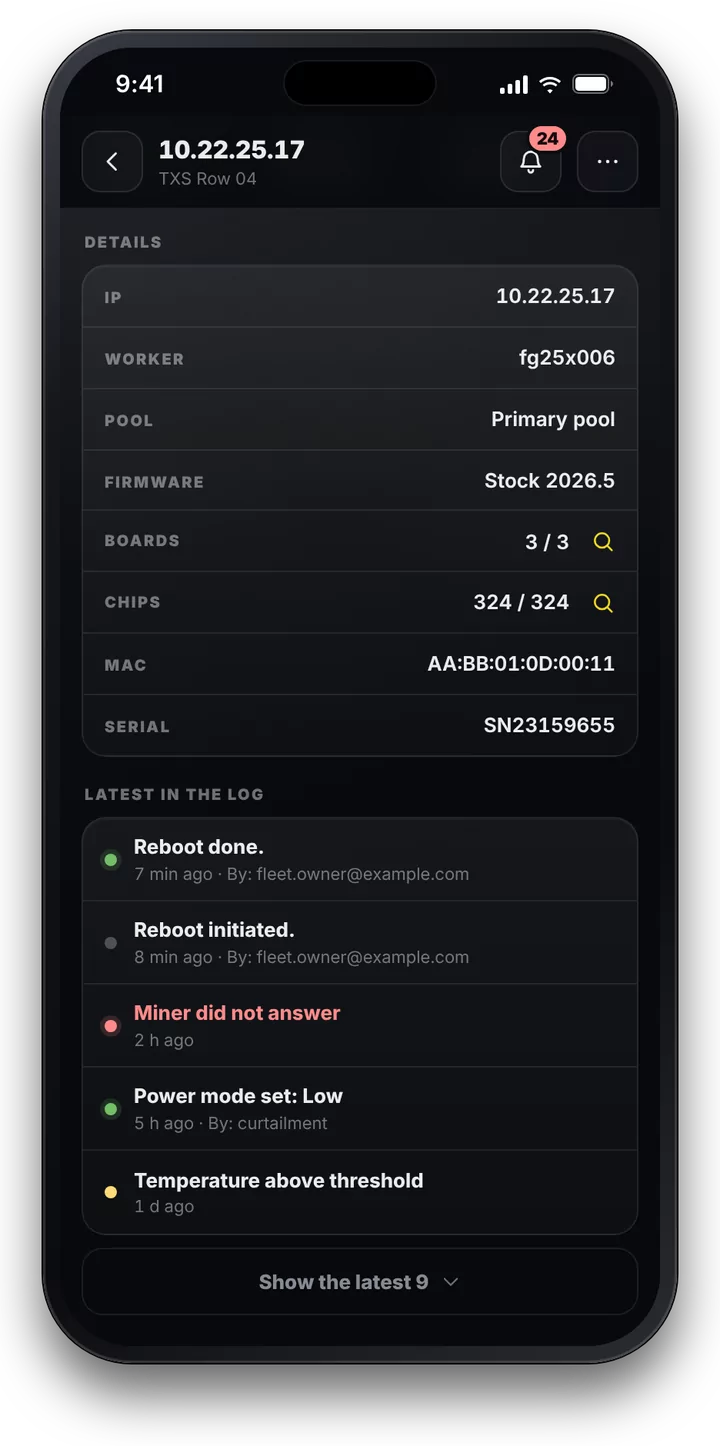
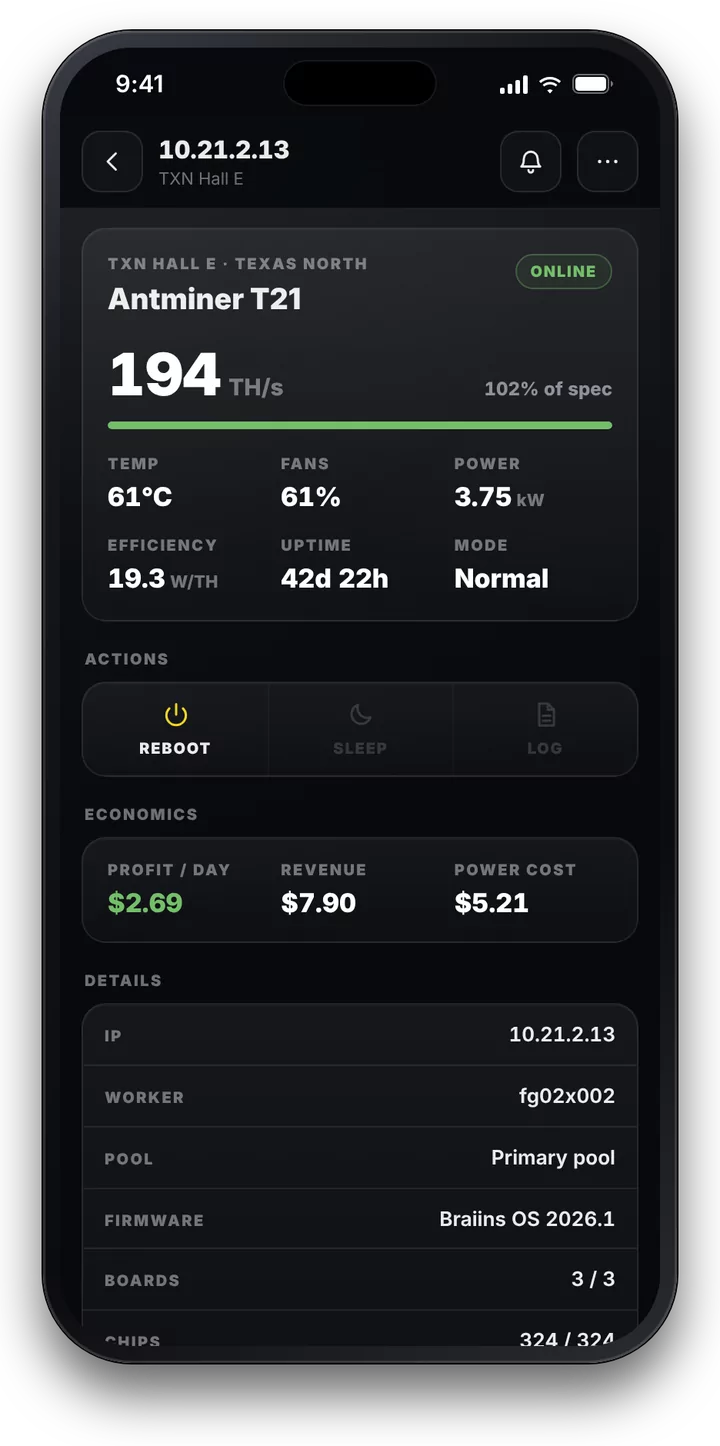
Two taps lead from the whole fleet to one miner: its hashrate against its specification, temperature, fans, power, efficiency, uptime and power mode. Then its pool, firmware, boards and chips, and what happened to it last and who did it.
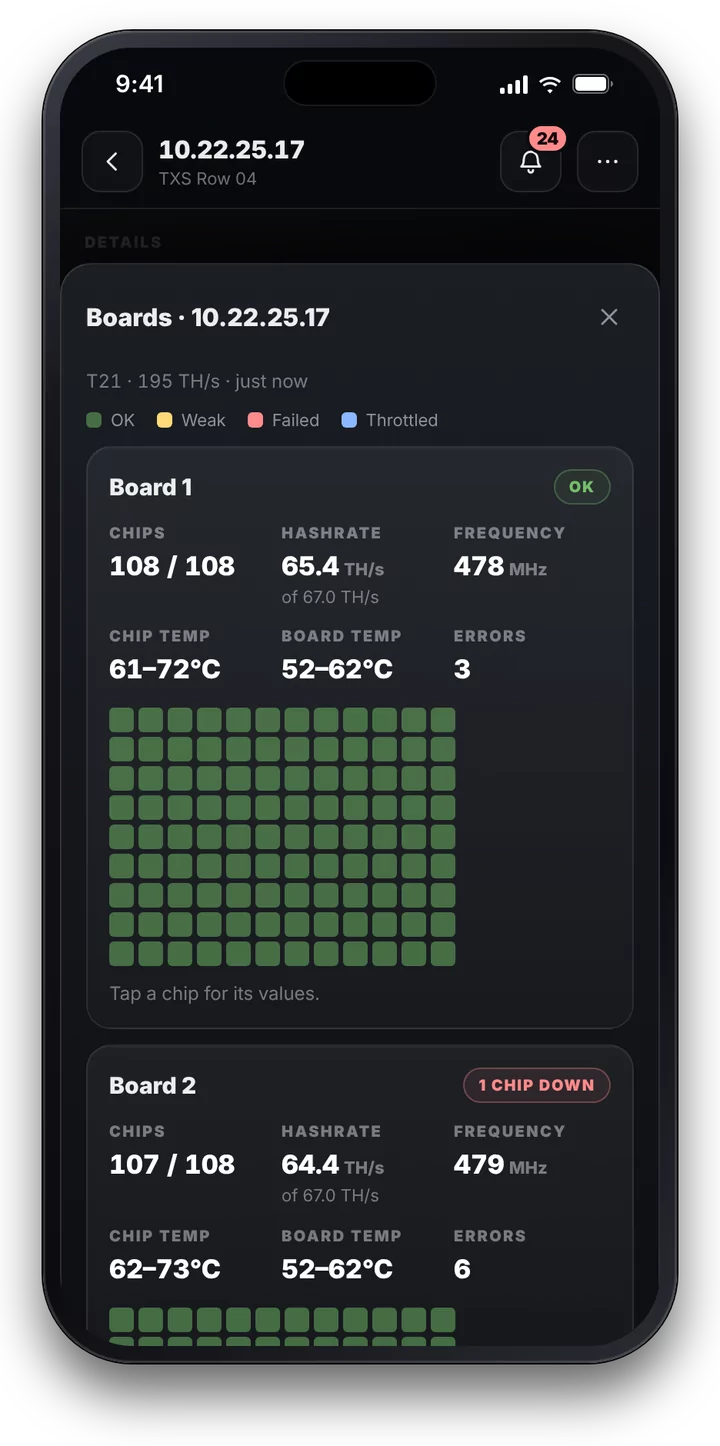
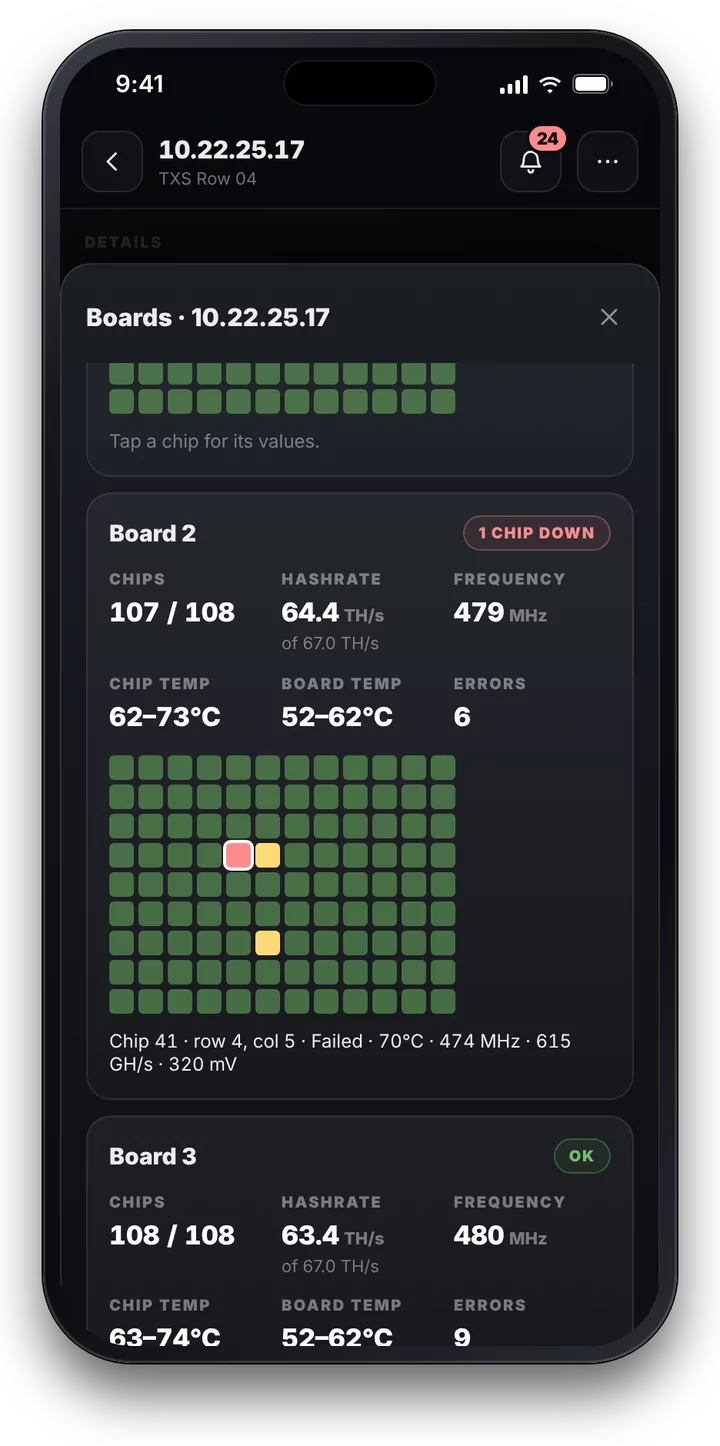
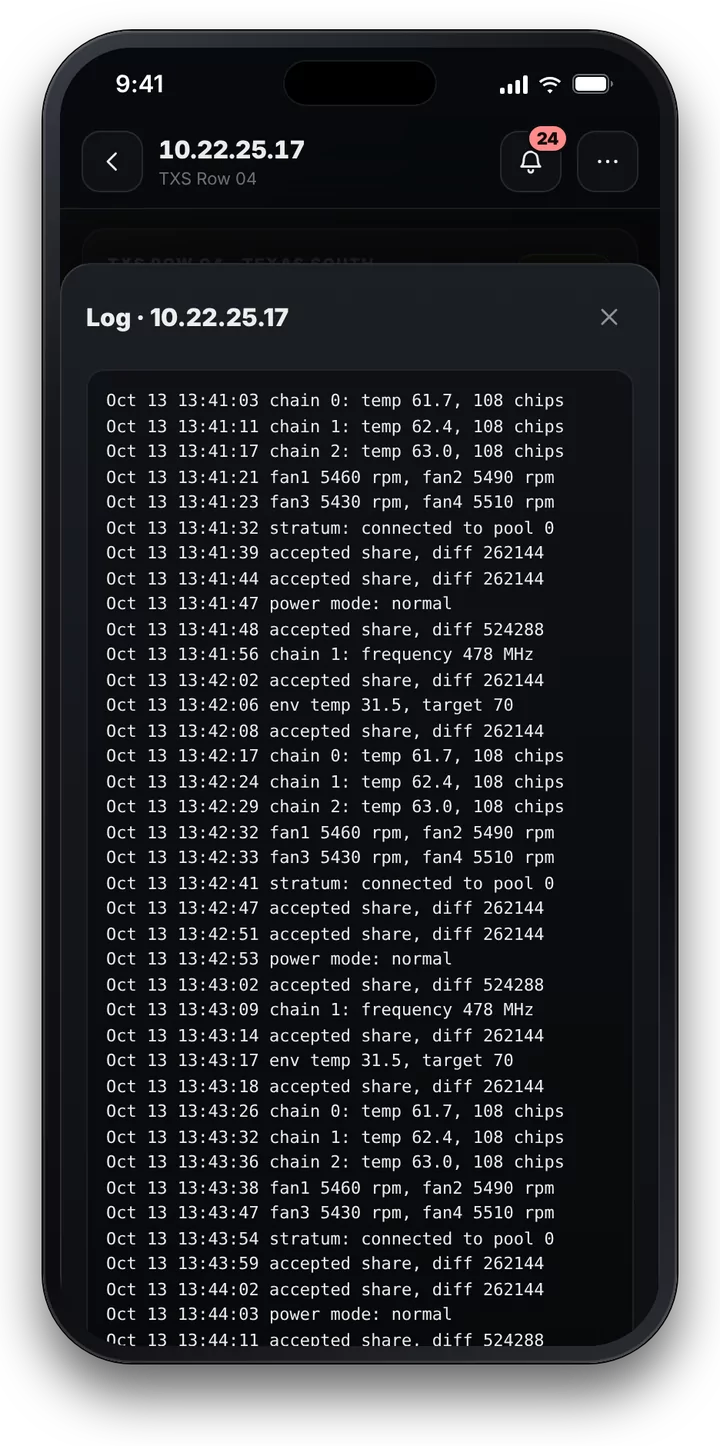
On supported firmware the magnifier next to Boards and Chips opens every hashboard and every chip: chips, hashrate, frequency, temperatures and errors per board, and each chip as a dot. Tap a dot and you read that chip's values.
Act on the spot
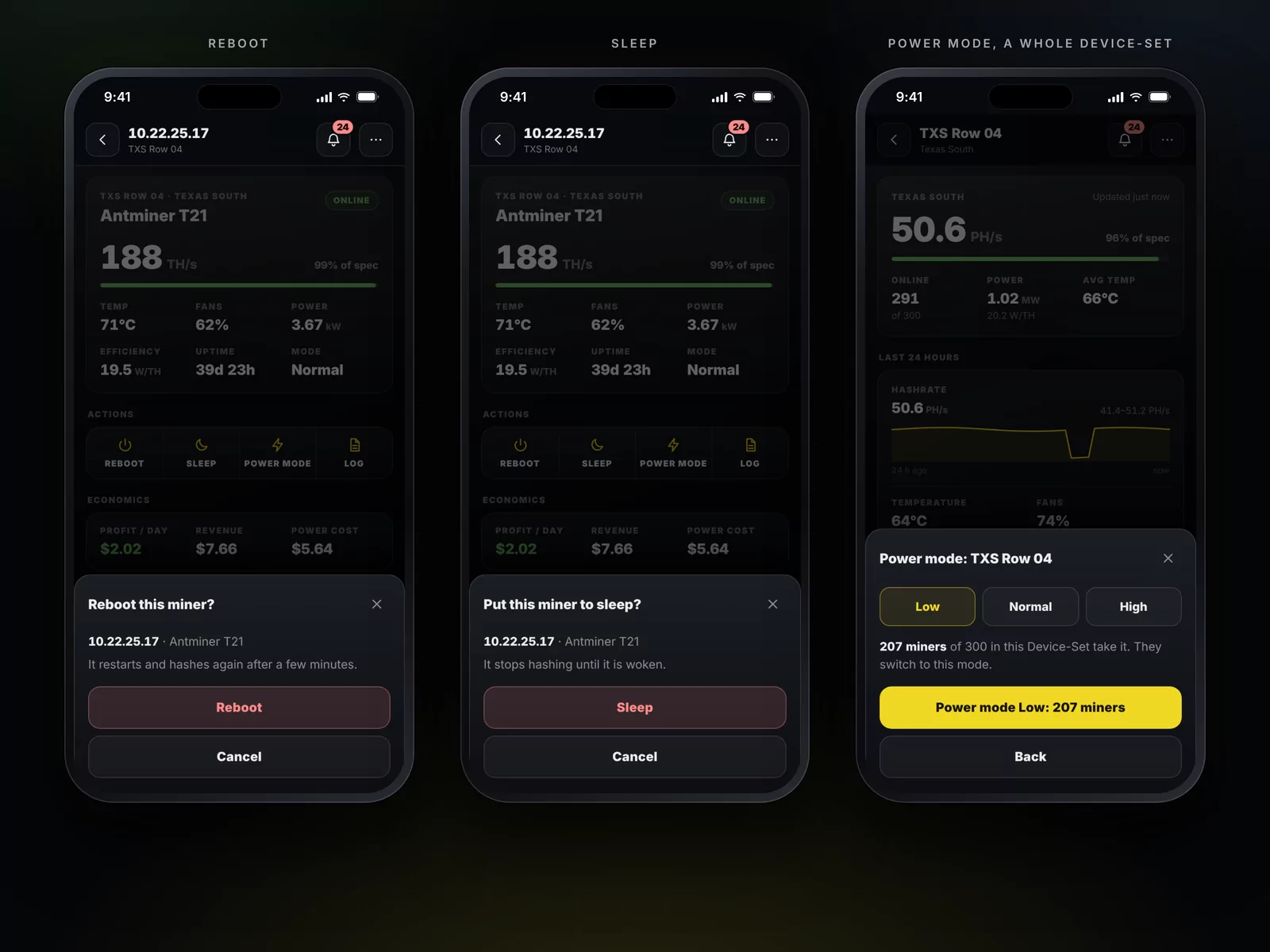
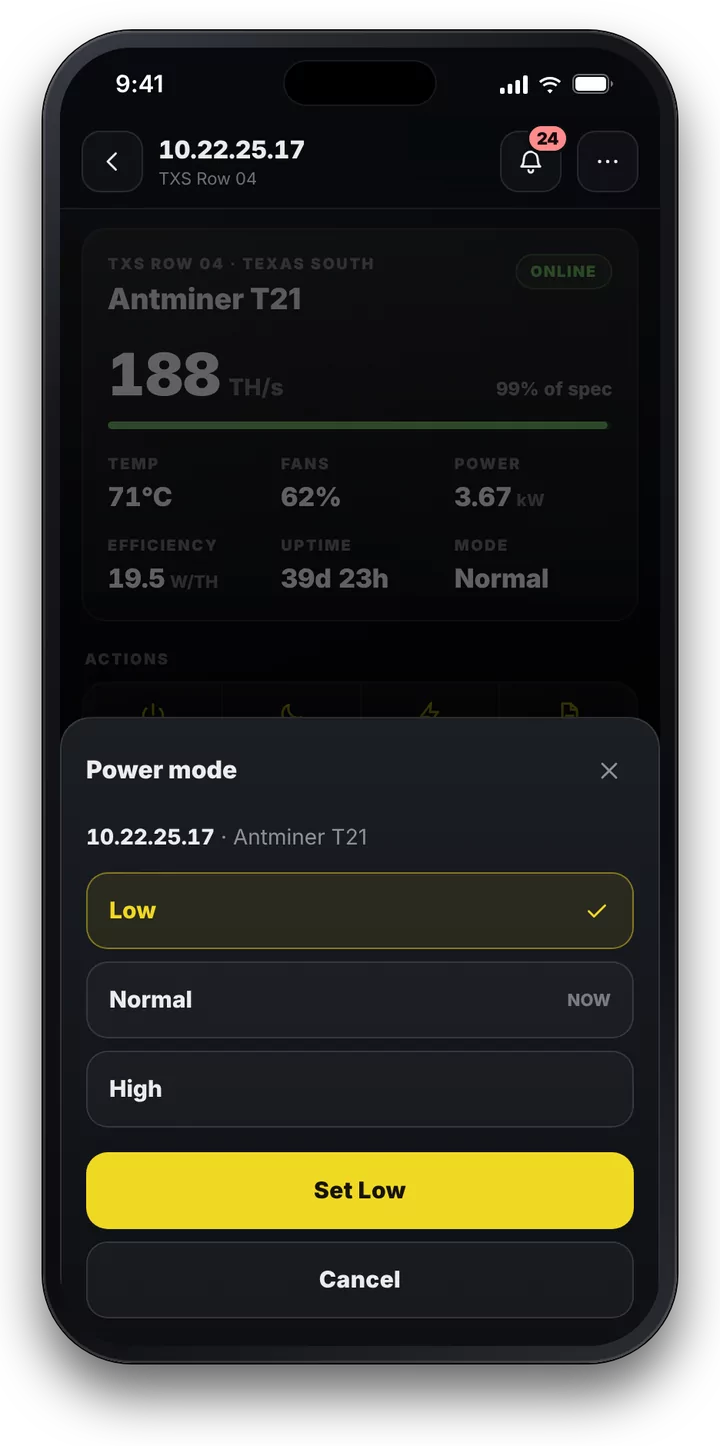
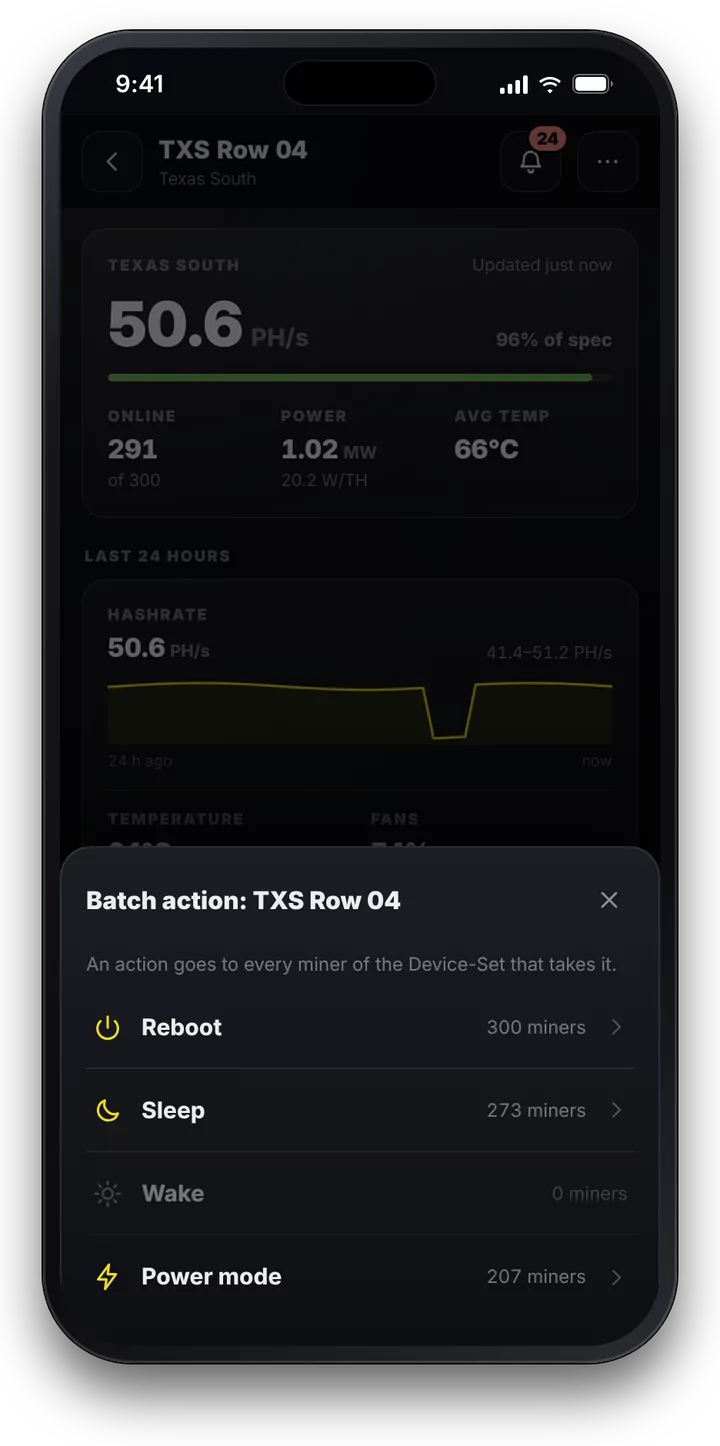
Reboot a miner, put it to sleep, wake it, change its power mode, read its log. Every action asks once before it goes out, and afterwards it stands in the log with the name of who sent it.
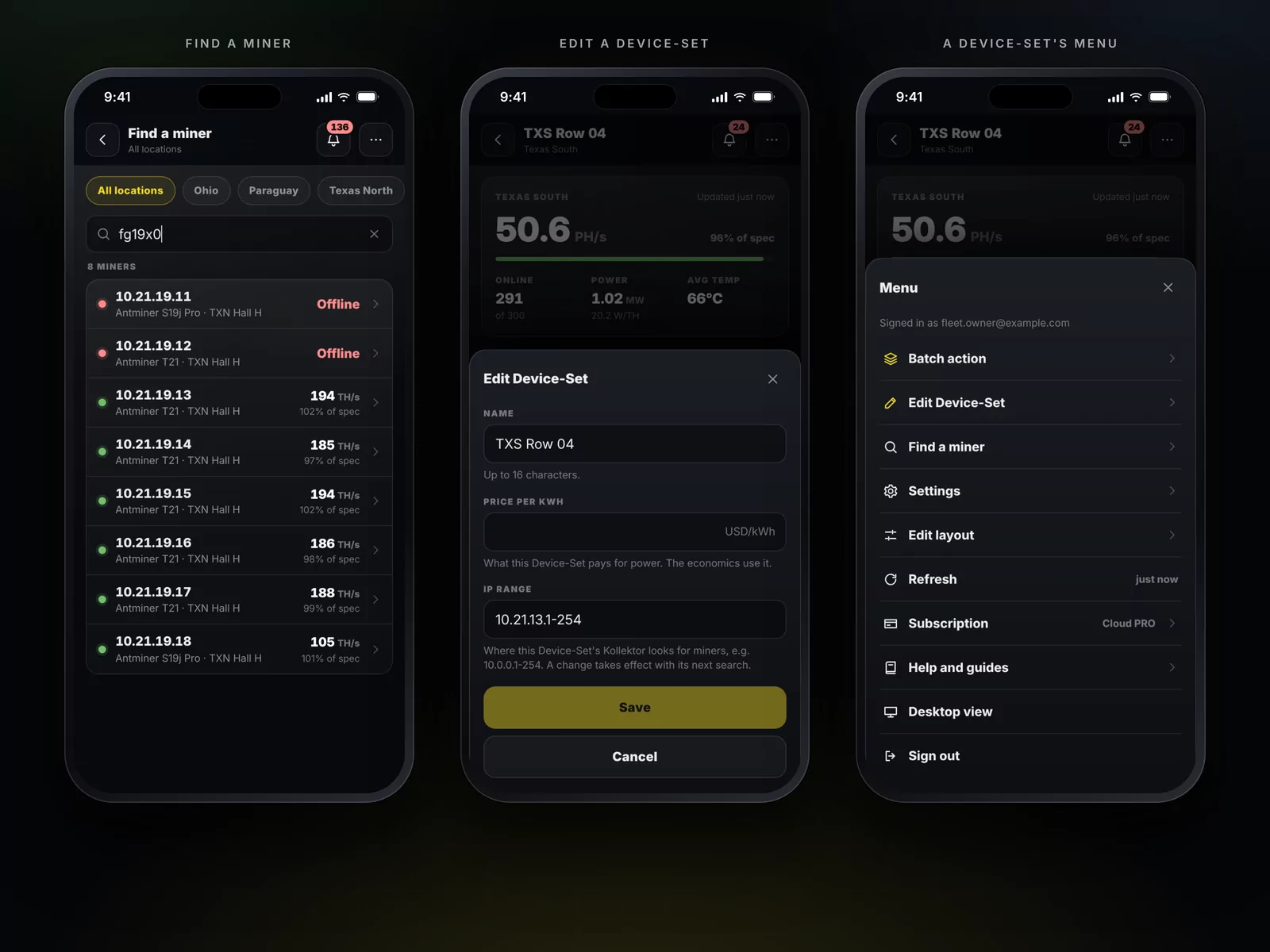
The same works for a whole Device-Set at once: pick the action, FARMGOD shows how many of its miners take it, and one tap sends it to all of them. A Device-Set's name, its price per kWh and its IP range can be changed from the phone too, and a search over the whole fleet finds any miner by IP, MAC, model or worker.
Arrange it the way you work
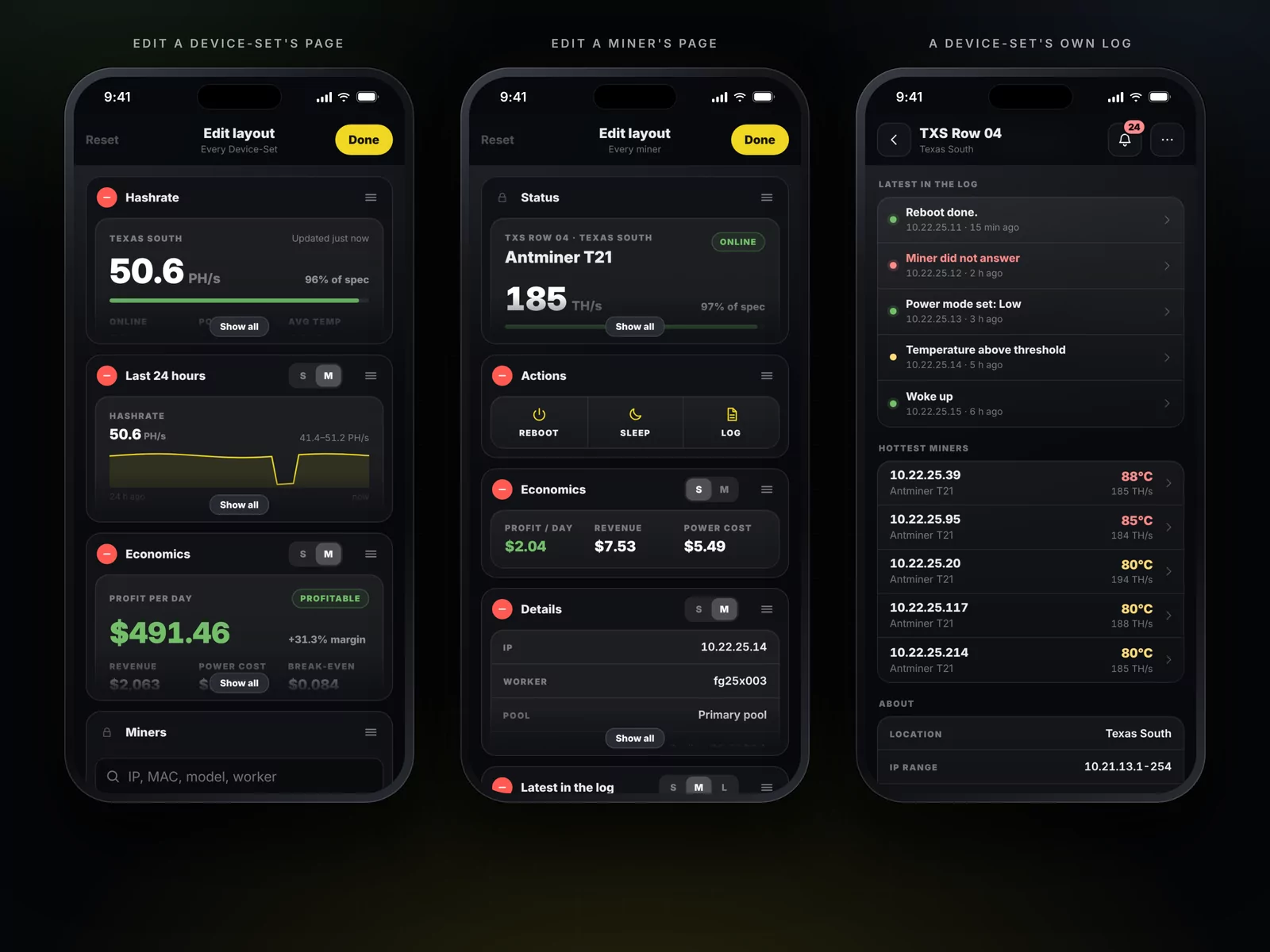
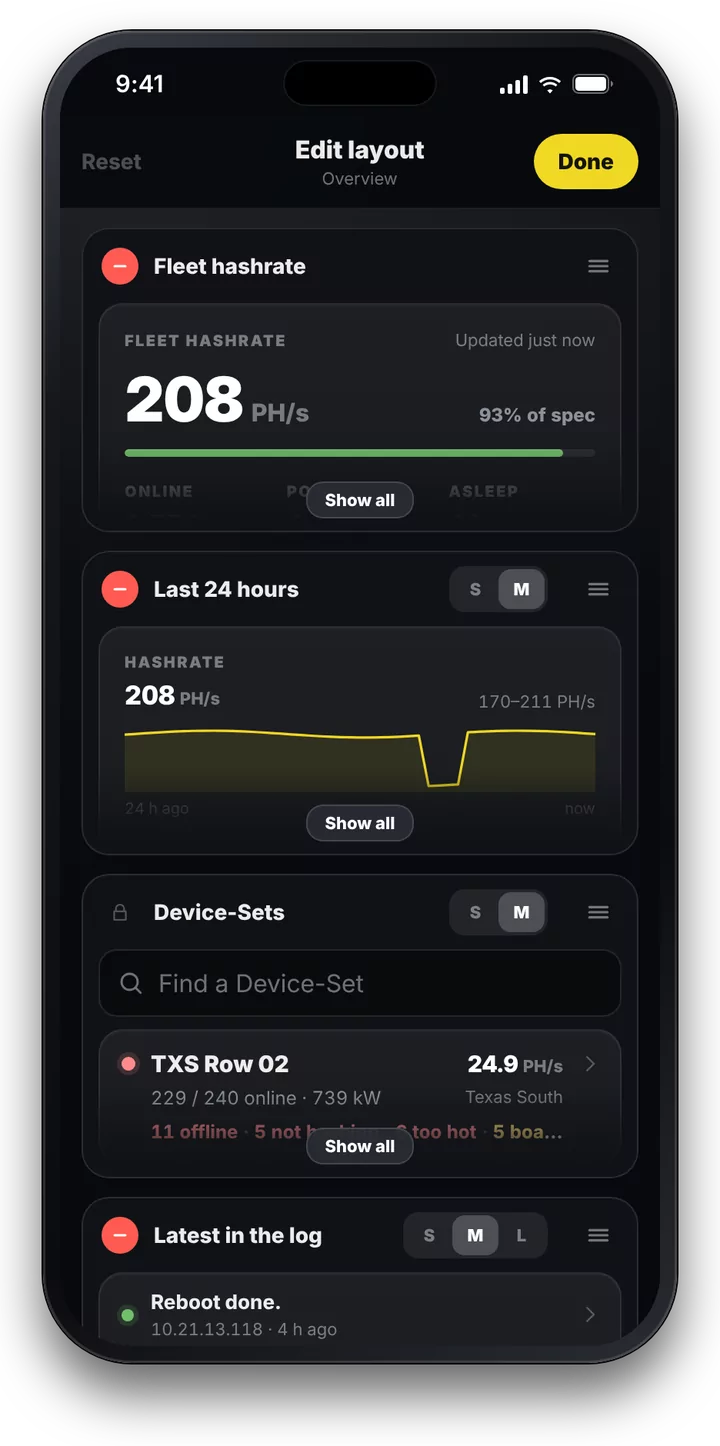
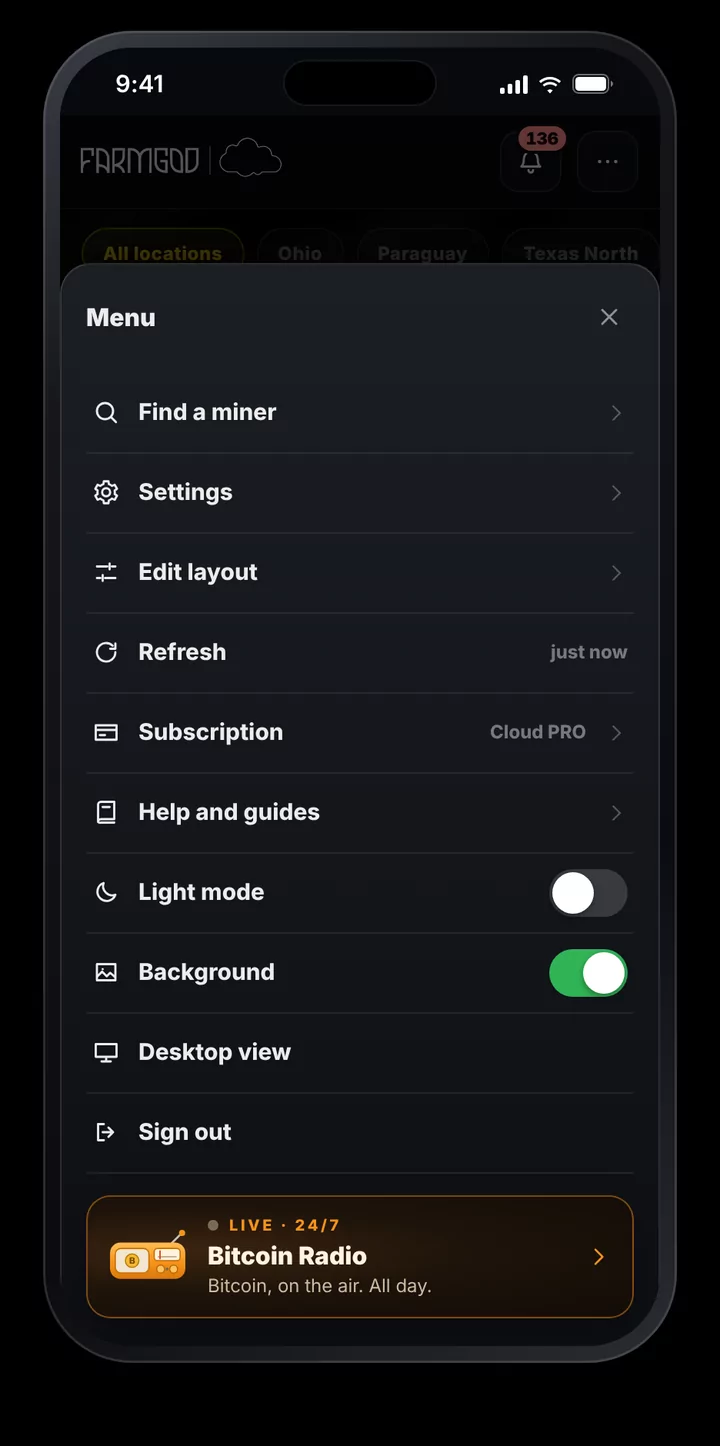
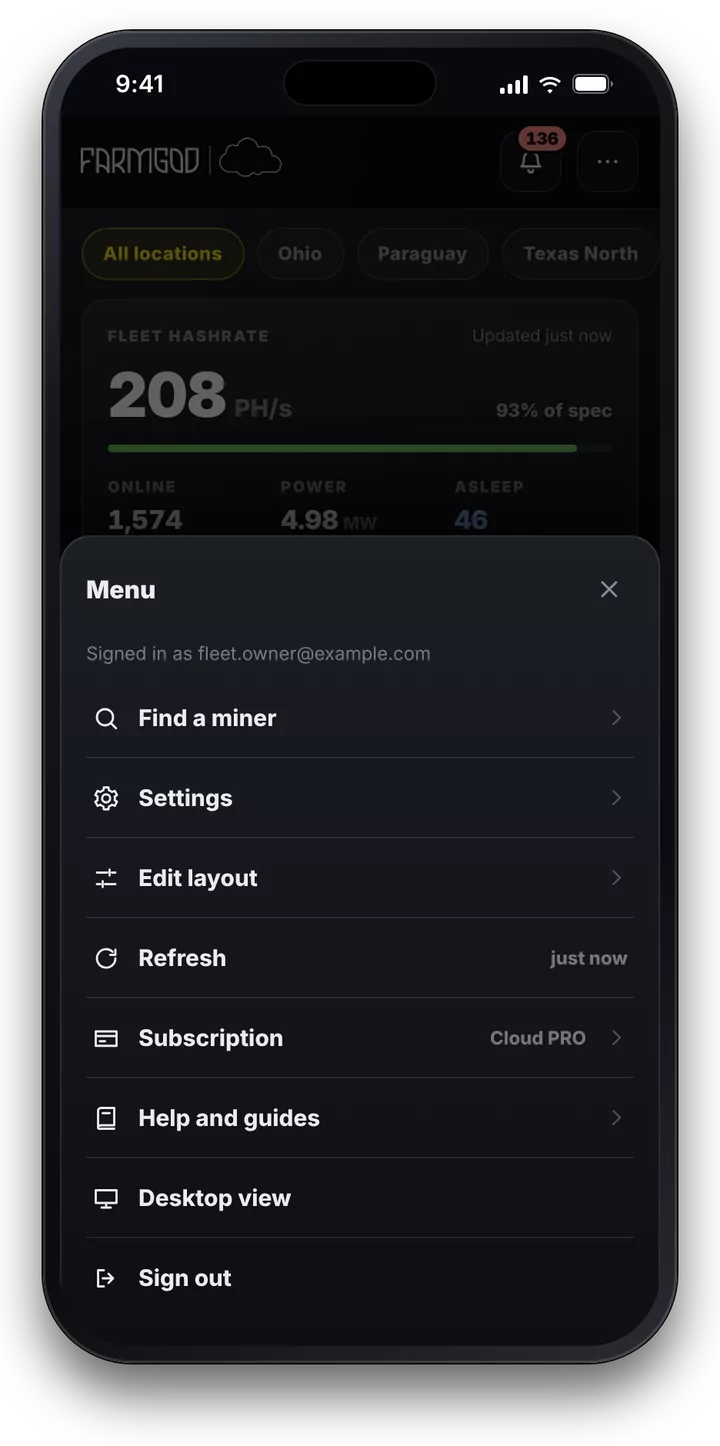
No two operations look at their fleet the same way, so the phone view doesn't decide it for you. Every page is made of panels: the overview, a Device-Set's page and a miner's page. Edit layout in the menu turns them into tiles:
- Pick a size. S, M or L: the hashrate alone or together with temperature and fans, a few log entries or many.
- Drag them into your order. Hold a tile by its handle and move it to its new place.
- Take away what you don't need, and add what you do.
More panels wait to be added: the miners online over the last 24 hours, the five hottest and the five weakest miners, every kind of trouble as a tile, your locations side by side, the state of your on-site tools. A Device-Set's page can show its own log, a miner's page its own last 24 hours.
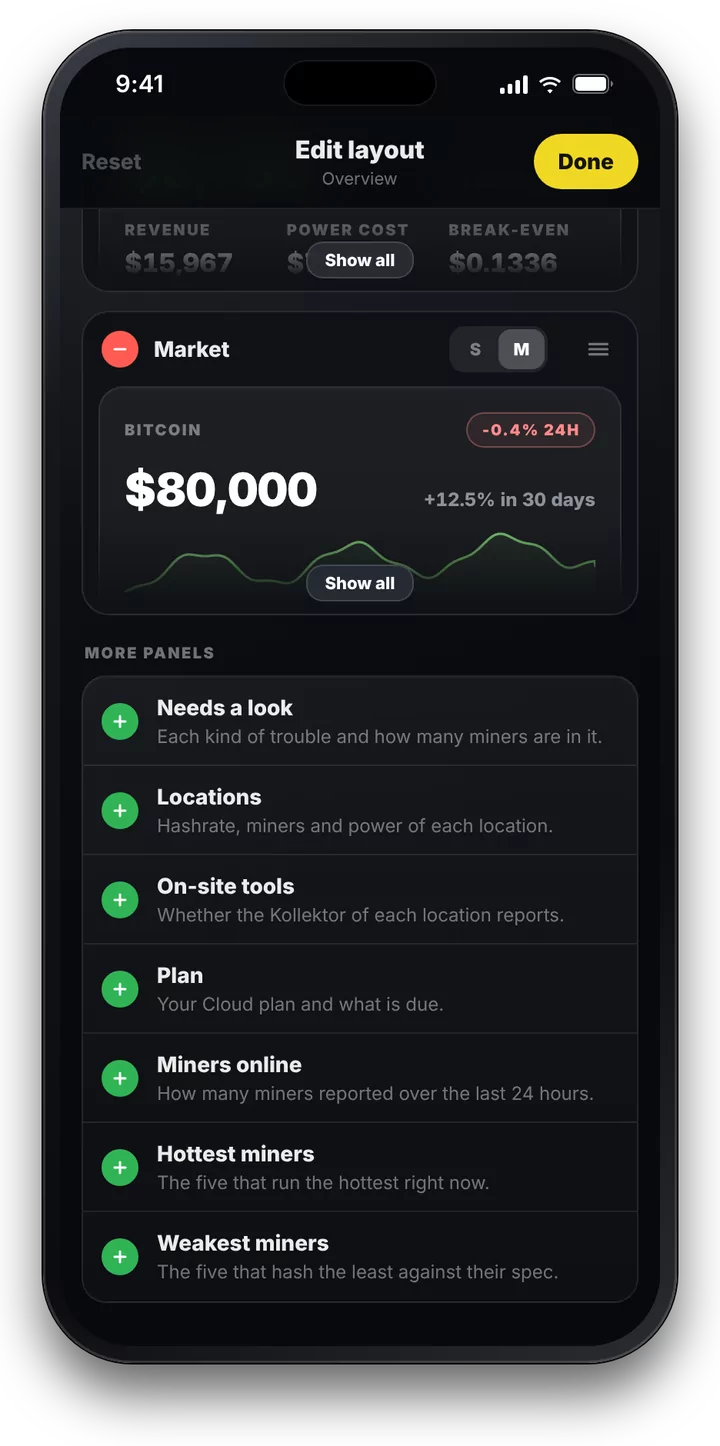
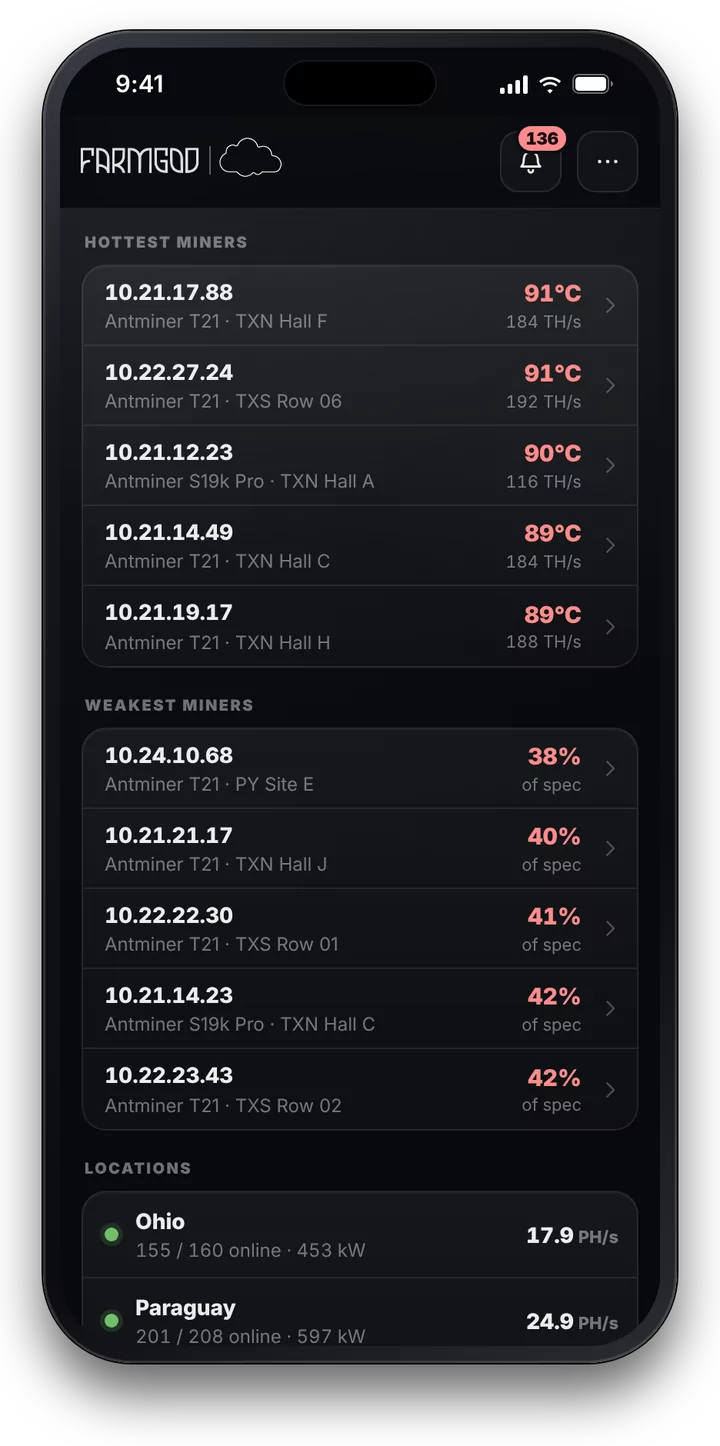
Your layout is saved with your account, so it is the same on every phone you sign in with. Here is one fleet, arranged three ways:
Dark, light, and a background
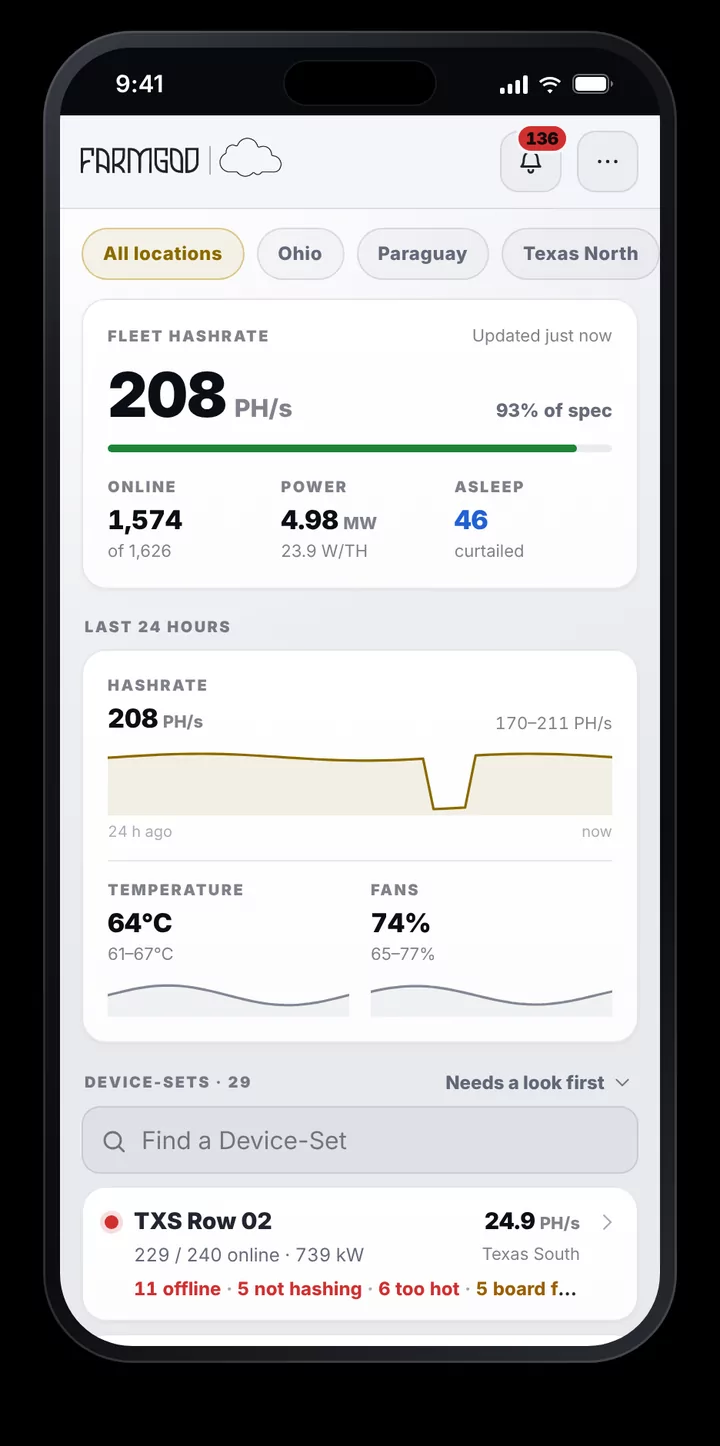
FARMGOD is dark, at the desk and on the phone, and dark is how it starts. For a bright day outside there is now Light mode, one switch in the menu. Background puts the picture you know from the dashboards behind your pages, where it drifts gently as you scroll. Your phone remembers both.
For hosting providers
On a Private VPS, FARMGOD is also your hosting platform. Its manager now carries the customer desk in a pocket:
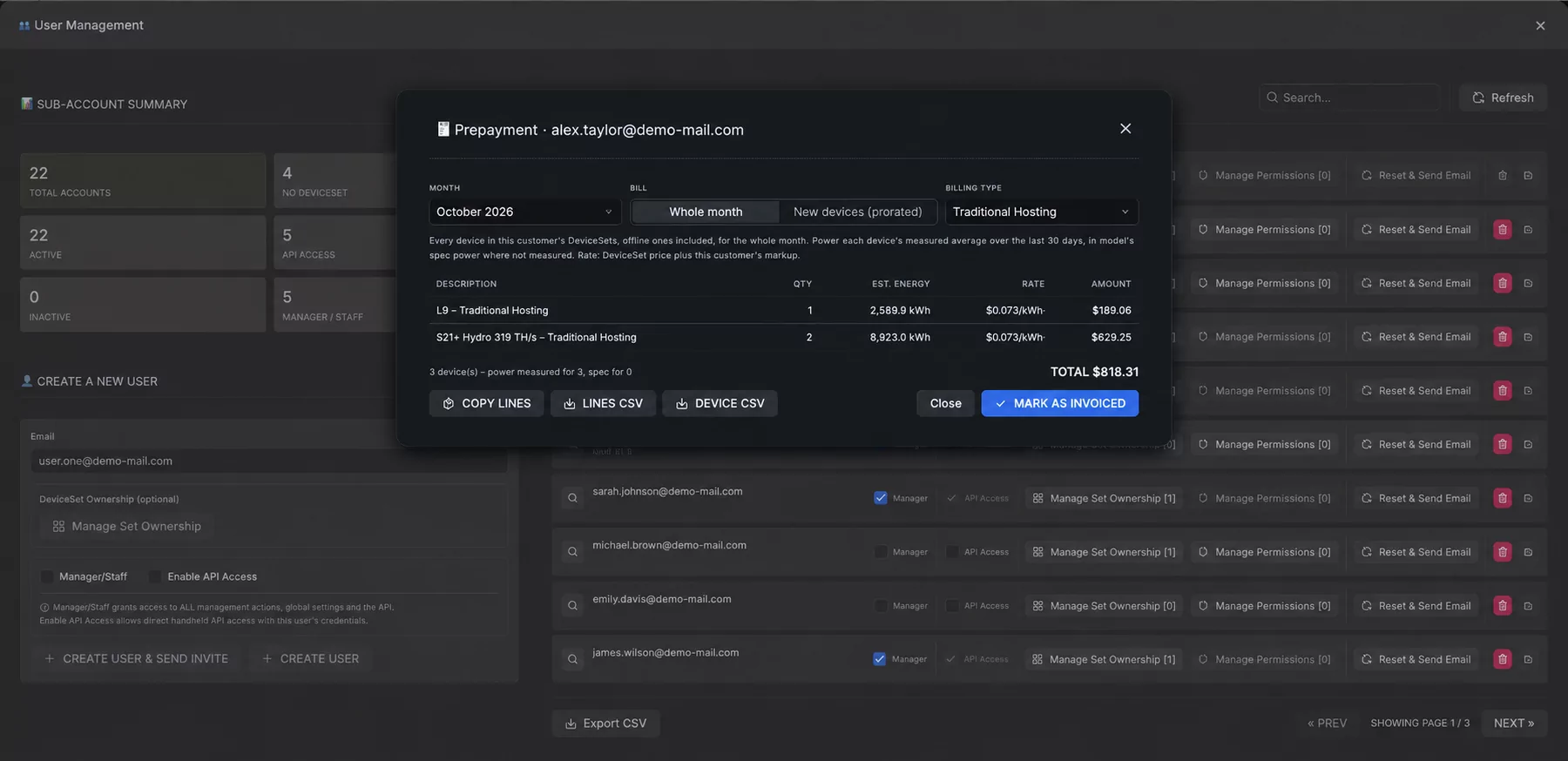
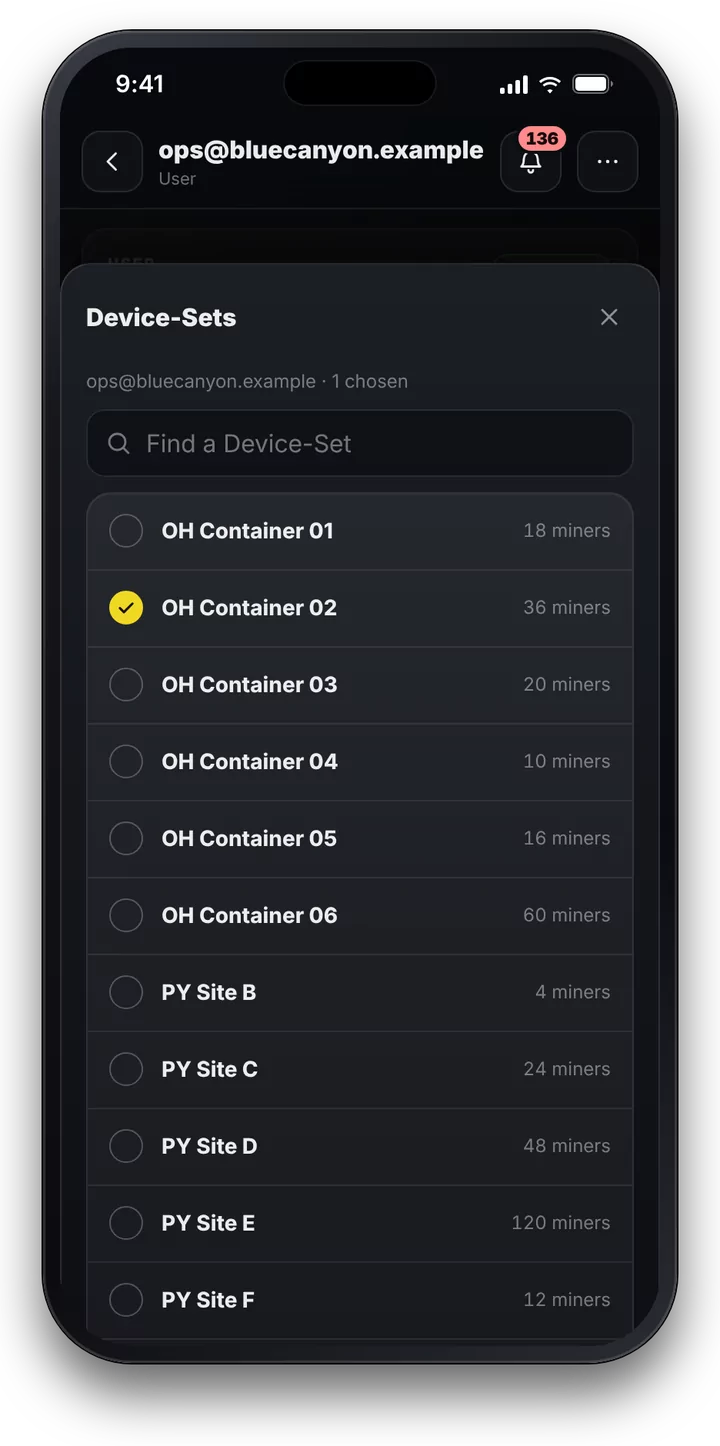
- Every user at a glance. How many there are, who was active today, and each one with their Device-Sets and miners. Search by e-mail or by Device-Set.
- A new customer in a minute. An e-mail address and a first Device-Set, and the invitation with the password and the address goes out by itself.
- Hand over Device-Sets. Tick the ones a customer owns. Moving one away from another customer asks before it happens.
- Decide what they may do. Reboot, sleep, wake, power mode, logs and more, granted action by action. API access and manager rights are a switch each.
- Help on the spot. Send a new password, or delete an account that is no longer needed.
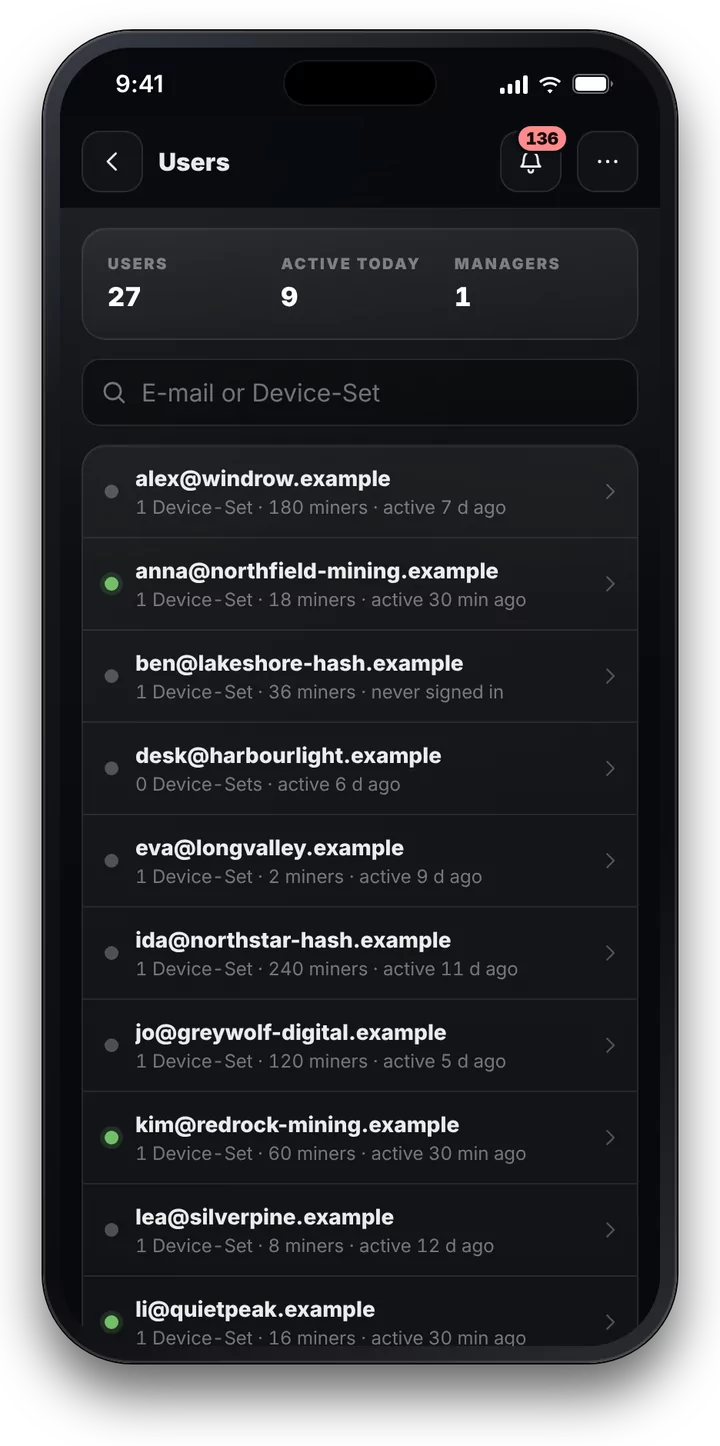
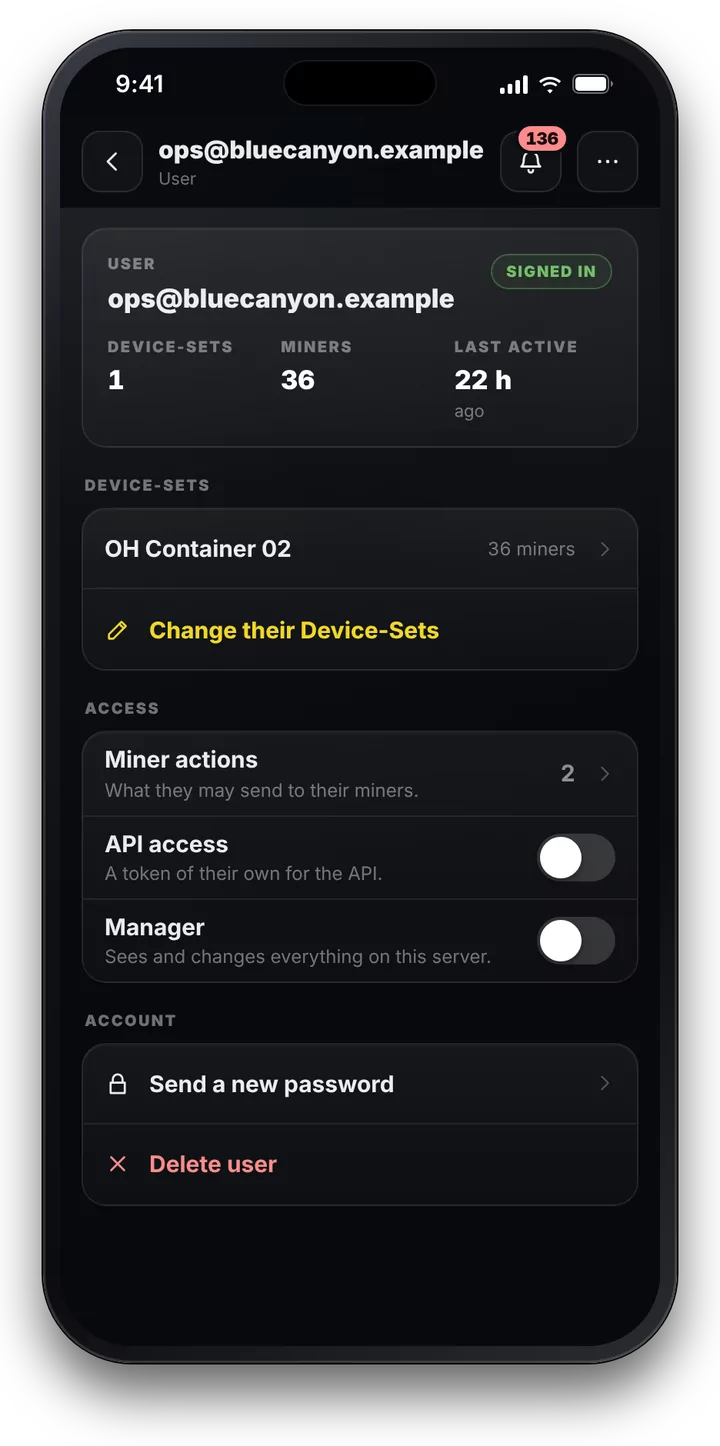
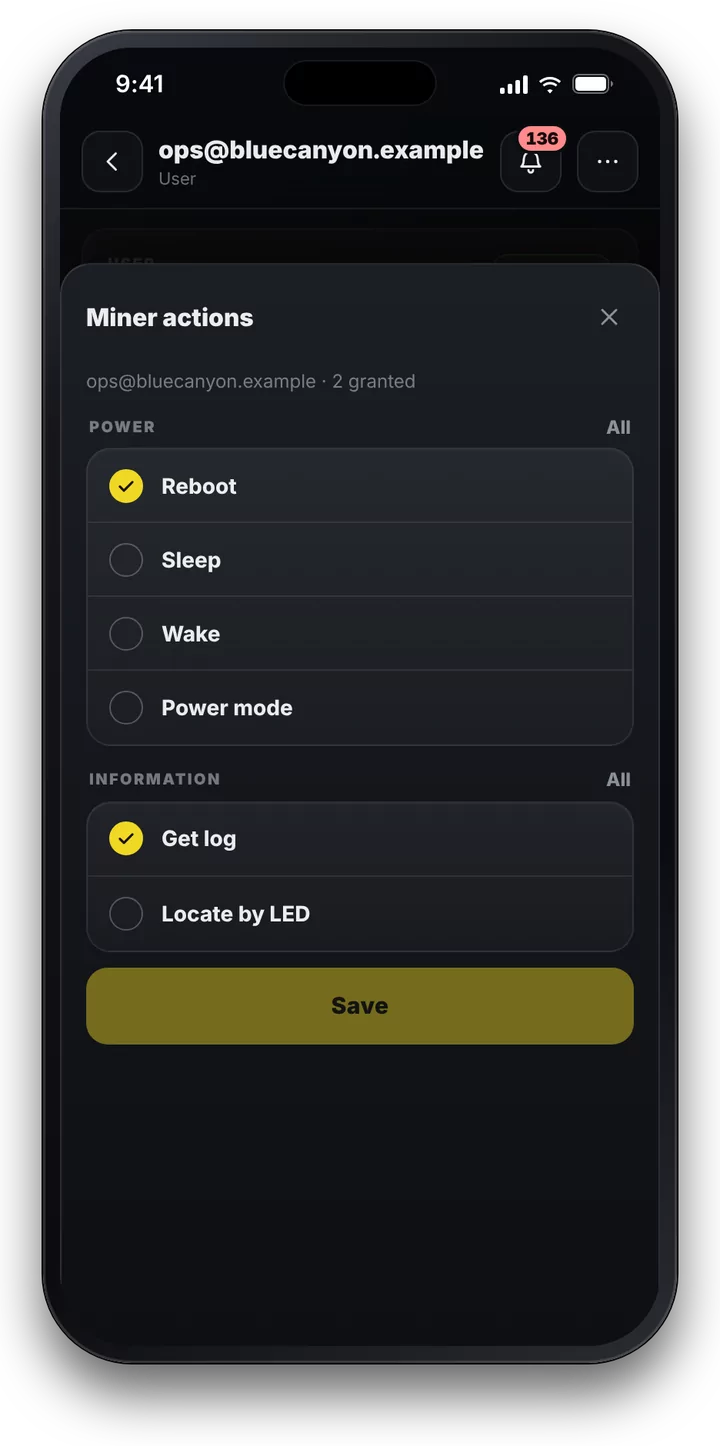
Your customers get the same phone view, of their own miners only: their Device-Sets, their hashrate, their numbers. The actions you granted are there to tap, the others are greyed out. A customer who can look for themselves doesn't have to ask you.
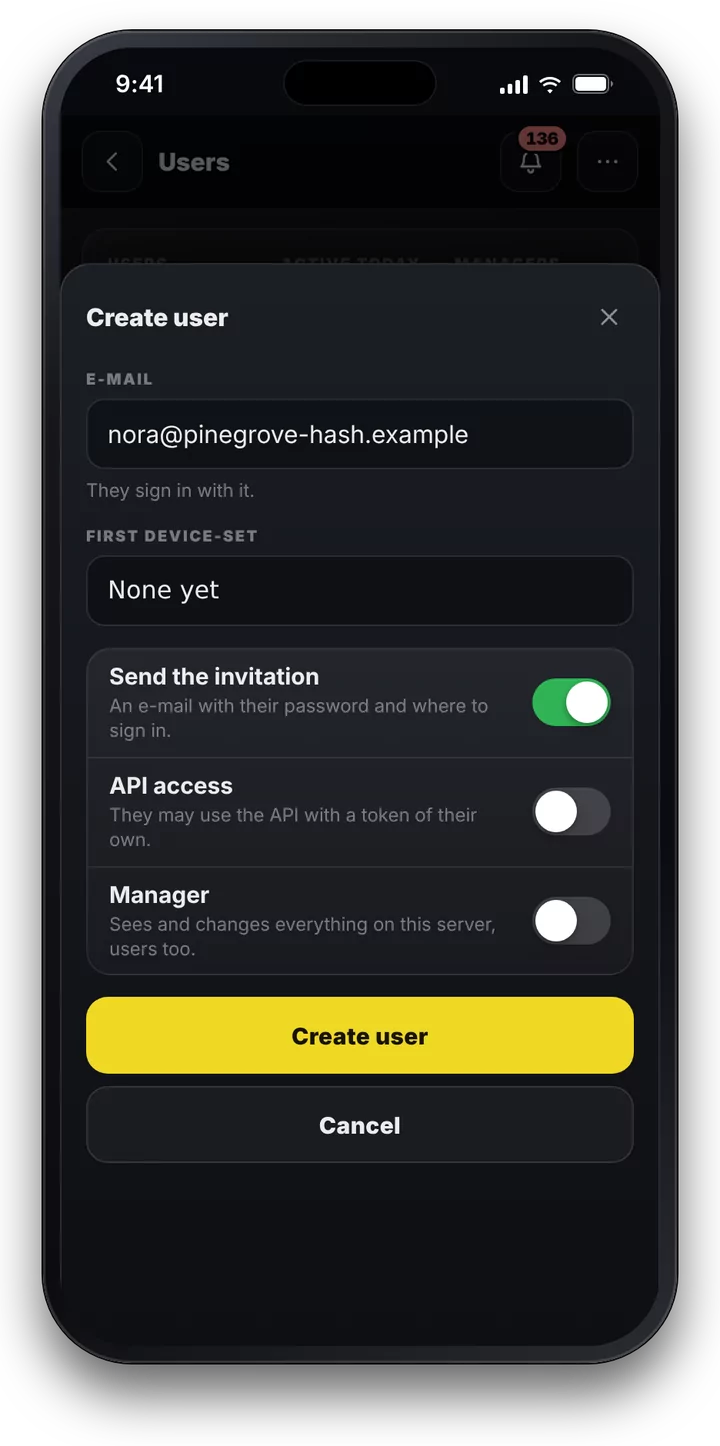
Settings without the laptop
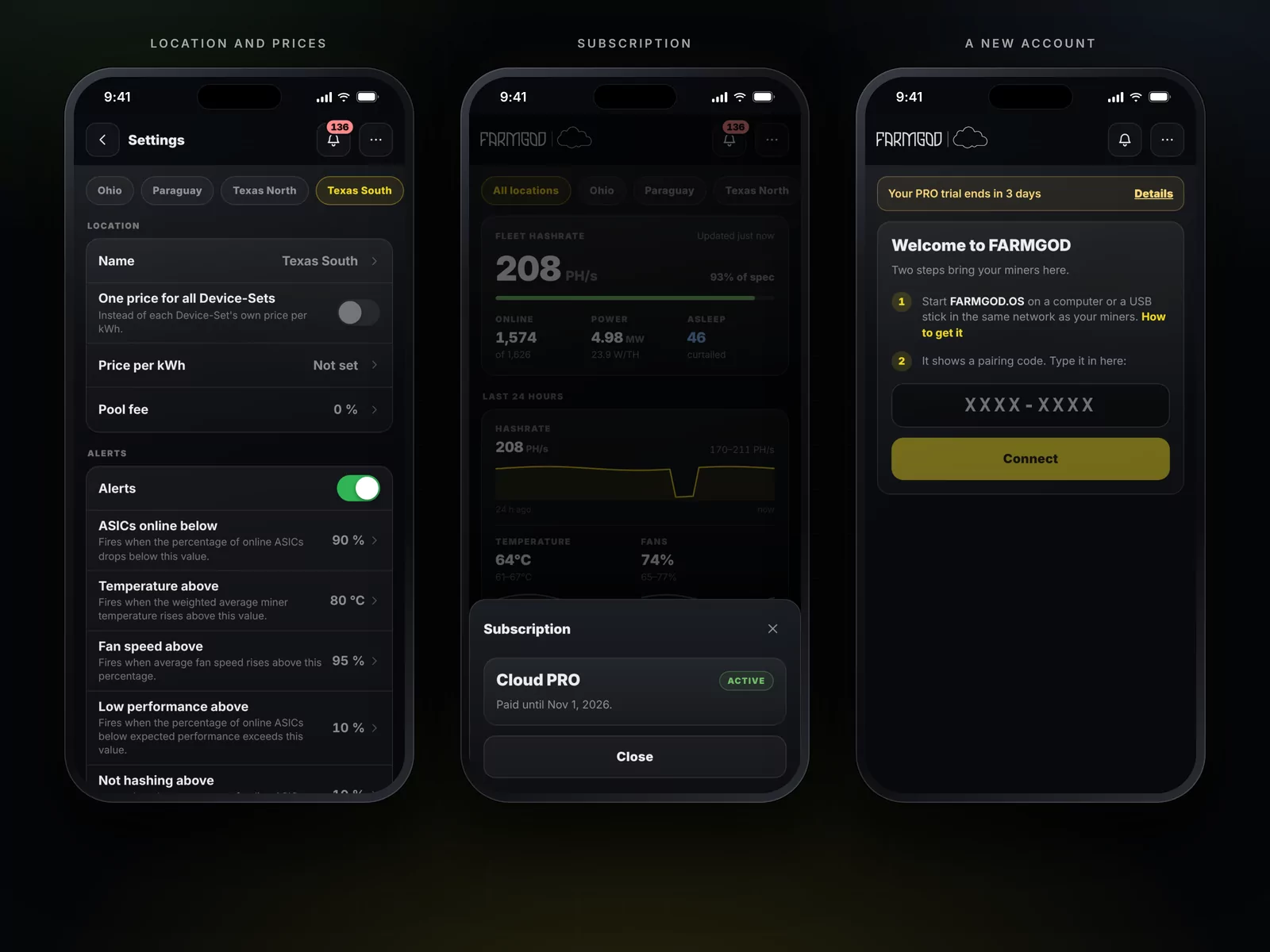
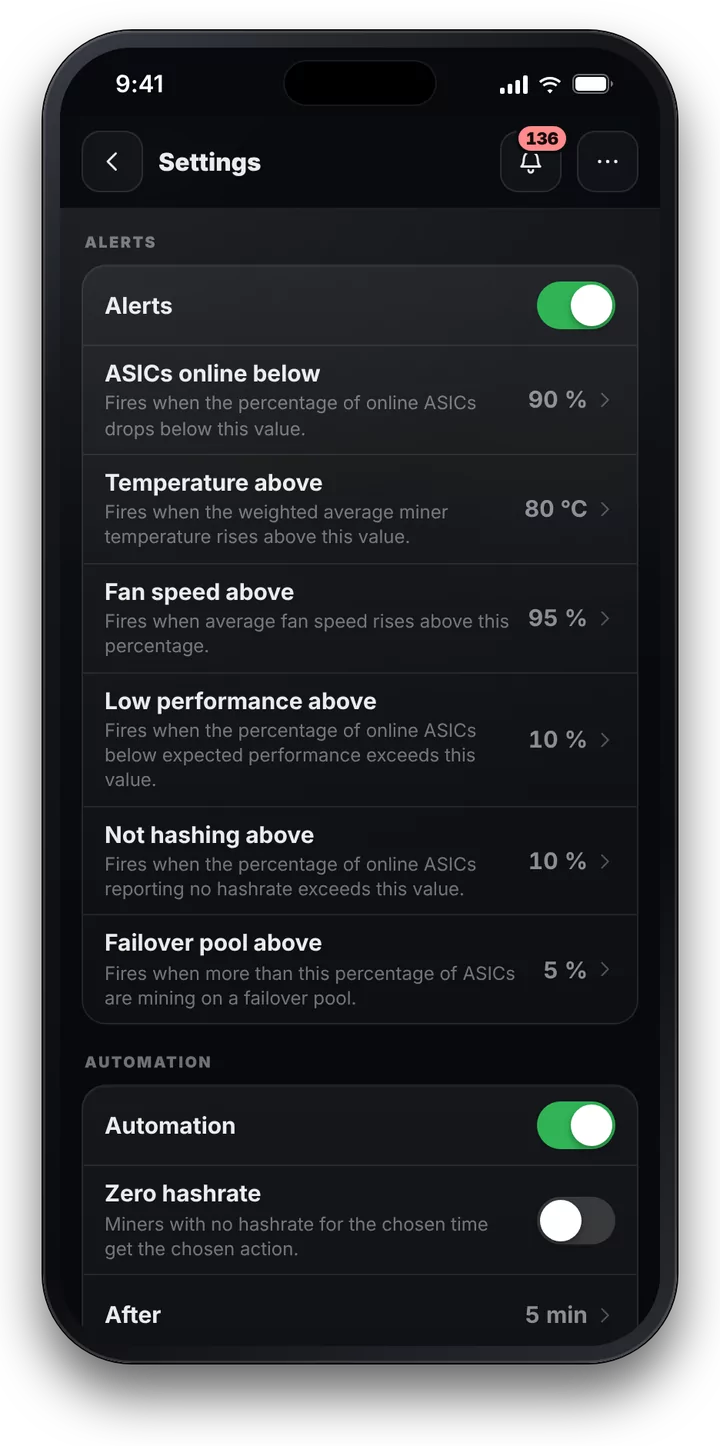
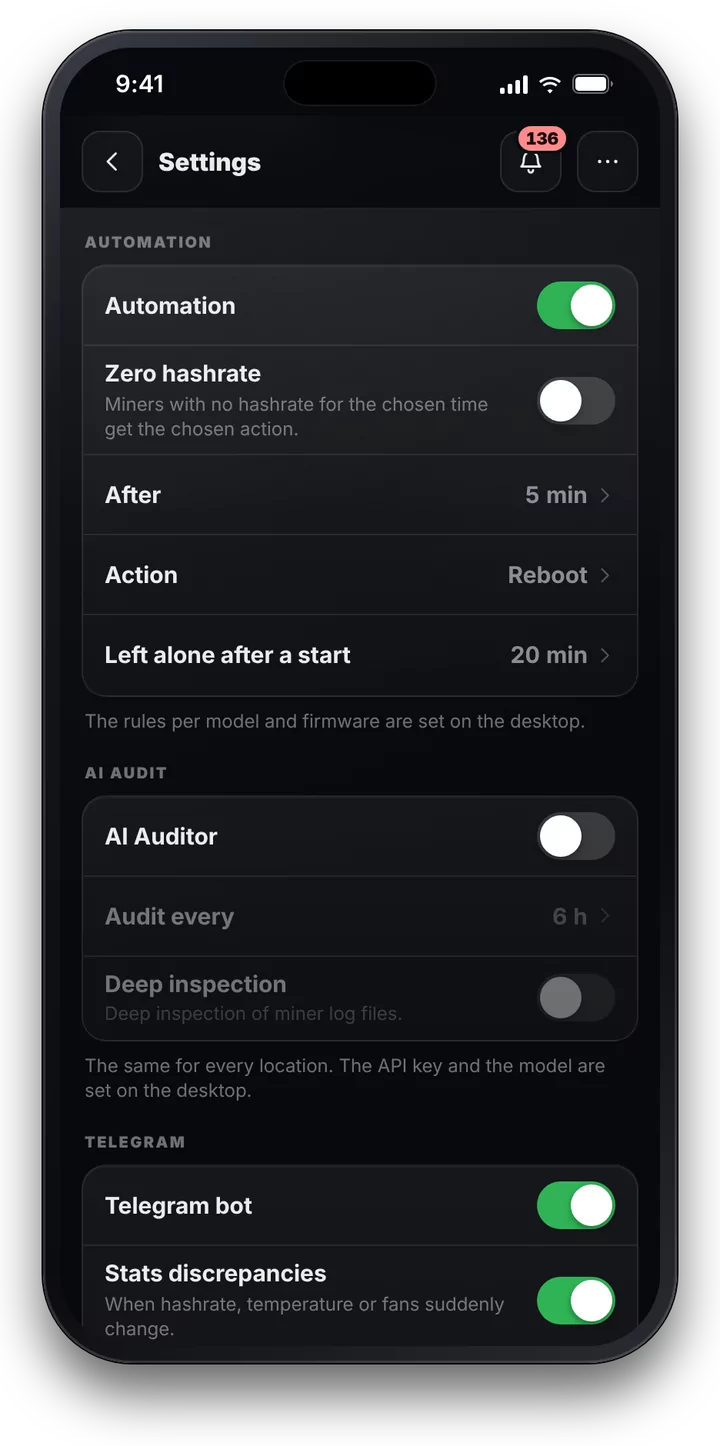
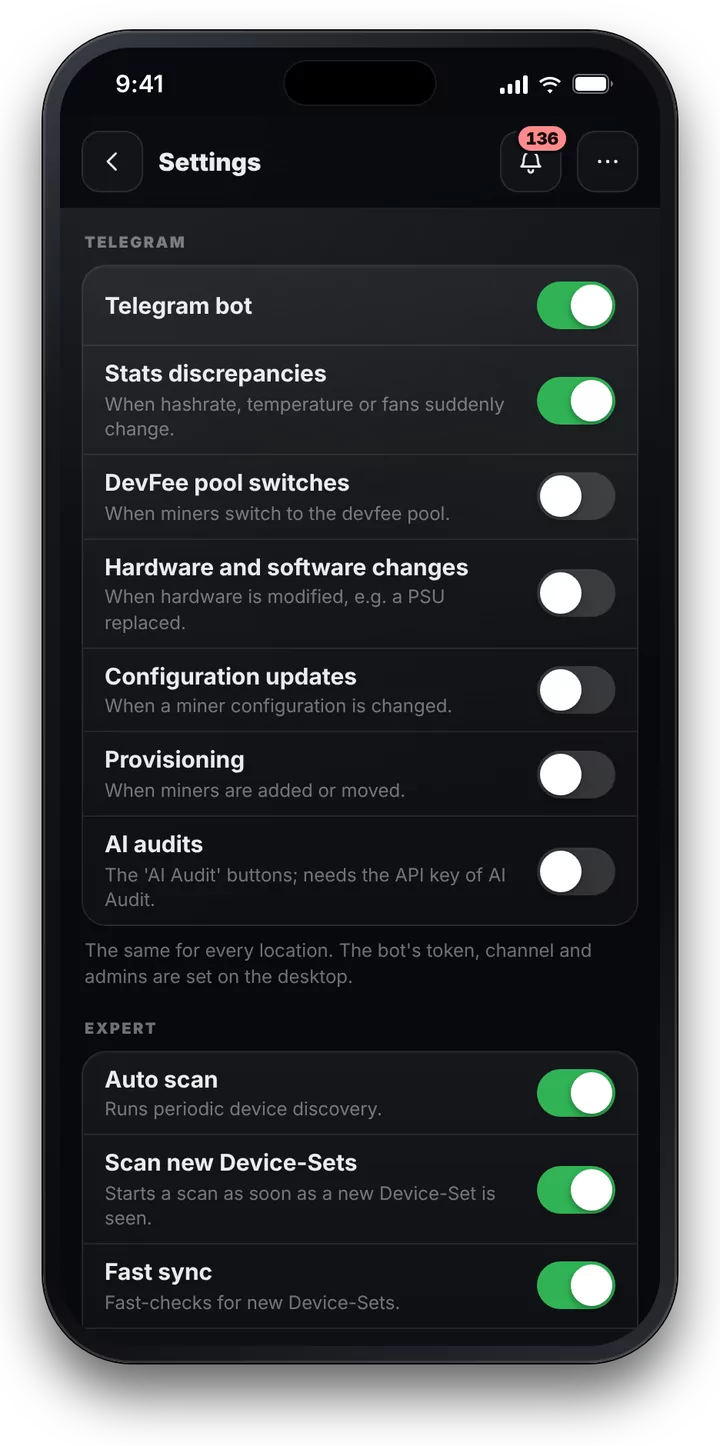
The settings you reach for on the road are on the phone, for each location: the price per kWh and the pool fee, the alerts with their thresholds, Automation, the AI Auditor, Telegram notifications and the scan settings. Curtailment and pool configuration stay on the desktop, where there is room for them.
On your home screen in a minute
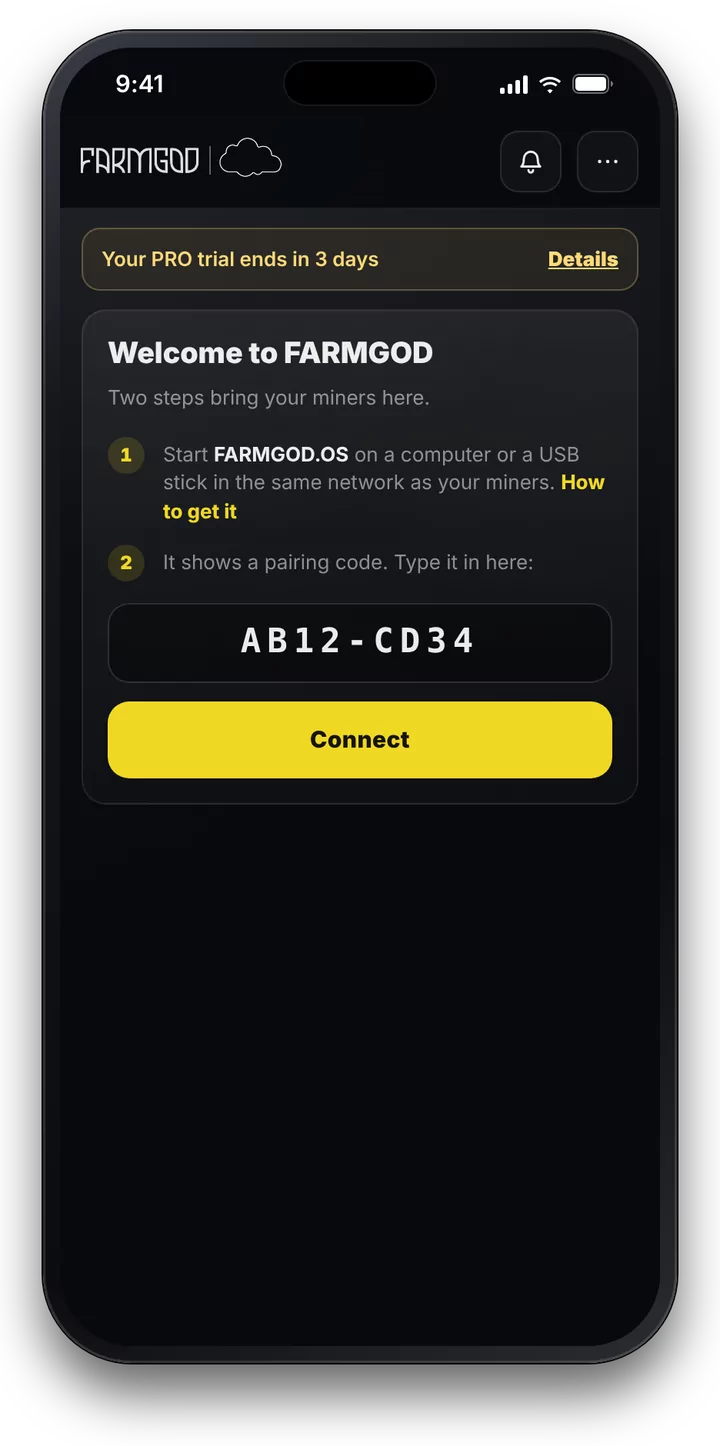
A new FARMGOD Cloud account can be set up from the phone: start FARMGOD.OS next to your miners and type in the pairing code it shows. Put FARMGOD on your home screen and it opens with one tap, like an app. And when you want the full dashboards, Desktop view in the menu is one tap as well.
Onboarding, even easier
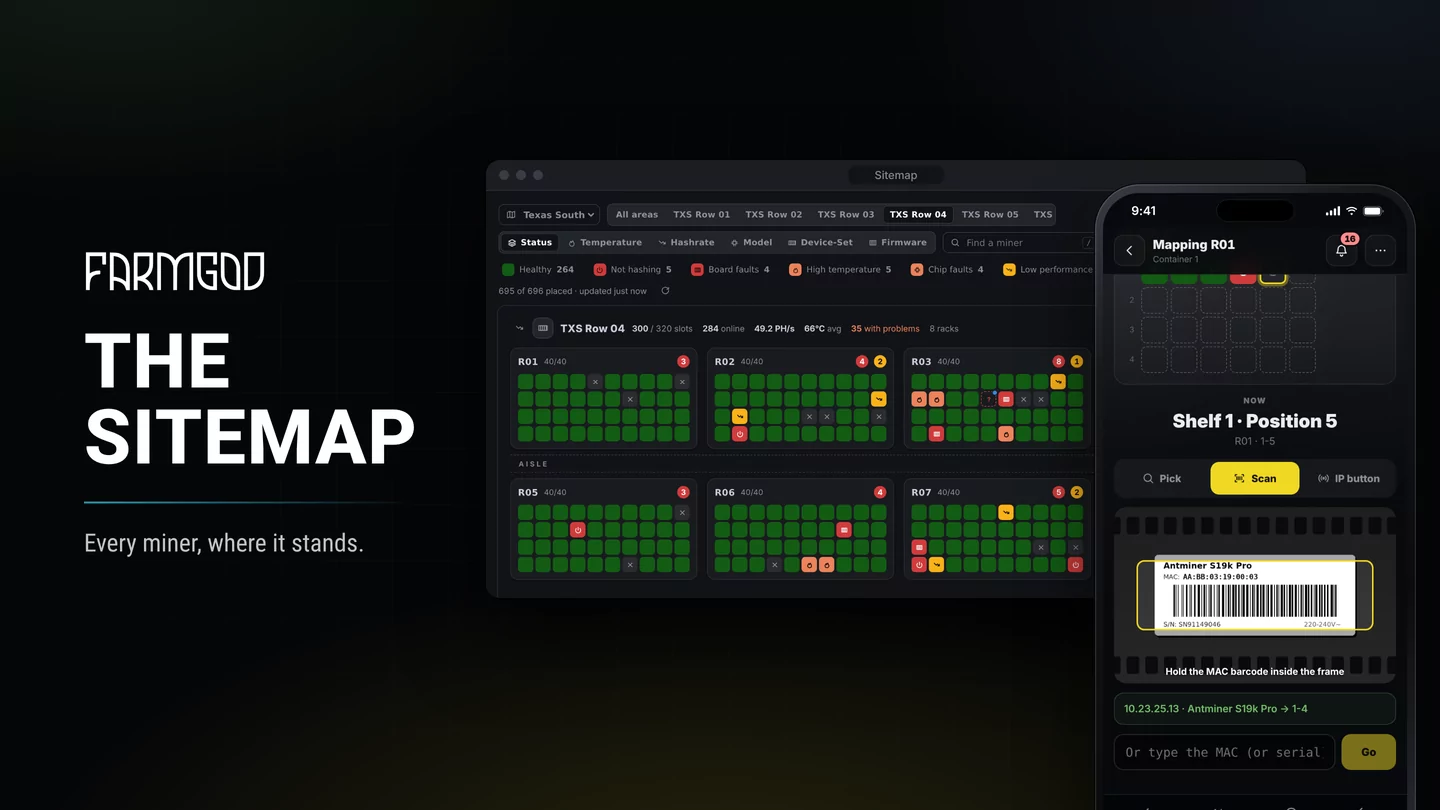
Getting your miners into FARMGOD is now a matter of minutes on the phone. Once FARMGOD.OS runs next to your miners and is connected, the phone view takes you through the rest:
- Create your first Device-Set. Give it a name, the IP range your miners are in, and what you pay for power.
- FARMGOD.OS scans. It searches that range right away, and you watch the count grow as your miners come in.
- See what it found. One more tap, and your fleet is on the screen.
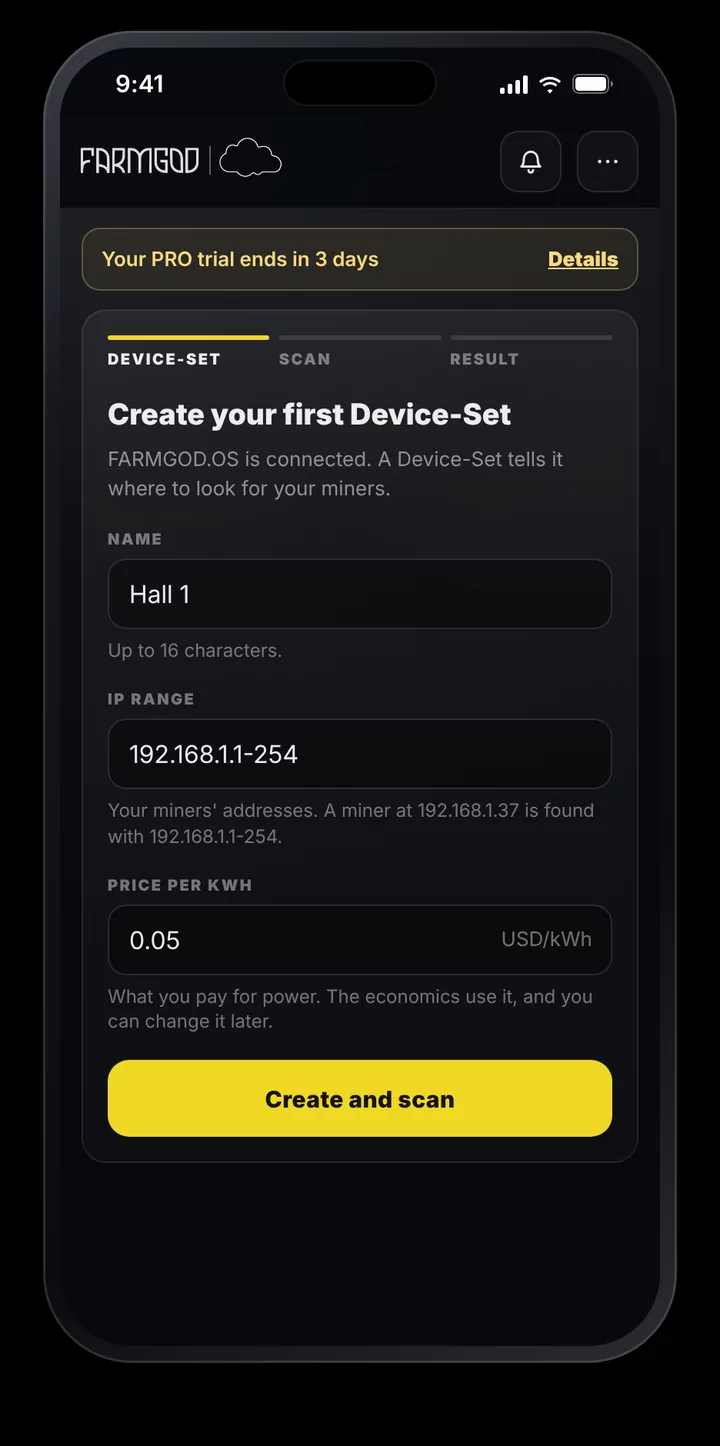
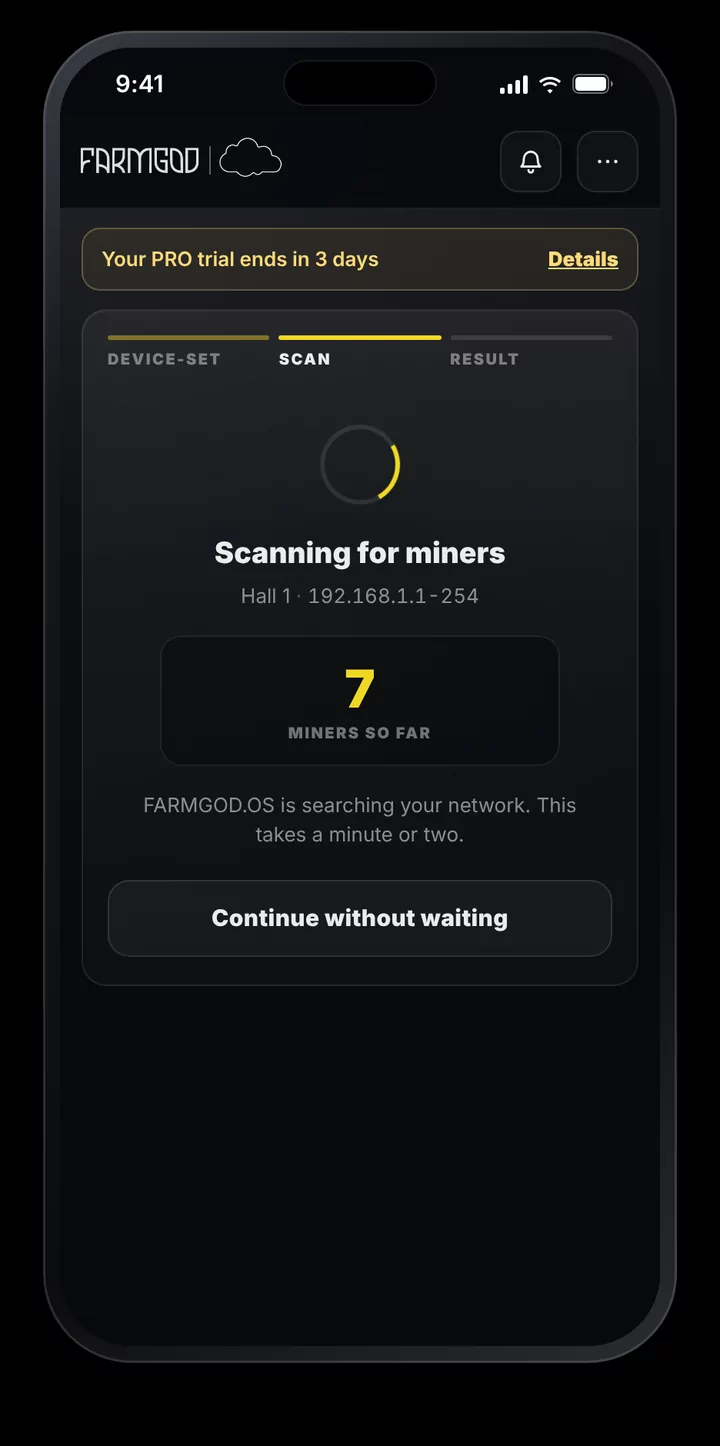
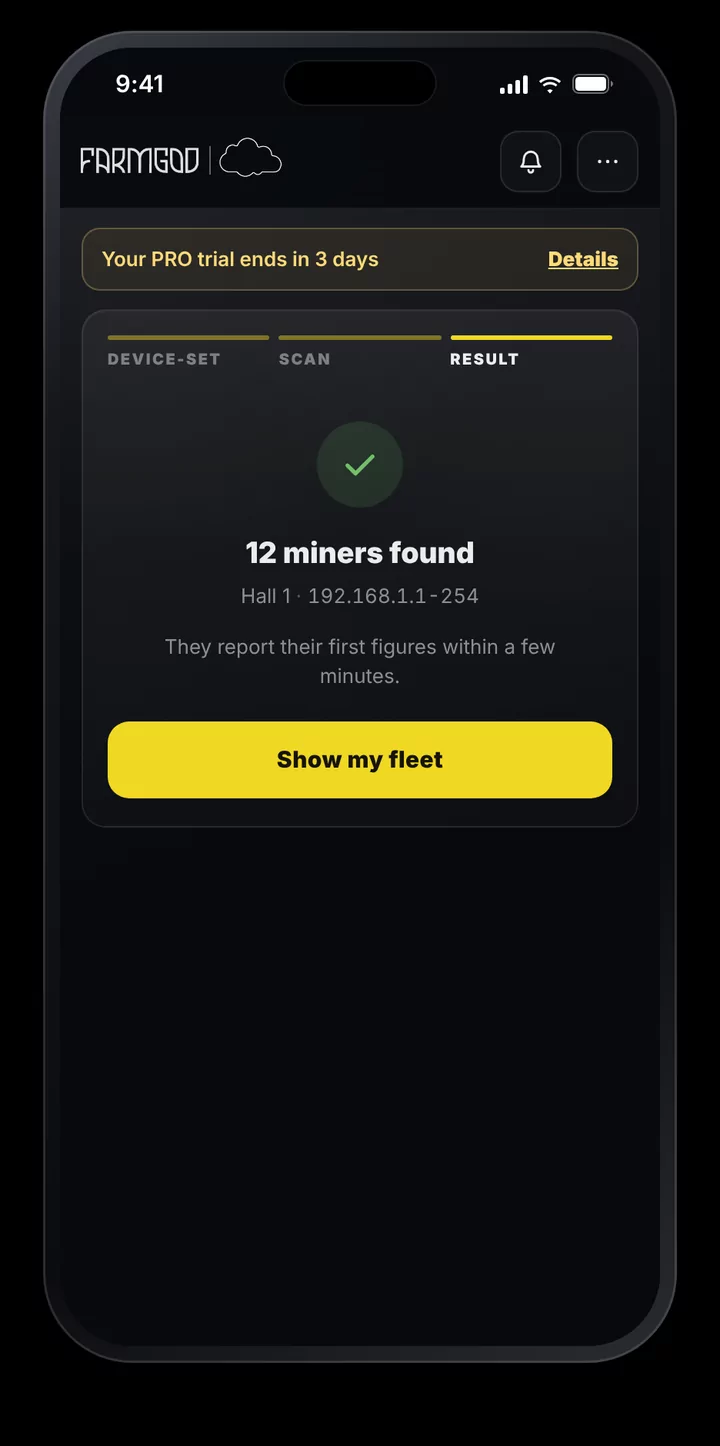
From the pairing code to your miners on the screen, all of it happens on the phone.
Bitcoin Radio, built in
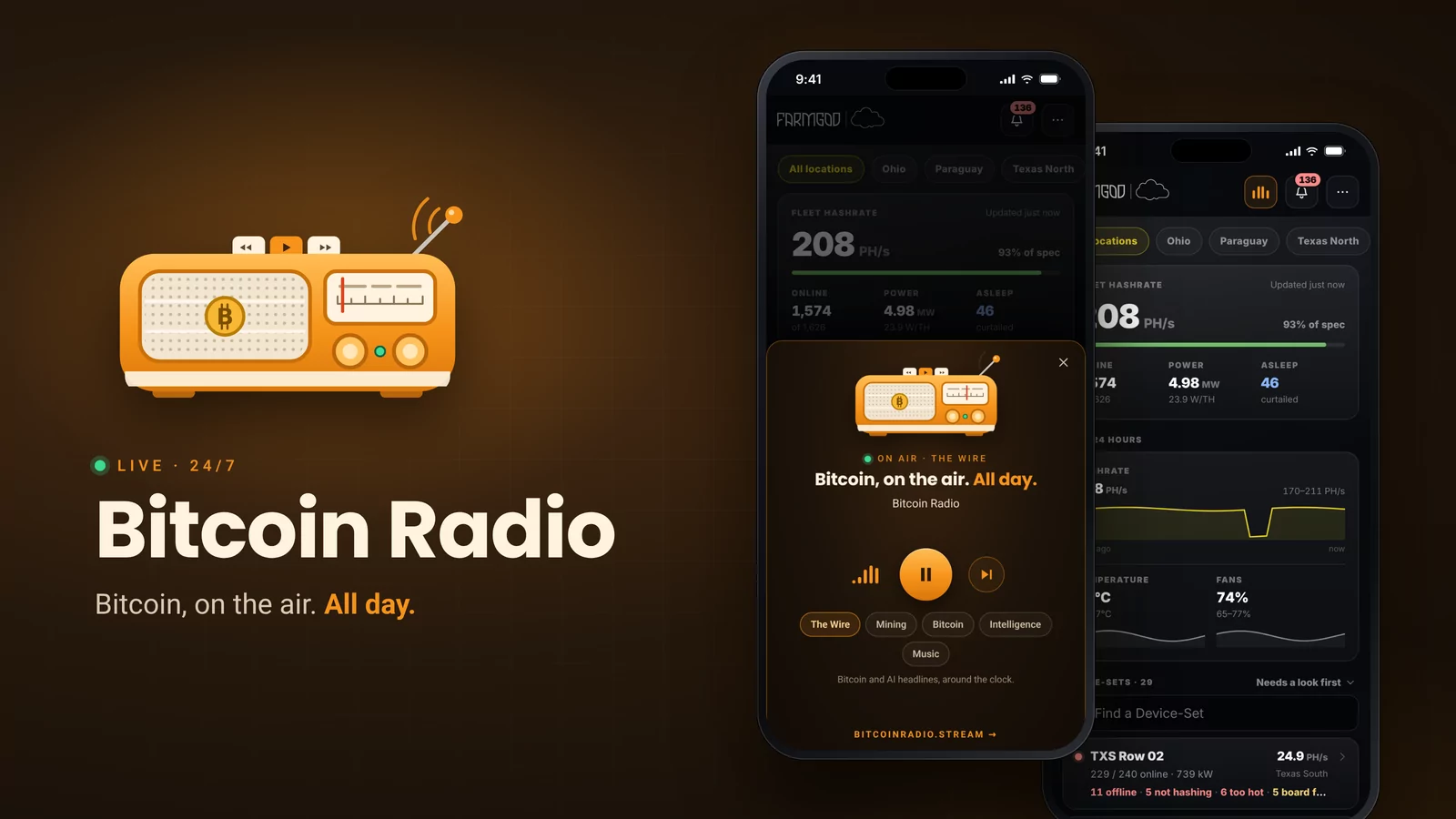
At the foot of the menu sits a small radio. Bitcoin Radio reads Bitcoin news, the network and the market around the clock, and it now plays right inside FARMGOD. Tap play, close the player and go on with your fleet: a small sign in the top bar shows that it is on air and brings the player back. Five stations are on the dial, from the news wire to mining and music.
Part of every plan
The phone view comes with FARMGOD at no extra cost:
- Cloud FREE: your fleet, your Device-Sets and every miner down to boards and chips, for up to 5 miners, with reboot and logs.
- Cloud PRO: all of it, with every action, for your whole fleet.
- Private VPS: all of it, plus the user management for hosting providers.
More pictures